A Slack bot that writes each teammate’s standup from their own connected tools. Build your own white-labelled bot, give it native Slack interactions with Composio’s proxy, and let a tool-router agent write the draft.
Standup is a crucial part of running an effective engineering team, and also oh so tedious: every morning, everyone digs back through what they did and writes it up. It’s worse for teams spread across timezones, where there’s no shared standup to anchor the day, so it’s easy to just forget.But the work you did is there: the PRs in GitHub, the docs in Notion, the decisions in Slack threads. If it’s all recorded somewhere, an agent should be able to at least draft it. Composio sessions make this incredibly easy for agents: a session hands the agent everything it needs, search to find the right tool, parallel execute to run many at once, a sandbox and volumes. It uses Composio to extract, parse, and cross-reference data across all those sources and write clean summaries of the real work your team shipped. All you have to do is create a session for your teammate and let it cook.
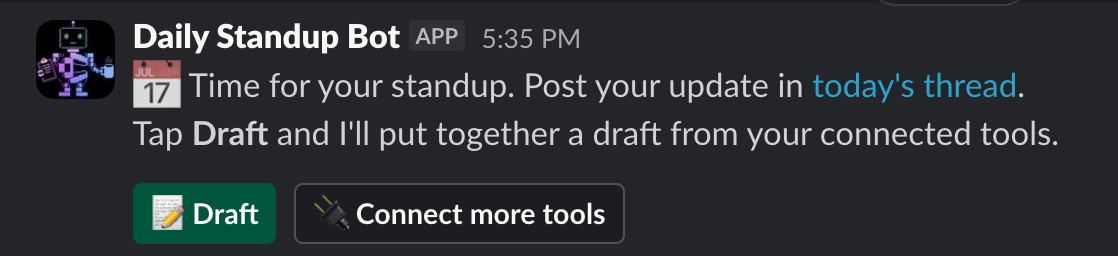
The daily reminder, with Draft and Connect more tools buttons
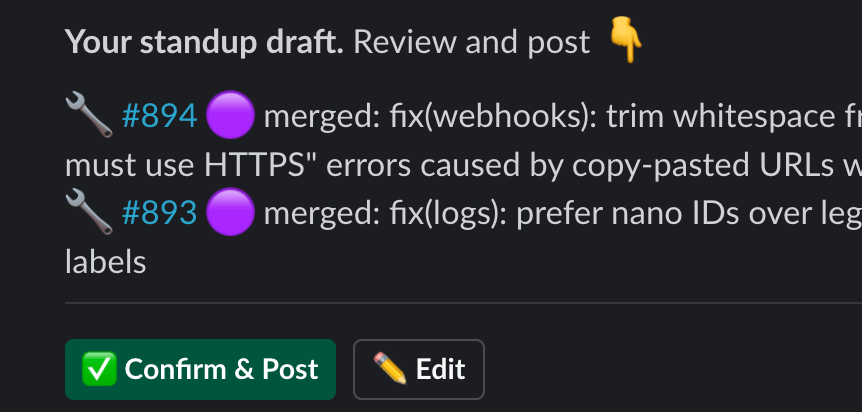
The draft the agent writes, delivered to a teammate in Slack
So we built a Slack bot that does exactly that. Once a day, at a set time in each teammate’s own timezone, it reminds them to post in the daily standup thread in a central channel. With one button click, they can run a subagent that uses their Composio connections to generate a clean, consolidated draft to review and post. We’ll build it step by step.
Is this the right example for you?This is a deliberately advanced, opinionated build. It’s a strong reference for five things:
Background-agent sessions: the draft agent runs on a schedule, not in a conversation. It works from the tools a member already connected and never pauses to ask for auth.
Manual execution for deterministic workflows: outside the draft, the bot doesn’t let an agent decide. It runs a fixed flow, calling tools directly with manual execution, so a button always triggers the same exact steps.
Manual, pre-connected auth: members connect their tools ahead of time using manual connections, and the agent just uses whatever is there.
White-labelling (advanced): your own Slack app and bot identity, via white-labelling. This is not the easy path. We’d recommend Composio’s managed apps, which require no additional configuration. Only do this if you specifically want your own branding.
The proxy (advanced): using proxyExecute to call Slack API endpoints Composio doesn’t wrap as tools.
It is not an example of in-chat or dynamic auth (asking a user to connect a tool mid-run), and it’s more setup than many bots need. If you’d rather have a Slack bot with zero setup (Composio’s managed app) or in-chat auth, start with the general Slack bot instead.
The Slack bot itself follows a deterministic flow: the same menu every day. When a member taps a button, it launches a subagent with a Composio session to produce the draft. Here’s the shape of it:
Setup
You need a Composio API key, a Slack workspace you can install an app into, and Node with tsx. The finished bot deploys to Vercel as two serverless functions, a cron and an interactivity handler, so there’s no long-running server.
npm install @composio/core @composio/vercel ai dayjs
pnpm add @composio/core @composio/vercel ai dayjs
yarn add @composio/core @composio/vercel ai dayjs
bun add @composio/core @composio/vercel ai dayjs
Make your custom Slack bot
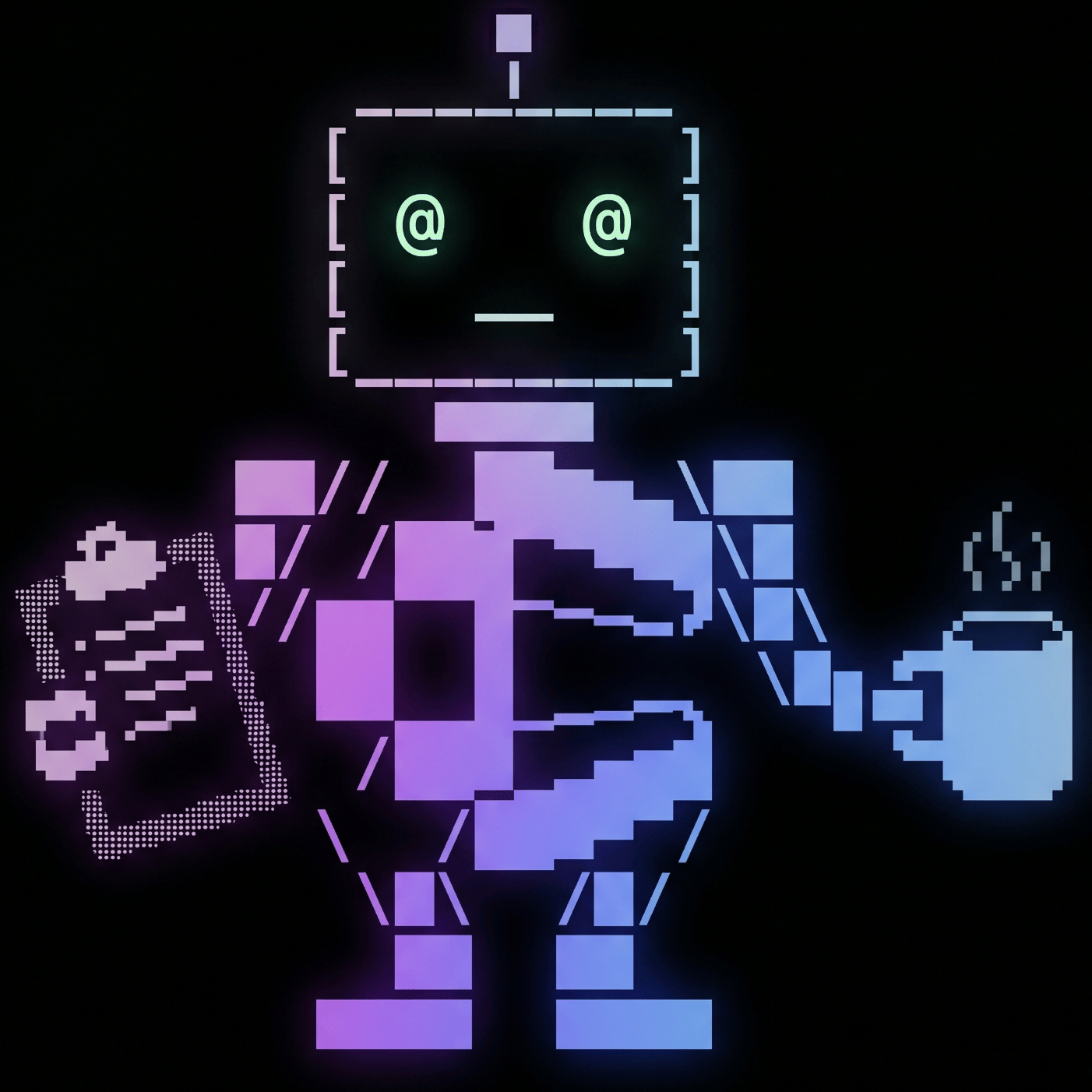
This bot doesn’t post as “Composio”. It posts as my app, with its own name, icon, and (frankly ridiculous) face:
That’s white-labelling: you bring your own Slack app’s credentials instead of using Composio-managed ones. Composio-managed auth needs no setup at all; white-labelling is the trade-off, you register and configure your own Slack app first. It’s more work, but the bot is fully yours.Slack’s app-creation UI changes from time to time, so the exact screens below may differ. First, the Slack app itself.
1
Create the app from scratch
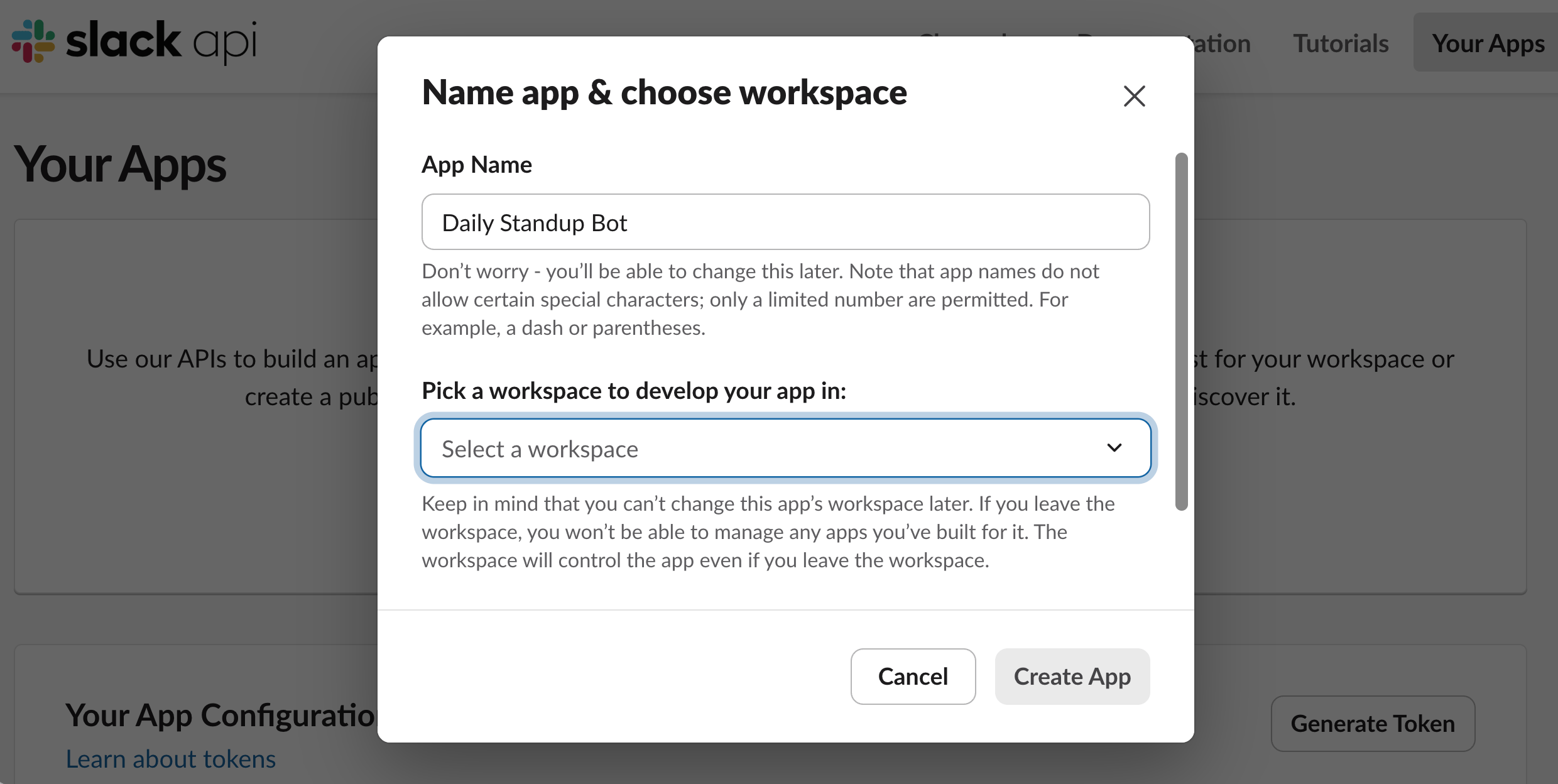
Create the app from scratch. At api.slack.com/apps, click Create an App, choose From scratch, name it (mine is Daily Standup Bot), and pick your workspace.
Create the app from scratch and name it
2
Add the Bot Token Scopes
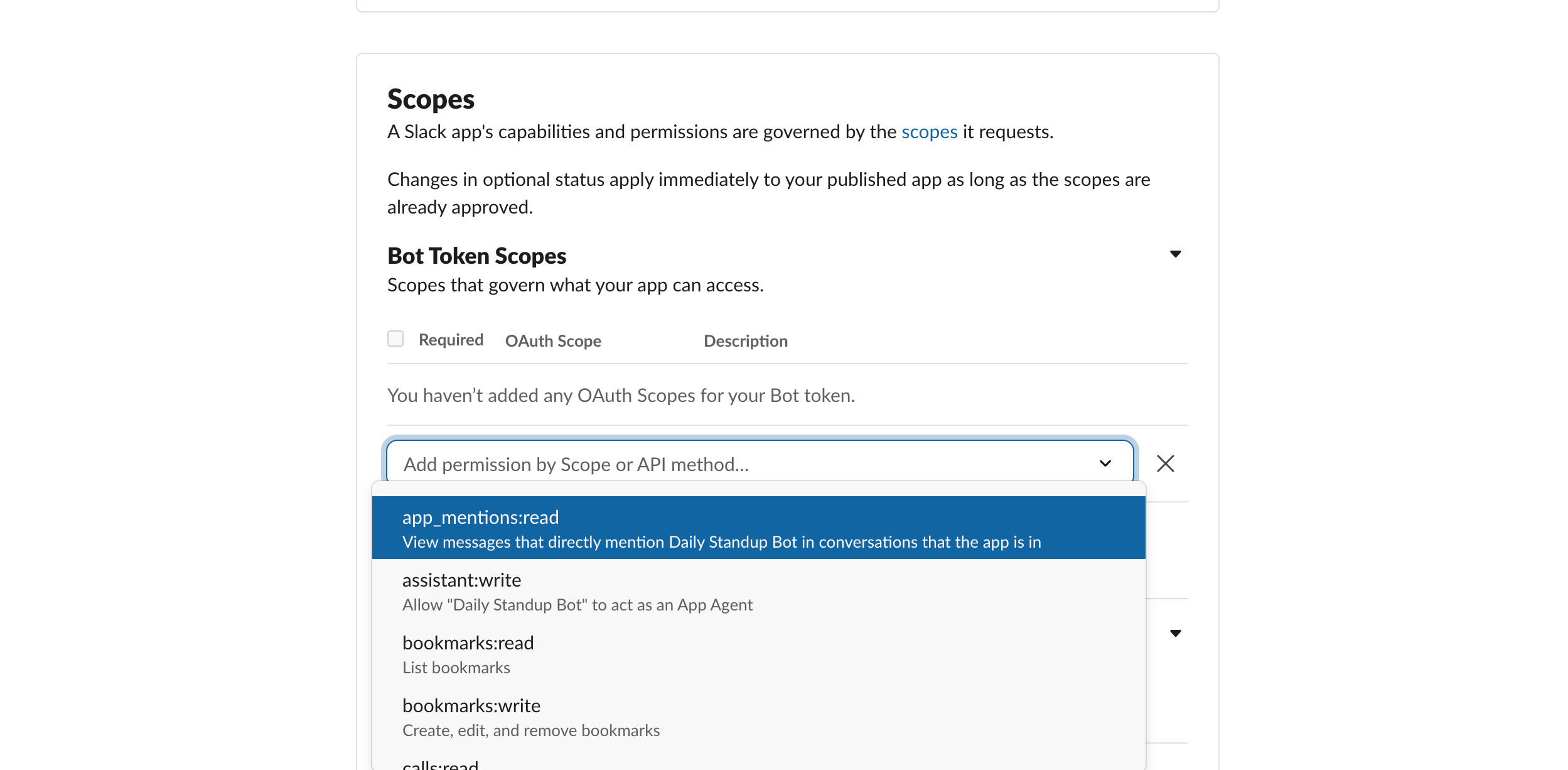
Add the Bot Token Scopes. Under OAuth & Permissions, add: chat:write, im:write, channels:history, channels:read, users:read, users:read.email, team:read. Then turn on Interactivity and point its Request URL at your deployment’s /api/interactivity.
Add the bot token scopes
3
Grab the app credentials
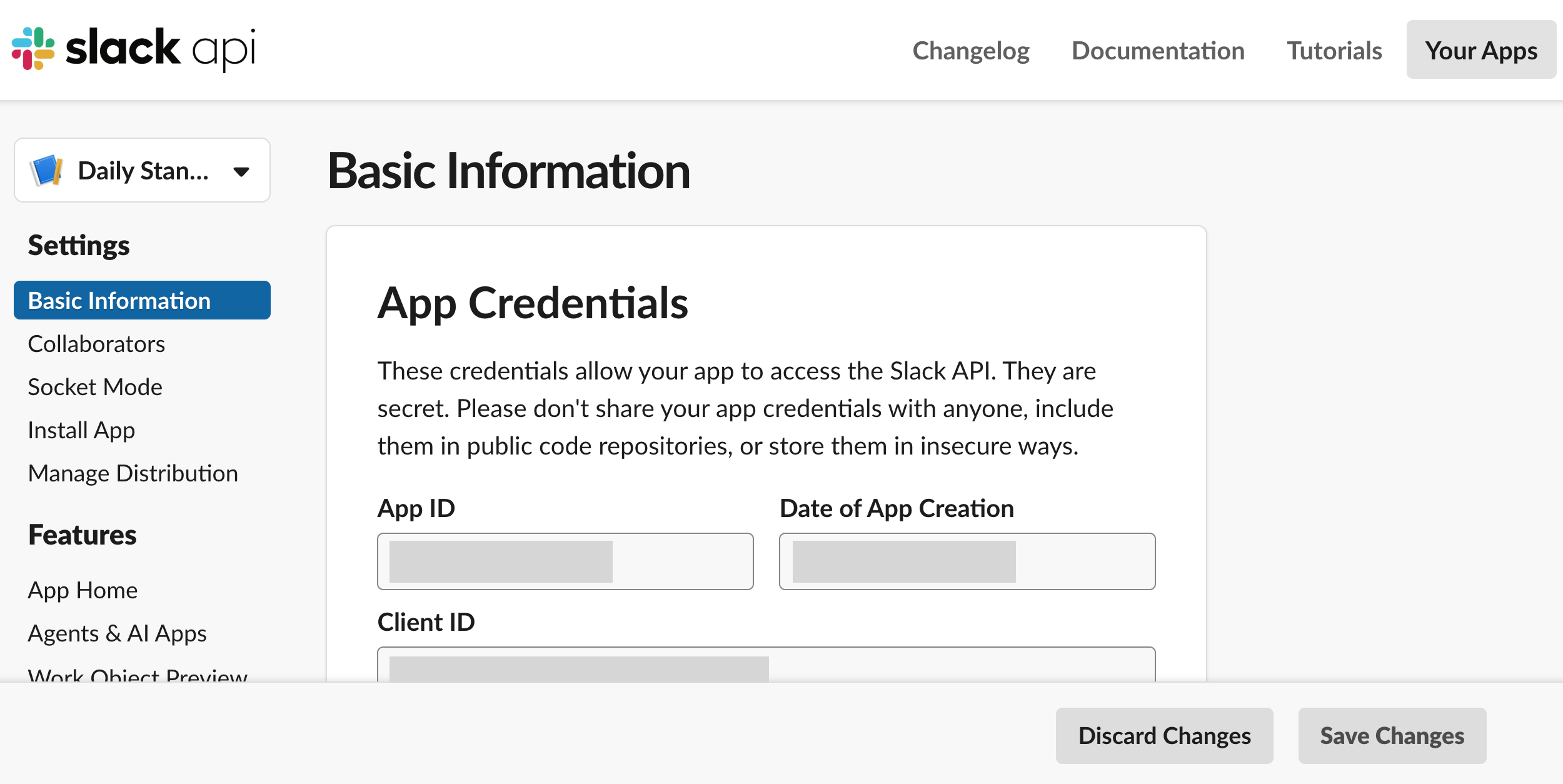
Grab the app credentials. On Basic Information, copy the Client ID and Client Secret. Composio drives the OAuth as your app with these.
Copy the Client ID and Secret
Auth the bot
The Slack app exists; now connect it through Composio so your code can act as it. You create one slackbot auth config from your credentials, then a setup script does the OAuth once with Composio’s manual authentication flow.
slackbot vs slackComposio has two Slack toolkits, and this bot uses both:
slackbot authenticates a Slack app and acts as the bot (a bot token). It posts the reminders and drafts as “Daily Standup Bot,” and it’s the one you white-label here.
slack authenticates an individual user and acts as them (a user token). Each teammate connects this so the bot can post their standup under their own name and read their activity for context.
Rule of thumb: posting as the bot uses slackbot; doing something as a person uses slack.
1
Create an auth config and pick the @@AUTHOREDINLINE00030@@ toolkit
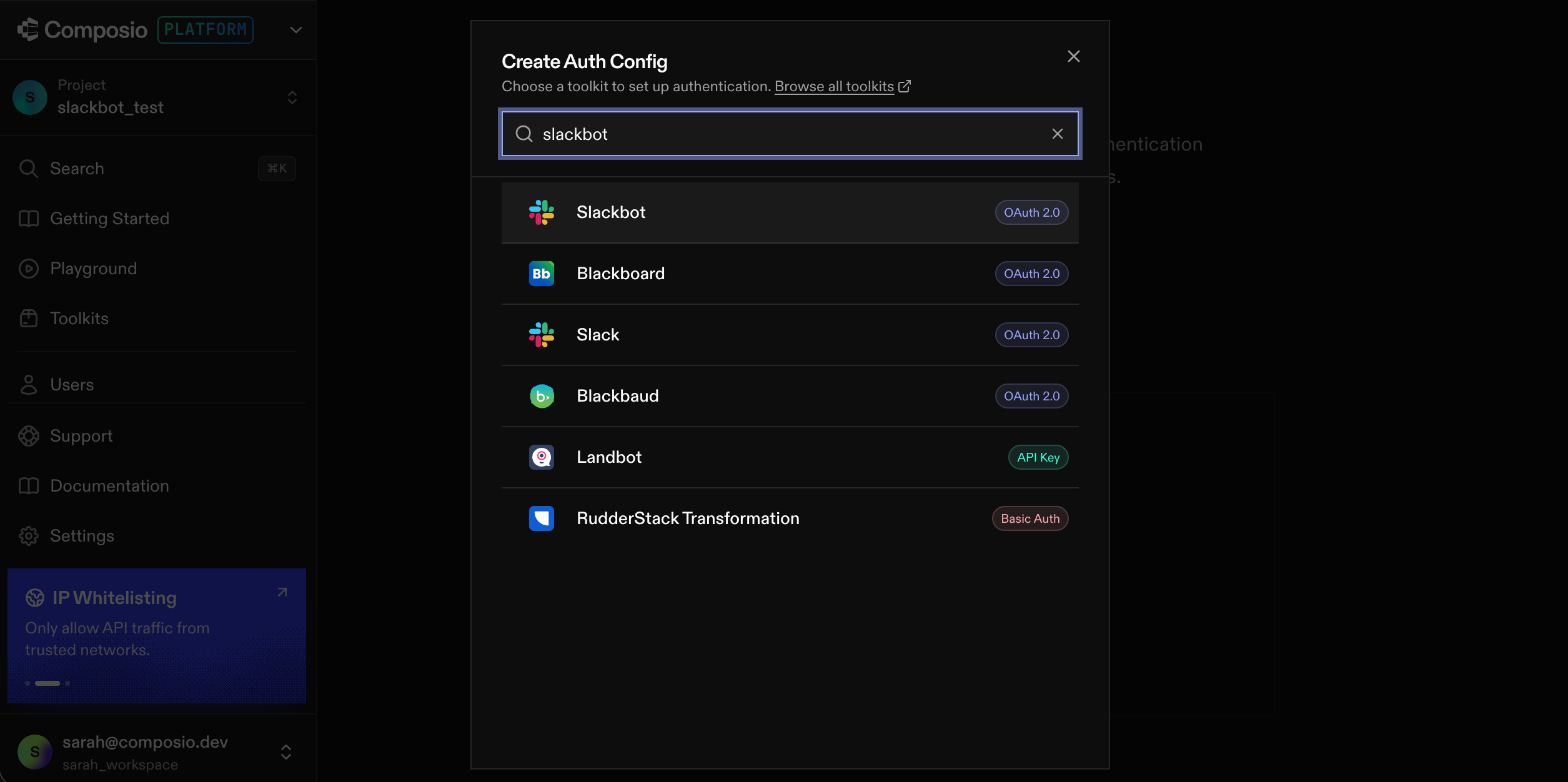
Create an auth config and pick the Slackbot toolkit. In the Composio dashboard, click Create Auth Config and search slackbot. Choose Slackbot, notSlack: Slackbot posts as the bot identity, while Slack acts as an individual user.
Pick Slackbot, not Slack
2
Use your own credentials
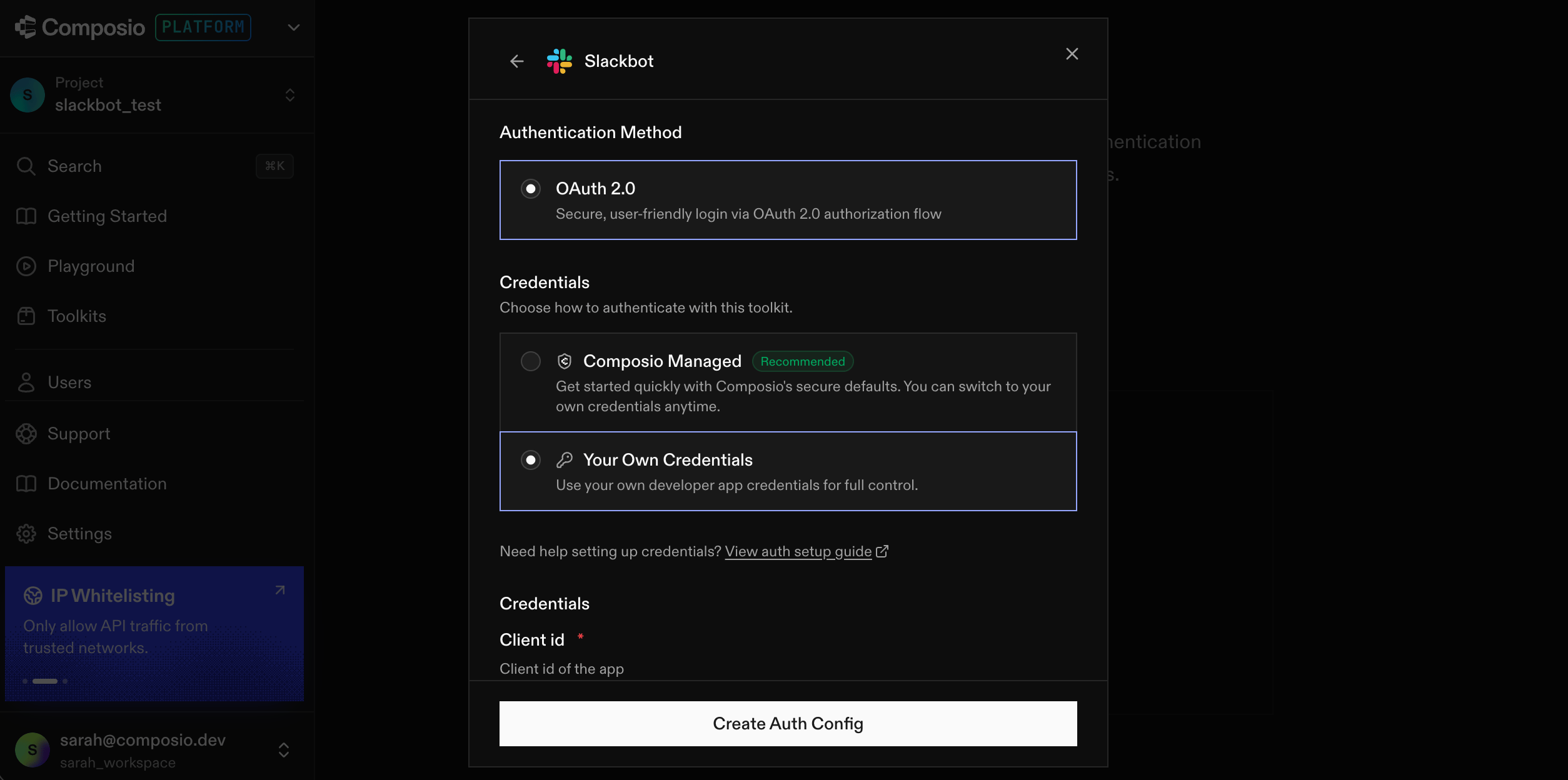
Use your own credentials. Pick OAuth 2.0, then Your Own Credentials, and paste the Client ID and Secret from before. Add team:read to the user token scopes. This is the white-label step: your app, your name, your face.
Use your own credentials
3
Save the auth config id
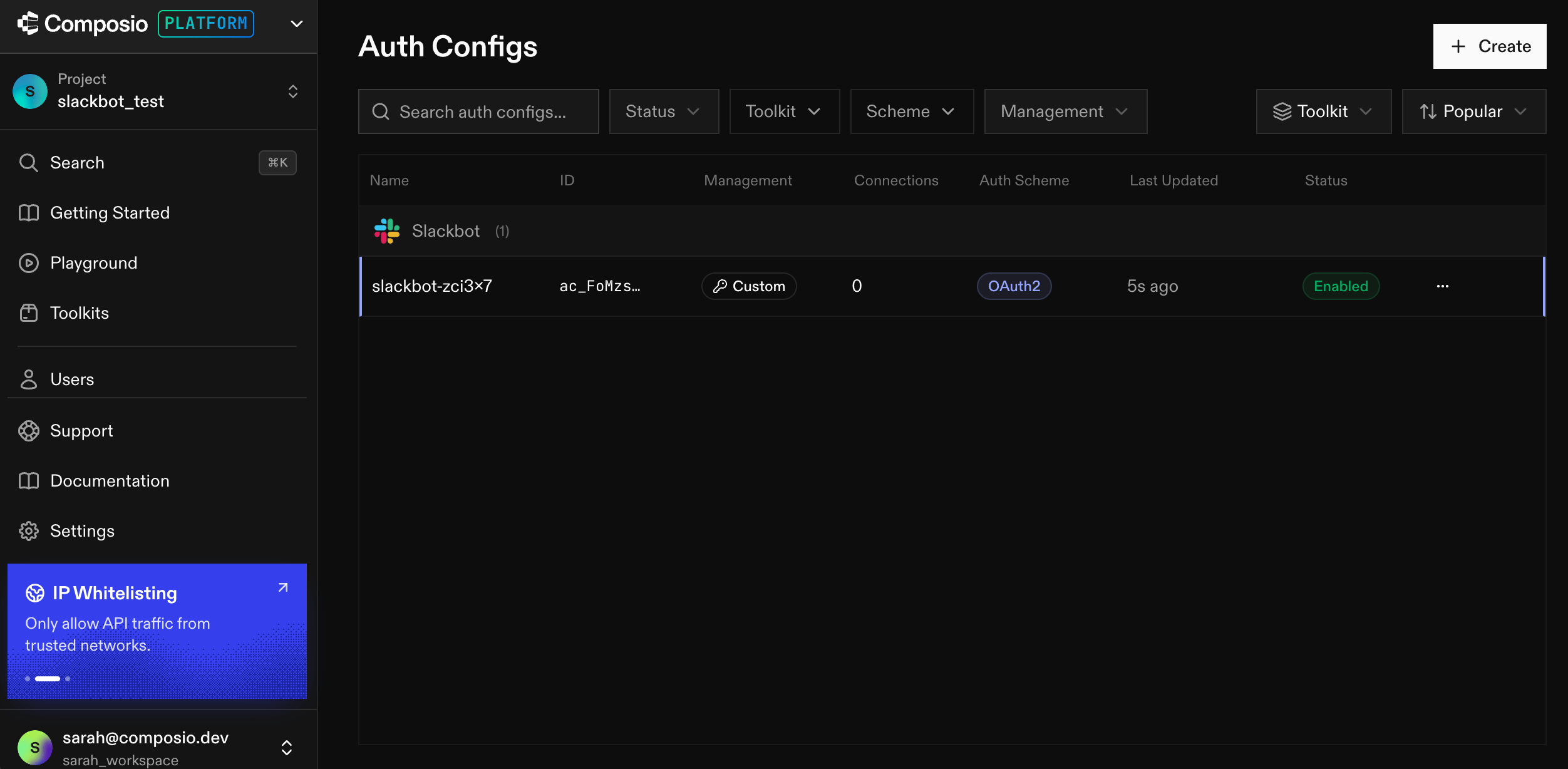
Save the auth config id. Once created, copy its ac_... id into COMPOSIO_SLACKBOT_AUTH_CONFIG_ID. This is the one auth config your app uses to take actions on behalf of your bot.
The created auth config and its ac_ id
4
Run the setup script to connect the bot
Run the setup script to connect the bot. For this bot, we first need to connect the bot itself to Composio, which only needs to be done once. The script creates an OAuth link for you to connect your Slack bot to Composio, which lets you use Composio to send messages on behalf of your bot.scripts/setup.ts — complete fileIf not connected, session.authorize() returns a Connect Link. Print it, then waitForConnection() resolves once the bot finishes OAuth. That connected account is the identity the bot posts as.
scripts/setup.ts
import { Composio } from '@composio/core';const composio = new Composio({ apiKey: process.env.COMPOSIO_API_KEY });const AUTH_CONFIG = process.env.COMPOSIO_SLACKBOT_AUTH_CONFIG_ID!;// Connect the bot's own Slack app once, so it can post and DM as the bot.async function main() { const session = await composio.create('default', { authConfigs: { slackbot: AUTH_CONFIG }, }); const toolkits = await session.toolkits({ toolkits: ['slackbot'] }); const active = toolkits.items.find((t) => t.slug === 'slackbot')?.connection?.isActive; if (active) { console.log('Bot already connected.'); return; } // Not connected: print the Connect Link, then wait for the user to finish. const connectionRequest = await session.authorize('slackbot'); console.log('Authorize the bot:', connectionRequest.redirectUrl); const account = await connectionRequest.waitForConnection(); console.log('Bot connected:', account.id);}main();
The first run prints a link and waits:
╭─────────────────────────────────────────────────────────╮│ Daily Standup Bot: One-Time Setup │╰─────────────────────────────────────────────────────────╯ ✅ Auth config has the required user scopes. · Bot is not connected yet. Generating an authorization link… Open this URL in your browser to authorize the bot: https://backend.composio.dev/s/AbC123xy Waiting for you to complete the OAuth flow (Ctrl+C to abort)… ✅ Bot connected to Slack.────────────────────────────────────────────────────────────────────── 🎉 Setup complete. Invite the bot to your standup channel and point your Slack app's Interactivity Request URL at https://<your-deployment>/api/interactivity──────────────────────────────────────────────────────────────────────
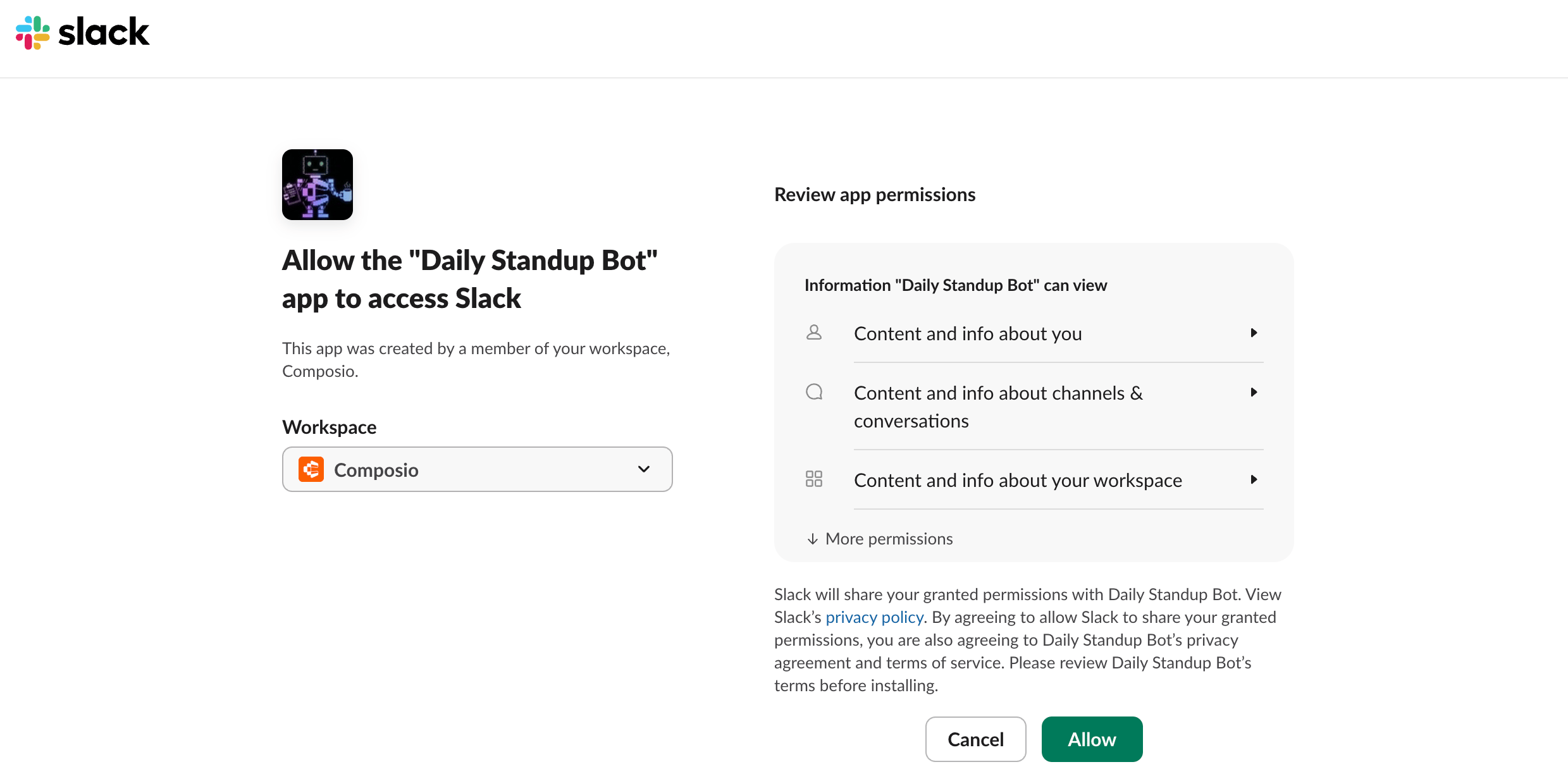
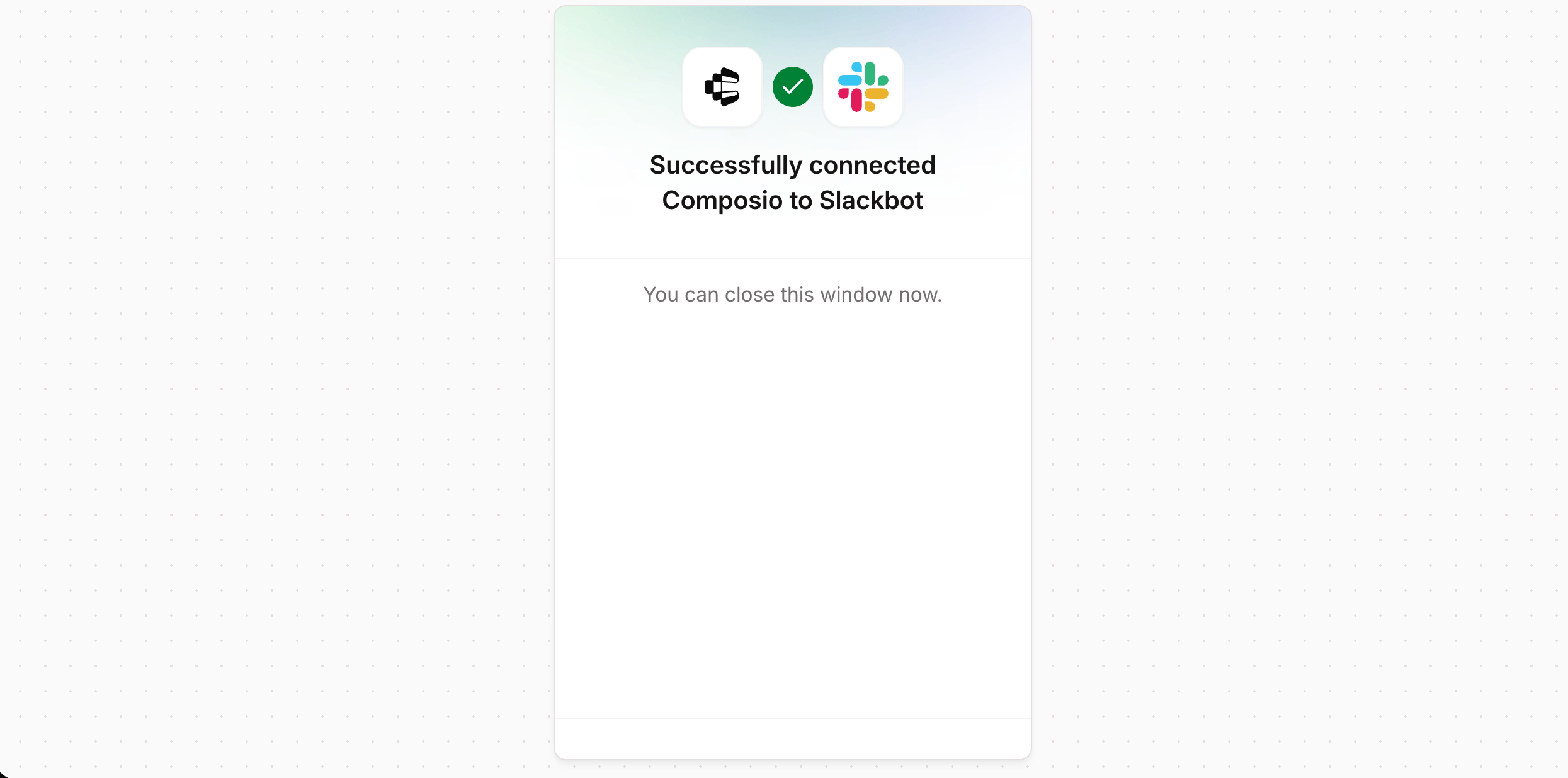
Open that link to approve the bot, and the connection goes live:
Approve the bot in Slack
Connected
The script is idempotent and repeatable. Forgot a scope, or hit an issue? No stress, just re-run it with --reconnect.
Talk to Slack
To send and update messages in our deterministic bot workflow, we use Composio’s SLACKBOT_SEND_MESSAGE and SLACKBOT_UPDATES_A_MESSAGE tools via manual tool execution. SLACKBOT_SEND_MESSAGE takes Block Kit blocks, so a message with interactive buttons can go through a tool too.api/_utils/slack.ts — step 1: Send and update with named toolsSending and updating are tools: SLACKBOT_SEND_MESSAGE and SLACKBOT_UPDATES_A_MESSAGE both take Block Kit blocks, so even the interactive button menus go through tools, not the proxy.
api/_utils/slack.ts
import { composio } from './composio';const BOT_USER = 'default';// Sending a message is a named tool, even when it carries interactive buttons:// SLACKBOT_SEND_MESSAGE takes markdown_text for prose, or Block Kit `blocks`.export async function postMessage(channel: string, text: string, blocks?: unknown[]) { const res = await composio.tools.execute('SLACKBOT_SEND_MESSAGE', { userId: BOT_USER, arguments: blocks ? { channel, blocks } : { channel, markdown_text: text }, }); return res.data as { ts?: string };}// Updating the draft after an edit is a tool too: SLACKBOT_UPDATES_A_MESSAGE.export async function updateMessage(channel: string, ts: string, blocks: unknown[]) { await composio.tools.execute('SLACKBOT_UPDATES_A_MESSAGE', { userId: BOT_USER, arguments: { channel, ts, blocks }, });}
When a Slack action has no tool, like opening a modal (views.open), it drops to proxyExecute: the escape hatch for anything the named tools don’t cover, hitting any Slack Web API endpoint as a connected account with no token in your code.api/_utils/slack.ts — step 2: The proxy for the one thing without a toolOpening a modal (views.open) has no Composio tool, so it drops to proxyExecute as the bot’s connected account: the escape hatch for anything the named tools don’t cover.
api/_utils/slack.ts
import { composio } from './composio';const BOT_USER = 'default';// Sending a message is a named tool, even when it carries interactive buttons:// SLACKBOT_SEND_MESSAGE takes markdown_text for prose, or Block Kit `blocks`.export async function postMessage(channel: string, text: string, blocks?: unknown[]) { const res = await composio.tools.execute('SLACKBOT_SEND_MESSAGE', { userId: BOT_USER, arguments: blocks ? { channel, blocks } : { channel, markdown_text: text }, }); return res.data as { ts?: string };}// Updating the draft after an edit is a tool too: SLACKBOT_UPDATES_A_MESSAGE.export async function updateMessage(channel: string, ts: string, blocks: unknown[]) { await composio.tools.execute('SLACKBOT_UPDATES_A_MESSAGE', { userId: BOT_USER, arguments: { channel, ts, blocks }, });}// Opening a modal (views.open) has no Composio tool, so it drops to the proxy.// proxyExecute hits the raw endpoint as the bot's connected account, the escape// hatch for anything the named tools don't cover.export async function openModal(triggerId: string, view: unknown) { const { items } = await composio.connectedAccounts.list({ userIds: [BOT_USER], toolkitSlugs: ['slackbot'], statuses: ['ACTIVE'], }); await composio.tools.proxyExecute({ endpoint: '/views.open', method: 'POST', body: { trigger_id: triggerId, view }, connectedAccountId: items[0]?.id, });}
Make the buttons work
Our StandUp bot gives the user two options every morning: Draft or Connect more tools. Each message uses Block Kit to create those buttons. For each button we define an action_id that lets us recognise which button was clicked.
The daily reminder, with Draft and Connect more tools buttons
When it’s clicked, Slack POSTs to your /api/interactivity handler. Verify the request, ack within Slack’s 3-second window, then route on the action_id:api/interactivity.ts — complete fileThe button carried its context in value. Switch on the action_id and call the right function. Draft launches the subagent; the rest post through the proxy. The flow is deterministic, no model in the loop.
api/interactivity.ts
import { verifySlackSignature, readRawBody, updateMessage, postAsMember } from './_utils/slack';import { generateDraft } from './_utils/agent';import { draftMessage, connectMenu } from './_utils/blocks';type SlackInteractionPayload = { actions?: Array<{ action_id?: string; value?: string; }>;};// Slack POSTs here every time someone clicks a button. Verify it really came// from Slack, then ack within 3 seconds (Slack retries if you're slow).export default async function handler(req: Request, res: Response) { const body = await readRawBody(req); if (!verifySlackSignature(body, req.headers)) return res.status(401).end(); const payload = JSON.parse(new URLSearchParams(body).get('payload') ?? '{}'); res.status(200).end(); // ack immediately await handleClick(payload); // then do the slow work}// Each button carried its context in `value`, so the handler knows exactly what// to do. No model decides anything here: the flow is fixed.async function handleClick(payload: SlackInteractionPayload) { const action = payload.actions?.[0]; const ctx = JSON.parse(action?.value ?? '{}'); if (action?.action_id === 'draft') { const draft = await generateDraft(ctx.memberEmail); // launch the subagent await updateMessage(ctx.dmChannel, ctx.dmTs, draftMessage(draft, ctx)); } else if (action?.action_id === 'connect') { await updateMessage(ctx.dmChannel, ctx.dmTs, connectMenu(ctx)); } else if (action?.action_id === 'confirm') { await postAsMember(ctx.memberEmail, ctx.channel, ctx.draft, ctx.threadTs); }}
Connect more tools generates a per-member OAuth link for each toolkit the member hasn’t connected, so they can add a source without leaving Slack:
Connect more tools, each button a per-member OAuth link
Edit opens a modal (views.open through the proxy), and Confirm posts the draft into the day’s thread as the member.
Draft the standup
Now this is the cool and magical part, and the easy part: all the background agent needs is a tool-router session and a prompt. When a member taps Draft, you spin up a session scoped to the toolkit catalogue and let the agent research and write.
A session writes the draft
A tool-router session gives the agent its tools. Pass the member’s email and your full list of toolkits, hand the tools to the model, and let it investigate and write. You don’t have to check which ones the member set up: the session only exposes tools for the accounts they’ve actually connected, and ignores the rest.api/_utils/agent.ts — step 1: A tool-router session writes the draftCreate a session for the member, scoped to the toolkit catalogue, hand its research tools to the model, and let it investigate and write. You don’t list what they connected: the session just uses whatever they’ve authorized.
api/_utils/agent.ts
import { Composio } from '@composio/core';import { VercelProvider } from '@composio/vercel';import { generateText, stepCountIs } from 'ai';const composio = new Composio({ apiKey: process.env.COMPOSIO_API_KEY, provider: new VercelProvider(),});// The toolkits the bot can draft from. A member only has some of these connected,// and that's fine: the session just uses whatever they've actually authorized.const TOOLKITS = ['github', 'linear', 'notion', 'googlecalendar', 'slack'];// Spin up a tool-router session for one member and let the agent research and// write their standup. session.tools() returns Composio's research meta-tools// (search / execute / workbench), scoped to those toolkits.export async function generateDraft(memberEmail: string) { const session = await composio.create(memberEmail, { toolkits: TOOLKITS }); const tools = await session.tools(); const { text } = await generateText({ model: 'anthropic/claude-sonnet-4-5', system: "Write a concise daily standup from the member's recent activity.", prompt: 'Research and write the standup update.', tools, stopWhen: stepCountIs(40), }); return text.trim();}
Use what’s connected, nothing more
The router can also manage connections, asking the user to authorize any toolkits they haven’t connected yet. During a draft you don’t want that: if the agent reaches for a tool the member hasn’t connected, it should skip it, not prompt them to log in. manageConnections: false removes those meta-tools, so the agent drafts from exactly what’s already connected.api/_utils/agent.ts — step 2: Keep the agent from connecting mid-draftmanageConnections:false removes the connection meta-tools, so the agent drafts from what the member already connected and never starts an OAuth flow while drafting.
api/_utils/agent.ts
import { Composio } from '@composio/core';import { VercelProvider } from '@composio/vercel';import { generateText, stepCountIs } from 'ai';const composio = new Composio({ apiKey: process.env.COMPOSIO_API_KEY, provider: new VercelProvider(),});// The toolkits the bot can draft from. A member only has some of these connected,// and that's fine: the session just uses whatever they've actually authorized.const TOOLKITS = ['github', 'linear', 'notion', 'googlecalendar', 'slack'];// Spin up a tool-router session for one member and let the agent research and// write their standup. session.tools() returns Composio's research meta-tools// (search / execute / workbench), scoped to those toolkits.export async function generateDraft(memberEmail: string) { // manageConnections:false strips the connection meta-tools. The agent drafts // from whatever the member already connected and never starts an OAuth flow // mid-draft: if a tool needs auth, it's simply not in the session. const session = await composio.create(memberEmail, { toolkits: TOOLKITS, manageConnections: false, }); const tools = await session.tools(); const { text } = await generateText({ model: 'anthropic/claude-sonnet-4-5', system: "Write a concise daily standup from the member's recent activity.", prompt: 'Research and write the standup update.', tools, stopWhen: stepCountIs(40), }); return text.trim();}
The bot posts the result back as a draft the member can confirm or edit:
The draft the agent writes, delivered to a teammate in Slack
The whole project
The standup bot browser is a documentation snapshot; a public repository is not available.
Run it
Edit standup.config.ts with your team (each member’s Slack email and timezone, plus your channel and GitHub org), set your four environment variables, run npx tsx scripts/setup.ts once to connect your bot, then vercel deploy.
Configuring sessions
White-labeling authentication
Custom vs managed auth
Triggers
{"docsConfig":{"theme":"sequoia","$schema":"https://mintlify.com/docs.json","name":"Composio Docs","description":"Build AI agents with 1,700+ apps. Connect LLMs to external services like GitHub, Slack, Gmail, and more.","colors":{"primary":"#0007CD","light":"#5B8BF0","dark":"#5B8BF0"},"logo":{"light":"https://mintcdn.com/composio-preview/cL3pOAF8H-TYHF1S/Composio%20Logo.svg?fit=max\u0026auto=format\u0026n=cL3pOAF8H-TYHF1S\u0026q=85\u0026s=c959b1b97e22caccd03fe5d3d71ab52b","dark":"https://mintcdn.com/composio-preview/cL3pOAF8H-TYHF1S/Composio%20Logo%20Dark.svg?fit=max\u0026auto=format\u0026n=cL3pOAF8H-TYHF1S\u0026q=85\u0026s=1b31206b6350aa17315c7ea06c829de5","href":"/docs"},"favicon":{"light":"https://mintcdn.com/composio-preview/cL3pOAF8H-TYHF1S/favicon.ico?fit=max\u0026auto=format\u0026n=cL3pOAF8H-TYHF1S\u0026q=85\u0026s=1e12b5b301d9c338a1c87e58589a4e99","dark":"https://mintcdn.com/composio-preview/cL3pOAF8H-TYHF1S/favicon.ico?fit=max\u0026auto=format\u0026n=cL3pOAF8H-TYHF1S\u0026q=85\u0026s=1e12b5b301d9c338a1c87e58589a4e99"},"api":{"playground":{"display":"interactive"},"examples":{"languages":["python","typescript","bash","go","java","csharp","rust"]}},"appearance":{"default":"dark"},"navbar":{"links":[{"icon":{"style":"brands","name":"github","library":"fontawesome"},"href":"https://github.com/composiohq/composio","type":"github"},{"icon":{"style":"brands","name":"x-twitter","library":"fontawesome"},"href":"https://x.com/composiodevs","label":""}],"primary":{"type":"button","label":"Playground","href":"https://dashboard.composio.dev/~/project/playground?utm_source=docs\u0026utm_medium=navbar\u0026utm_campaign=playground"}},"seo":{"metatags":{"og:site_name":"Composio Docs","robots":"noindex"},"indexing":"all"},"fonts":{"family":"ABC Diatype","weight":400,"source":"fonts/ABCDiatype-Regular.woff2","format":"woff2"},"contextual":{"options":["copy","view","assistant","chatgpt","claude","perplexity","mcp","download-spec"],"display":"header"},"interaction":{"drilldown":true},"styling":{"latex":true},"navigation":{"pages":[]}},"deployment":{"deploymentMetadataValue":{"subdomain":"composio-preview","hasAudioNarration":false,"actualSubdomain":"composio-preview","customDomains":[],"gitSource":{"type":"github","owner":"mintlify-onboarding","repo":"composio-preview","deployBranch":"main","contentDirectory":"","isPrivate":true,"mountPath":"","label":""},"entitlements":{"AI_CHAT":{"status":"ENABLED"},"REMOVE_BRANDING":{"status":"ENABLED"},"CONTEXTUAL_FEEDBACK":{"status":"ENABLED"},"CODE_SNIPPET_FEEDBACK":{"status":"ENABLED"},"WEB_MCP":{"status":"ENABLED"},"NARRATION":{"status":"ENABLED"}},"buildId":"6aee717af538f2c21575e5ef","clientVersion":"0.0.4128","searchFilterCounts":[{"language":"default","tag":"Reference","count":403},{"language":"default","tag":"API Reference","count":180},{"language":"default","tag":"Docs","count":80},{"language":"default","tag":"Platform","count":77},{"language":"default","tag":"Toolkits","count":48},{"language":"default","tag":"MCP","count":44},{"language":"default","tag":"Connected Accounts","count":36},{"language":"default","tag":"Triggers","count":34},{"language":"default","tag":"Sessions (prev Tool Router)","count":33},{"language":"default","tag":"Sessions (Prev Tool Router)","count":33}]},"assistantConfig":{},"basePath":"","hasChatPermissions":true,"hasWebMcpPermissions":true,"toggles":[{"name":"kill-isr","enabled":true,"variant":{"name":"disabled","enabled":false,"feature_enabled":true},"impressionData":false},{"name":"custom-rbac-roles","enabled":true,"variant":{"name":"disabled","enabled":false,"feature_enabled":true},"impressionData":false},{"name":"agent-mintlify-slack","enabled":true,"variant":{"name":"disabled","enabled":false,"feature_enabled":true},"impressionData":false},{"name":"agent-integrations-settings","enabled":true,"variant":{"name":"disabled","enabled":false,"feature_enabled":true},"impressionData":false},{"name":"rbac-expansion","enabled":true,"variant":{"name":"disabled","enabled":false,"feature_enabled":true},"impressionData":false},{"name":"automations-pr-grouping","enabled":true,"variant":{"name":"disabled","enabled":false,"feature_enabled":true},"impressionData":false},{"name":"custom-prefix","enabled":true,"variant":{"name":"disabled","enabled":false,"feature_enabled":true},"impressionData":false},{"name":"analytics-v7","enabled":true,"variant":{"name":"disabled","enabled":false,"feature_enabled":true},"impressionData":false},{"name":"user-flows-analytics","enabled":true,"variant":{"name":"disabled","enabled":false,"feature_enabled":true},"impressionData":false},{"name":"no-publish-flow","enabled":true,"variant":{"name":"disabled","enabled":false,"feature_enabled":true},"impressionData":false},{"name":"workos-onboarding","enabled":true,"variant":{"name":"disabled","enabled":false,"feature_enabled":true},"impressionData":false},{"name":"snapshot-serving-live","enabled":true,"variant":{"name":"disabled","enabled":false,"feature_enabled":true},"impressionData":false},{"name":"stripTemperatureMiddleware","enabled":true,"variant":{"name":"disabled","enabled":false,"feature_enabled":true},"impressionData":false},{"name":"support-platform-pylon-zendesk","enabled":true,"variant":{"name":"disabled","enabled":false,"feature_enabled":true},"impressionData":false},{"name":"snapshot-serving","enabled":true,"variant":{"name":"disabled","enabled":false,"feature_enabled":true},"impressionData":false},{"name":"instant-rollback","enabled":true,"variant":{"name":"disabled","enabled":false,"feature_enabled":true},"impressionData":false},{"name":"granular-notifications-server","enabled":true,"variant":{"name":"disabled","enabled":false,"feature_enabled":true},"impressionData":false},{"name":"granular-notifications","enabled":true,"variant":{"name":"disabled","enabled":false,"feature_enabled":true},"impressionData":false},{"name":"automations-fable","enabled":true,"variant":{"name":"disabled","enabled":false,"feature_enabled":true},"impressionData":false},{"name":"fixed-ai-action-pricing","enabled":true,"variant":{"name":"disabled","enabled":false,"feature_enabled":true},"impressionData":false},{"name":"site-roles","enabled":true,"variant":{"name":"disabled","enabled":false,"feature_enabled":true},"impressionData":false},{"name":"automation-resolve-merge-conflict","enabled":true,"variant":{"name":"disabled","enabled":false,"feature_enabled":true},"impressionData":false},{"name":"scoped-publishing","enabled":true,"variant":{"name":"disabled","enabled":false,"feature_enabled":true},"impressionData":false},{"name":"mintql","enabled":true,"variant":{"name":"disabled","enabled":false,"feature_enabled":true},"impressionData":false},{"name":"page-level-analytics","enabled":true,"variant":{"name":"disabled","enabled":false,"feature_enabled":true},"impressionData":false},{"name":"editor-version-history-v2","enabled":true,"variant":{"name":"disabled","enabled":false,"feature_enabled":true},"impressionData":false},{"name":"billing-page-v2","enabled":true,"variant":{"name":"disabled","enabled":false,"feature_enabled":true},"impressionData":false},{"name":"full-page-search","enabled":true,"variant":{"name":"disabled","enabled":false,"feature_enabled":true},"impressionData":false},{"name":"workspace-projects","enabled":true,"variant":{"name":"disabled","enabled":false,"feature_enabled":true},"impressionData":false},{"name":"assistant-v5","enabled":true,"variant":{"name":"disabled","enabled":false,"feature_enabled":true},"impressionData":false},{"name":"fork-pr-previews","enabled":true,"variant":{"name":"disabled","enabled":false,"feature_enabled":true},"impressionData":false},{"name":"revalidation-jwt","enabled":true,"variant":{"name":"disabled","enabled":false,"feature_enabled":true},"impressionData":false},{"name":"workos-sso-scim","enabled":true,"variant":{"name":"disabled","enabled":false,"feature_enabled":true},"impressionData":false},{"name":"hobby-abuse-scan","enabled":true,"variant":{"name":"disabled","enabled":false,"feature_enabled":true},"impressionData":false},{"name":"dashboard-inbox","enabled":true,"variant":{"name":"disabled","enabled":false,"feature_enabled":true},"impressionData":false},{"name":"workos-signup","enabled":true,"variant":{"name":"disabled","enabled":false,"feature_enabled":true},"impressionData":false},{"name":"turbopuffer-dual-write","enabled":true,"variant":{"name":"disabled","enabled":false,"feature_enabled":true},"impressionData":false},{"name":"workos-enabled","enabled":true,"variant":{"name":"disabled","enabled":false,"feature_enabled":true},"impressionData":false},{"name":"approve-review-flow","enabled":true,"variant":{"name":"disabled","enabled":false,"feature_enabled":true},"impressionData":false},{"name":"editor-metadata","enabled":true,"variant":{"name":"disabled","enabled":false,"feature_enabled":true},"impressionData":false},{"name":"sso-setup-deadline-banner","enabled":true,"variant":{"name":"disabled","enabled":false,"feature_enabled":true},"impressionData":false},{"name":"turbopuffer-serve","enabled":true,"variant":{"name":"disabled","enabled":false,"feature_enabled":true},"impressionData":false},{"name":"live-agents","enabled":true,"variant":{"name":"disabled","enabled":false,"feature_enabled":true},"impressionData":false},{"name":"starter-pricing","enabled":true,"variant":{"name":"control","enabled":true,"payload":{"type":"string","value":"control"},"feature_enabled":true},"impressionData":false},{"name":"llms-txt-v2","enabled":true,"variant":{"name":"disabled","enabled":false,"feature_enabled":true},"impressionData":false},{"name":"wildcard-email-auth","enabled":true,"variant":{"name":"disabled","enabled":false,"feature_enabled":true},"impressionData":false}],"googleFontsInlined":false},"customCss":[{"filePath":"styles.css","content":":root{--composio-brand: #0007cd}.dark{--composio-brand: #5b8bf0}.hero-agent-demo{--hero-demo-brand: #0007cd;min-height:420px}.dark .hero-agent-demo{--hero-demo-brand: #5b8bf0}.hero-layout{grid-template-columns:minmax(0, 1fr)}@media (min-width: 1024px){.hero-layout{grid-template-columns:minmax(0, 1.05fr) minmax(0, 0.95fr)}}.hero-agent-window{position:absolute;inset-block:0;right:0;display:flex;width:100%;max-width:340px;flex-direction:column;overflow:hidden;border:1px solid rgb(0 7 205 / 22%);background:rgb(255 255 255 / 88%);box-shadow:0 1px 0 rgb(15 15 15 / 4%);backdrop-filter:blur(16px)}.dark .hero-agent-window{border-color:rgb(91 139 240 / 32%);background:rgb(15 23 42 / 92%)}.hero-agent-dot,.hero-agent-send,.hero-running-dot,.hero-running-ping{background:var(--hero-demo-brand)}.hero-agent-header{animation:hero-header-in 9.5s ease-in-out infinite}.hero-agent-message{animation:hero-message-cycle 9.5s cubic-bezier(0.4, 0, 0.2, 1) infinite;transform-origin:center}.hero-agent-thinking{animation:hero-thinking-cycle 9.5s ease-in-out infinite}.hero-agent-thinking span{width:6px;height:6px;animation:hero-pulse-dot 1.4s ease-in-out infinite;background:var(--hero-demo-brand)}.hero-agent-thinking span:nth-child(2){animation-delay:180ms}.hero-agent-thinking span:nth-child(3){animation-delay:360ms}.hero-tool-call{animation:hero-tool-call-cycle 9.5s cubic-bezier(0.4, 0, 0.2, 1) infinite,\n hero-shimmer-text 2s ease-in-out infinite}.hero-tool-shimmer{color:transparent;background-image:linear-gradient(\n 90deg,\n rgb(15 15 15 / 35%) 0%,\n rgb(15 15 15 / 70%) 40%,\n rgb(15 15 15) 50%,\n rgb(15 15 15 / 70%) 60%,\n rgb(15 15 15 / 35%) 100%\n );background-size:200% 100%;background-clip:text}.dark .hero-tool-shimmer{background-image:linear-gradient(\n 90deg,\n rgb(245 245 247 / 35%) 0%,\n rgb(245 245 247 / 70%) 40%,\n rgb(245 245 247) 50%,\n rgb(245 245 247 / 70%) 60%,\n rgb(245 245 247 / 35%) 100%\n )}.hero-agent-connector{position:absolute;z-index:5;top:32%;right:340px;width:60px;height:10%;overflow:visible;color:var(--hero-demo-brand);pointer-events:none}.hero-agent-connector-glow,.hero-agent-connector-line{stroke-dasharray:1;stroke-dashoffset:1;animation:hero-connector-cycle 9.5s cubic-bezier(0.4, 0, 0.2, 1) infinite}.hero-agent-connector-glow{opacity:0;filter:drop-shadow(0 0 6px var(--hero-demo-brand))}.hero-agent-connector-line{opacity:0}.hero-tool-panel{position:absolute;bottom:24px;left:175px;z-index:10;display:flex;width:320px;max-height:60%;flex-direction:column;overflow:hidden;border:1px solid rgb(226 232 240);background:rgb(255 255 255 / 96%);font-family:ui-monospace, SFMono-Regular, Menlo, Monaco, Consolas, monospace;box-shadow:0 24px 48px -18px rgb(15 15 15 / 32%);transform:translateX(-46%);animation:hero-panel-cycle 9.5s cubic-bezier(0.4, 0, 0.2, 1) infinite}.dark .hero-tool-panel{border-color:rgb(51 65 85);background:rgb(15 23 42 / 96%);box-shadow:0 24px 48px -18px rgb(0 0 0 / 62%)}.hero-tool-running{color:var(--hero-demo-brand)}.hero-running-ping{animation:hero-running-ping 1s cubic-bezier(0, 0, 0.2, 1) infinite;opacity:0.6}.hero-tool-results{flex:1;overflow:hidden}.hero-tool-result-row{display:flex;align-items:center;gap:8px;border:1px solid rgb(226 232 240);background:white;padding:6px 8px}.dark .hero-tool-result-row{border-color:rgb(51 65 85);background:rgb(2 6 23)}@keyframes hero-header-in{0%,3%{opacity:0;transform:translateY(6px)}7%,92%{opacity:1;transform:translateY(0)}100%{opacity:0;transform:translateY(-6px)}}@keyframes hero-message-cycle{0%,5%{opacity:0;transform:translateY(8px) scale(0.97)}10%,18%{opacity:1;transform:translateY(0) scale(1)}24%,92%{opacity:0.45;transform:translateY(0) scale(1)}100%{opacity:0;transform:scale(0.97)}}@keyframes hero-thinking-cycle{0%,11%,24%,100%{opacity:0;transform:translateY(6px)}14%,21%{opacity:1;transform:translateY(0)}}@keyframes hero-tool-call-cycle{0%,20%{opacity:0;transform:translateY(8px) scale(0.97)}27%,92%{opacity:1;transform:translateY(0) scale(1)}100%{opacity:0;transform:scale(0.97)}}@keyframes hero-panel-cycle{0%,22%{opacity:0;transform:translateX(-46%) translateX(-8px)}29%,92%{opacity:1;transform:translateX(-46%) translateX(0)}100%{opacity:0;transform:translateX(-46%) translateX(-8px)}}@keyframes hero-connector-cycle{0%,22%{opacity:0;stroke-dashoffset:1}29%,36%{opacity:1;stroke-dashoffset:0}52%,100%{opacity:0;stroke-dashoffset:0}}@keyframes hero-shimmer-text{from{background-position:100% 0}to{background-position:-100% 0}}@keyframes hero-pulse-dot{0%,100%{opacity:1}50%{opacity:0.3}}@keyframes hero-running-ping{75%,100%{opacity:0;transform:scale(2)}}@media (prefers-reduced-motion: reduce){.hero-agent-header,.hero-agent-message,.hero-agent-thinking,.hero-tool-call,.hero-agent-connector-glow,.hero-agent-connector-line,.hero-tool-panel,.hero-running-ping{animation:none!important}.hero-agent-header,.hero-agent-message,.hero-tool-call,.hero-tool-panel{opacity:1}.hero-agent-thinking,.hero-agent-connector-glow,.hero-agent-connector-line{opacity:0}}"}],"page":{"pagePath":"examples/standup-slackbot","slug":"/examples/standup-slackbot","pageMetadata":{"title":"Daily standup bot","description":"A Slack bot that writes each teammate's standup from their own connected tools. Build your own white-labelled bot, give it native Slack interactions with Composio's proxy, and let a tool-router agent write the draft.","keywords":["standup bot","slack bot","slackbot toolkit","white labeling","custom auth config","tool router","sessions","connected accounts","proxy","auth links","vercel","cron","interactivity"],"full":true,"gallery":{"categories":["Background agents"],"logos":["slack","github","linear"],"featured":true,"order":1},"href":"/examples/standup-slackbot"},"description":{"compiledSource":"\"use strict\";\nconst {jsx: _jsx} = arguments[0];\nconst {useMDXComponents: _provideComponents} = arguments[0];\nfunction _createMdxContent(props) {\n const _components = {\n p: \"p\",\n ..._provideComponents(),\n ...props.components\n };\n return _jsx(_components.p, {\n children: \"A Slack bot that writes each teammate’s standup from their own connected tools. Build your own white-labelled bot, give it native Slack interactions with Composio’s proxy, and let a tool-router agent write the draft.\"\n });\n}\nfunction MDXContent(props = {}) {\n const {wrapper: MDXLayout} = {\n ..._provideComponents(),\n ...props.components\n };\n return MDXLayout ? _jsx(MDXLayout, {\n ...props,\n children: _jsx(_createMdxContent, {\n ...props\n })\n }) : _createMdxContent(props);\n}\nreturn {\n default: MDXContent\n};\n","frontmatter":{},"scope":{}},"pageType":"default","mdx":{"mdxSource":{"compiledSource":"\"use strict\";const{Fragment:_Fragment,jsx:_jsx,jsxs:_jsxs}=arguments[0];const{useMDXComponents:_provideComponents}=arguments[0];function _createMdxContent(props){const _components={a:`a`,code:`code`,em:`em`,li:`li`,p:`p`,pre:`pre`,span:`span`,strong:`strong`,ul:`ul`,..._provideComponents(),...props.components},{Card,CodeBlock,CodeGroup,Columns,Frame,Heading,Info,Mermaid,Note,OptimizedImage,Step,Steps,Warning}=_components;if(!Card)_missingMdxReference(`Card`,true);if(!CodeBlock)_missingMdxReference(`CodeBlock`,true);if(!CodeGroup)_missingMdxReference(`CodeGroup`,true);if(!Columns)_missingMdxReference(`Columns`,true);if(!Frame)_missingMdxReference(`Frame`,true);if(!Heading)_missingMdxReference(`Heading`,true);if(!Info)_missingMdxReference(`Info`,true);if(!Mermaid)_missingMdxReference(`Mermaid`,true);if(!Note)_missingMdxReference(`Note`,true);if(!OptimizedImage)_missingMdxReference(`OptimizedImage`,true);if(!Step)_missingMdxReference(`Step`,true);if(!Steps)_missingMdxReference(`Steps`,true);if(!Warning)_missingMdxReference(`Warning`,true);return _jsxs(_Fragment,{children:[_jsx(_components.p,{children:`Standup is a crucial part of running an effective engineering team, and also oh so tedious: every morning, everyone digs back through what they did and writes it up. It’s worse for teams spread across timezones, where there’s no shared standup to anchor the day, so it’s easy to just forget.`}),`\n`,_jsxs(_components.p,{children:[`But the work you did `,_jsx(_components.em,{children:`is`}),` there: the PRs in GitHub, the docs in Notion, the decisions in Slack threads. If it’s all recorded somewhere, an agent should be able to at least draft it. `,_jsx(_components.a,{href:`/docs/configuring-sessions`,children:`Composio sessions`}),` make this `,_jsx(_components.em,{children:`incredibly easy for agents`}),`: a session hands the agent everything it needs, `,_jsx(_components.a,{href:`/docs/how-composio-works#meta-tools`,children:`search`}),` to find the right tool, `,_jsx(_components.a,{href:`/docs/how-composio-works#meta-tools`,children:`parallel execute`}),` to run many at once, a `,_jsx(_components.a,{href:`/docs/sandbox/remote`,children:`sandbox`}),` and `,_jsx(_components.a,{href:`/docs/sandbox/remote#files-and-mounts`,children:`volumes`}),`. It uses Composio to extract, parse, and cross-reference data across all those sources and write clean summaries of the real work your team shipped. All you have to do is create a session for your teammate and let it cook.`]}),`\n`,_jsx(Frame,{caption:`The daily reminder, with Draft and Connect more tools buttons`,children:_jsx(OptimizedImage,{src:`https://mintcdn.com/composio-preview/8QmhU-UXaqTdWL9_/images/standup-slackbot/slack-reminder.png?fit=max\u0026auto=format\u0026n=8QmhU-UXaqTdWL9_\u0026q=85\u0026s=16f36913e10f647a2a5a950fb93a5dae`,alt:`The daily standup reminder in Slack`,\"data-og-width\":`1118`,width:`1118`,\"data-og-height\":`256`,height:`256`,\"data-path\":`images/standup-slackbot/slack-reminder.png`,\"data-optimize\":`true`,\"data-opv\":`3`,srcset:`https://mintcdn.com/composio-preview/8QmhU-UXaqTdWL9_/images/standup-slackbot/slack-reminder.png?w=280\u0026fit=max\u0026auto=format\u0026n=8QmhU-UXaqTdWL9_\u0026q=85\u0026s=2cb0b0ab03dafc154bd7117096abaca1 280w, https://mintcdn.com/composio-preview/8QmhU-UXaqTdWL9_/images/standup-slackbot/slack-reminder.png?w=560\u0026fit=max\u0026auto=format\u0026n=8QmhU-UXaqTdWL9_\u0026q=85\u0026s=d8f91927743de8d889b59323284ce18f 560w, https://mintcdn.com/composio-preview/8QmhU-UXaqTdWL9_/images/standup-slackbot/slack-reminder.png?w=840\u0026fit=max\u0026auto=format\u0026n=8QmhU-UXaqTdWL9_\u0026q=85\u0026s=a8e712a1e66e418c3cfb5373c420d02c 840w, https://mintcdn.com/composio-preview/8QmhU-UXaqTdWL9_/images/standup-slackbot/slack-reminder.png?w=1100\u0026fit=max\u0026auto=format\u0026n=8QmhU-UXaqTdWL9_\u0026q=85\u0026s=d6b9a819b747d3cd4337a4b0ef699511 1100w, https://mintcdn.com/composio-preview/8QmhU-UXaqTdWL9_/images/standup-slackbot/slack-reminder.png?w=1650\u0026fit=max\u0026auto=format\u0026n=8QmhU-UXaqTdWL9_\u0026q=85\u0026s=4a1a4f523877f623b25499866ad68234 1650w, https://mintcdn.com/composio-preview/8QmhU-UXaqTdWL9_/images/standup-slackbot/slack-reminder.png?w=2500\u0026fit=max\u0026auto=format\u0026n=8QmhU-UXaqTdWL9_\u0026q=85\u0026s=af72806f6eac4fd0f752dfe018a2ece4 2500w`})}),`\n`,_jsx(Frame,{caption:`The draft the agent writes, delivered to a teammate in Slack`,children:_jsx(OptimizedImage,{src:`https://mintcdn.com/composio-preview/8QmhU-UXaqTdWL9_/images/standup-slackbot/slack-draft.png?fit=max\u0026auto=format\u0026n=8QmhU-UXaqTdWL9_\u0026q=85\u0026s=8f903f7dc4d1af0c75737f97988278ac`,alt:`A generated standup draft in Slack`,\"data-og-width\":`862`,width:`862`,\"data-og-height\":`412`,height:`412`,\"data-path\":`images/standup-slackbot/slack-draft.png`,\"data-optimize\":`true`,\"data-opv\":`3`,srcset:`https://mintcdn.com/composio-preview/8QmhU-UXaqTdWL9_/images/standup-slackbot/slack-draft.png?w=280\u0026fit=max\u0026auto=format\u0026n=8QmhU-UXaqTdWL9_\u0026q=85\u0026s=a3e29e452ca40dcd8fd6d32d38f8b5c1 280w, https://mintcdn.com/composio-preview/8QmhU-UXaqTdWL9_/images/standup-slackbot/slack-draft.png?w=560\u0026fit=max\u0026auto=format\u0026n=8QmhU-UXaqTdWL9_\u0026q=85\u0026s=3936ae15dbd51d98b47759427ce500d0 560w, https://mintcdn.com/composio-preview/8QmhU-UXaqTdWL9_/images/standup-slackbot/slack-draft.png?w=840\u0026fit=max\u0026auto=format\u0026n=8QmhU-UXaqTdWL9_\u0026q=85\u0026s=07159eda34be757ee960e68c2801b60d 840w, https://mintcdn.com/composio-preview/8QmhU-UXaqTdWL9_/images/standup-slackbot/slack-draft.png?w=1100\u0026fit=max\u0026auto=format\u0026n=8QmhU-UXaqTdWL9_\u0026q=85\u0026s=6c6f55a23949263a2eebd51b01ffcdbd 1100w, https://mintcdn.com/composio-preview/8QmhU-UXaqTdWL9_/images/standup-slackbot/slack-draft.png?w=1650\u0026fit=max\u0026auto=format\u0026n=8QmhU-UXaqTdWL9_\u0026q=85\u0026s=e18e0a6f40e637610a9942c5ec37b3bf 1650w, https://mintcdn.com/composio-preview/8QmhU-UXaqTdWL9_/images/standup-slackbot/slack-draft.png?w=2500\u0026fit=max\u0026auto=format\u0026n=8QmhU-UXaqTdWL9_\u0026q=85\u0026s=4fa321ad3d5e10750805854d083f9736 2500w`})}),`\n`,_jsx(_components.p,{children:`So we built a Slack bot that does exactly that. Once a day, at a set time in each teammate’s own timezone, it reminds them to post in the daily standup thread in a central channel. With one button click, they can run a subagent that uses their Composio connections to generate a clean, consolidated draft to review and post. We’ll build it step by step.`}),`\n`,_jsxs(Warning,{children:[_jsx(_components.p,{children:_jsx(_components.strong,{children:`Is this the right example for you?`})}),_jsx(_components.p,{children:`This is a deliberately advanced, opinionated build. It’s a strong reference for five things:`}),_jsxs(_components.ul,{children:[`\n`,_jsxs(_components.li,{children:[_jsx(_components.strong,{children:`Background-agent sessions`}),`: the draft agent runs on a schedule, not in a conversation. It works from the tools a member already connected and never pauses to ask for auth.`]}),`\n`,_jsxs(_components.li,{children:[_jsx(_components.strong,{children:`Manual execution for deterministic workflows`}),`: outside the draft, the bot doesn’t let an agent decide. It runs a fixed flow, calling tools directly with `,_jsx(_components.a,{href:`/docs/tools-direct/executing-tools`,children:`manual execution`}),`, so a button always triggers the same exact steps.`]}),`\n`,_jsxs(_components.li,{children:[_jsx(_components.strong,{children:`Manual, pre-connected auth`}),`: members connect their tools ahead of time using `,_jsx(_components.a,{href:`/docs/authentication/manually-authenticating`,children:`manual connections`}),`, and the agent just uses whatever is there.`]}),`\n`,_jsxs(_components.li,{children:[_jsx(_components.strong,{children:`White-labelling`}),` (advanced): your own Slack app and bot identity, via `,_jsx(_components.a,{href:`/docs/authentication/white-labeling-authentication`,children:`white-labelling`}),`. This is `,_jsx(_components.em,{children:`not`}),` the easy path. We’d recommend Composio’s managed apps, which require no additional configuration. Only do this if you specifically want your own branding.`]}),`\n`,_jsxs(_components.li,{children:[_jsx(_components.strong,{children:`The proxy`}),` (advanced): using `,_jsx(_components.a,{href:`/docs/extending-sessions/proxy-execute`,children:_jsx(_components.code,{children:`proxyExecute`})}),` to call Slack API endpoints Composio doesn’t wrap as tools.`]}),`\n`]}),_jsxs(_components.p,{children:[`It is `,_jsx(_components.strong,{children:`not`}),` an example of `,_jsx(_components.a,{href:`/docs/authentication`,children:`in-chat or dynamic auth`}),` (asking a user to connect a tool mid-run), and it’s more setup than many bots need. If you’d rather have a Slack bot with zero setup (Composio’s managed app) or in-chat auth, start with the `,_jsx(_components.a,{href:`/examples/general-agent-with-pi`,children:`general Slack bot`}),` instead.`]})]}),`\n`,_jsx(_components.p,{children:`The Slack bot itself follows a deterministic flow: the same menu every day. When a member taps a button, it launches a subagent with a Composio session to produce the draft. Here’s the shape of it:`}),`\n`,_jsx(Mermaid,{chart:`flowchart TD\n cron([Vercel cron]) --> thread[Find or create today's thread]\n thread --> dm\n dm@{ img: \"/images/standup-slackbot/slack-reminder.png\", label: \"DM each due member: Draft or Connect\", pos: \"b\", w: 300, h: 69, constraint: \"on\" }\n dm -->|Draft| agent[Create a Composio session for the user and launch a sub-agent to generate summary]\n agent --> review\n review@{ img: \"/images/standup-slackbot/slack-draft.png\", label: \"Member reviews: Confirm or Edit\", pos: \"b\", w: 300, h: 143, constraint: \"on\" }\n review -->|Confirm| post[Post into the thread as the member]\n dm -->|Connect| oauth\n oauth@{ img: \"/images/standup-slackbot/slack-connect.png\", label: \"Creates buttons for the user to link their accounts to Composio via OAuth\", pos: \"b\", w: 340, h: 58, constraint: \"on\" }\n click agent \"/docs/how-composio-works#meta-tools\" \"Composio metatools\"`}),`\n`,_jsx(Heading,{level:`2`,id:`setup`,children:`Setup`}),`\n`,_jsxs(_components.p,{children:[`You need a `,_jsx(_components.a,{href:`https://dashboard.composio.dev/~/project/settings/api-keys?utm_source=docs\u0026utm_medium=content\u0026utm_campaign=examples-standup-slackbot`,children:`Composio API key`}),`, a Slack workspace you can install an app into, and Node with `,_jsx(_components.a,{href:`https://nodejs.org`,children:`tsx`}),`. The finished bot deploys to `,_jsx(_components.a,{href:`https://vercel.com`,children:`Vercel`}),` as two serverless functions, a cron and an interactivity handler, so there’s no long-running server.`]}),`\n`,_jsxs(CodeGroup,{children:[_jsx(CodeBlock,{filename:`npm`,numberOfLines:`1`,language:`shellscript`,children:_jsx(_components.pre,{className:`shiki shiki-themes github-light-default dark-plus`,style:{backgroundColor:`#ffffff`,\"--shiki-dark-bg\":`#0B0C0E`,color:`#1f2328`,\"--shiki-dark\":`#D4D4D4`},language:`shellscript`,children:_jsxs(_components.code,{language:`shellscript`,numberOfLines:`1`,children:[_jsxs(_components.span,{className:`line`,children:[_jsx(_components.span,{style:{color:`#953800`,\"--shiki-dark\":`#DCDCAA`},children:`npm`}),_jsx(_components.span,{style:{color:`#0A3069`,\"--shiki-dark\":`#CE9178`},children:` install`}),_jsx(_components.span,{style:{color:`#0A3069`,\"--shiki-dark\":`#CE9178`},children:` @composio/core`}),_jsx(_components.span,{style:{color:`#0A3069`,\"--shiki-dark\":`#CE9178`},children:` @composio/vercel`}),_jsx(_components.span,{style:{color:`#0A3069`,\"--shiki-dark\":`#CE9178`},children:` ai`}),_jsx(_components.span,{style:{color:`#0A3069`,\"--shiki-dark\":`#CE9178`},children:` dayjs`})]}),`\n`]})})}),_jsx(CodeBlock,{filename:`pnpm`,numberOfLines:`1`,language:`shellscript`,children:_jsx(_components.pre,{className:`shiki shiki-themes github-light-default dark-plus`,style:{backgroundColor:`#ffffff`,\"--shiki-dark-bg\":`#0B0C0E`,color:`#1f2328`,\"--shiki-dark\":`#D4D4D4`},language:`shellscript`,children:_jsxs(_components.code,{language:`shellscript`,numberOfLines:`1`,children:[_jsxs(_components.span,{className:`line`,children:[_jsx(_components.span,{style:{color:`#953800`,\"--shiki-dark\":`#DCDCAA`},children:`pnpm`}),_jsx(_components.span,{style:{color:`#0A3069`,\"--shiki-dark\":`#CE9178`},children:` add`}),_jsx(_components.span,{style:{color:`#0A3069`,\"--shiki-dark\":`#CE9178`},children:` @composio/core`}),_jsx(_components.span,{style:{color:`#0A3069`,\"--shiki-dark\":`#CE9178`},children:` @composio/vercel`}),_jsx(_components.span,{style:{color:`#0A3069`,\"--shiki-dark\":`#CE9178`},children:` ai`}),_jsx(_components.span,{style:{color:`#0A3069`,\"--shiki-dark\":`#CE9178`},children:` dayjs`})]}),`\n`]})})}),_jsx(CodeBlock,{filename:`yarn`,numberOfLines:`1`,language:`shellscript`,children:_jsx(_components.pre,{className:`shiki shiki-themes github-light-default dark-plus`,style:{backgroundColor:`#ffffff`,\"--shiki-dark-bg\":`#0B0C0E`,color:`#1f2328`,\"--shiki-dark\":`#D4D4D4`},language:`shellscript`,children:_jsxs(_components.code,{language:`shellscript`,numberOfLines:`1`,children:[_jsxs(_components.span,{className:`line`,children:[_jsx(_components.span,{style:{color:`#953800`,\"--shiki-dark\":`#DCDCAA`},children:`yarn`}),_jsx(_components.span,{style:{color:`#0A3069`,\"--shiki-dark\":`#CE9178`},children:` add`}),_jsx(_components.span,{style:{color:`#0A3069`,\"--shiki-dark\":`#CE9178`},children:` @composio/core`}),_jsx(_components.span,{style:{color:`#0A3069`,\"--shiki-dark\":`#CE9178`},children:` @composio/vercel`}),_jsx(_components.span,{style:{color:`#0A3069`,\"--shiki-dark\":`#CE9178`},children:` ai`}),_jsx(_components.span,{style:{color:`#0A3069`,\"--shiki-dark\":`#CE9178`},children:` dayjs`})]}),`\n`]})})}),_jsx(CodeBlock,{filename:`bun`,numberOfLines:`1`,language:`shellscript`,children:_jsx(_components.pre,{className:`shiki shiki-themes github-light-default dark-plus`,style:{backgroundColor:`#ffffff`,\"--shiki-dark-bg\":`#0B0C0E`,color:`#1f2328`,\"--shiki-dark\":`#D4D4D4`},language:`shellscript`,children:_jsxs(_components.code,{language:`shellscript`,numberOfLines:`1`,children:[_jsxs(_components.span,{className:`line`,children:[_jsx(_components.span,{style:{color:`#953800`,\"--shiki-dark\":`#DCDCAA`},children:`bun`}),_jsx(_components.span,{style:{color:`#0A3069`,\"--shiki-dark\":`#CE9178`},children:` add`}),_jsx(_components.span,{style:{color:`#0A3069`,\"--shiki-dark\":`#CE9178`},children:` @composio/core`}),_jsx(_components.span,{style:{color:`#0A3069`,\"--shiki-dark\":`#CE9178`},children:` @composio/vercel`}),_jsx(_components.span,{style:{color:`#0A3069`,\"--shiki-dark\":`#CE9178`},children:` ai`}),_jsx(_components.span,{style:{color:`#0A3069`,\"--shiki-dark\":`#CE9178`},children:` dayjs`})]}),`\n`]})})})]}),`\n`,_jsx(Heading,{level:`2`,id:`make-your-custom-slack-bot`,children:`Make your custom Slack bot`}),`\n`,_jsxs(_components.p,{children:[`This bot doesn’t post as “Composio”. It posts as `,_jsx(_components.em,{children:`my`}),` app, with its own name, icon, and (frankly ridiculous) face:`]}),`\n`,_jsx(Frame,{children:_jsx(OptimizedImage,{src:`https://mintcdn.com/composio-preview/8QmhU-UXaqTdWL9_/images/standup-slackbot/bot-avatar.png?fit=max\u0026auto=format\u0026n=8QmhU-UXaqTdWL9_\u0026q=85\u0026s=5a4afe1f08aa26855bb5f0fb461e5886`,alt:`The Daily Standup Bot avatar`,width:`320`,\"data-og-width\":`1402`,\"data-og-height\":`1402`,\"data-path\":`images/standup-slackbot/bot-avatar.png`,\"data-optimize\":`true`,\"data-opv\":`3`,srcset:`https://mintcdn.com/composio-preview/8QmhU-UXaqTdWL9_/images/standup-slackbot/bot-avatar.png?w=280\u0026fit=max\u0026auto=format\u0026n=8QmhU-UXaqTdWL9_\u0026q=85\u0026s=705113550f40c366be782105b0095cf0 280w, https://mintcdn.com/composio-preview/8QmhU-UXaqTdWL9_/images/standup-slackbot/bot-avatar.png?w=560\u0026fit=max\u0026auto=format\u0026n=8QmhU-UXaqTdWL9_\u0026q=85\u0026s=6ce6f8dd6b0b92b5859e88e78be769b3 560w, https://mintcdn.com/composio-preview/8QmhU-UXaqTdWL9_/images/standup-slackbot/bot-avatar.png?w=840\u0026fit=max\u0026auto=format\u0026n=8QmhU-UXaqTdWL9_\u0026q=85\u0026s=9c1b16f77bcbb1e31f57620a5354ba1e 840w, https://mintcdn.com/composio-preview/8QmhU-UXaqTdWL9_/images/standup-slackbot/bot-avatar.png?w=1100\u0026fit=max\u0026auto=format\u0026n=8QmhU-UXaqTdWL9_\u0026q=85\u0026s=8dc233c971c3f5e417b7a0df932379f1 1100w, https://mintcdn.com/composio-preview/8QmhU-UXaqTdWL9_/images/standup-slackbot/bot-avatar.png?w=1650\u0026fit=max\u0026auto=format\u0026n=8QmhU-UXaqTdWL9_\u0026q=85\u0026s=91ecf19e6b4bf20a41904203570b84ac 1650w, https://mintcdn.com/composio-preview/8QmhU-UXaqTdWL9_/images/standup-slackbot/bot-avatar.png?w=2500\u0026fit=max\u0026auto=format\u0026n=8QmhU-UXaqTdWL9_\u0026q=85\u0026s=92c7188ac084e0b9bfc82dc29378d8b8 2500w`})}),`\n`,_jsxs(_components.p,{children:[`That’s `,_jsx(_components.a,{href:`/docs/authentication/white-labeling-authentication`,children:`white-labelling`}),`: you bring your own Slack app’s credentials instead of using Composio-managed ones. Composio-managed auth needs no setup at all; white-labelling is the trade-off, you register and configure your own Slack app first. It’s more work, but the bot is fully yours.`]}),`\n`,_jsx(_components.p,{children:`Slack’s app-creation UI changes from time to time, so the exact screens below may differ. First, the Slack app itself.`}),`\n`,_jsxs(Steps,{children:[_jsxs(Step,{title:`Create the app from scratch`,children:[_jsxs(_components.p,{children:[_jsx(_components.strong,{children:`Create the app from scratch.`}),` At `,_jsx(_components.a,{href:`https://api.slack.com/apps`,children:`api.slack.com/apps`}),`, click `,_jsx(_components.strong,{children:`Create an App`}),`, choose `,_jsx(_components.strong,{children:`From scratch`}),`, name it (mine is `,_jsx(_components.code,{children:`Daily Standup Bot`}),`), and pick your workspace.`]}),_jsx(Frame,{caption:`Create the app from scratch and name it`,children:_jsx(OptimizedImage,{src:`https://mintcdn.com/composio-preview/8QmhU-UXaqTdWL9_/images/standup-slackbot/create-app.png?fit=max\u0026auto=format\u0026n=8QmhU-UXaqTdWL9_\u0026q=85\u0026s=2452a9da998e495ae99320e33c892497`,alt:`Naming the Slack app and choosing a workspace`,width:`800`,\"data-og-width\":`2480`,\"data-og-height\":`1248`,\"data-path\":`images/standup-slackbot/create-app.png`,\"data-optimize\":`true`,\"data-opv\":`3`,srcset:`https://mintcdn.com/composio-preview/8QmhU-UXaqTdWL9_/images/standup-slackbot/create-app.png?w=280\u0026fit=max\u0026auto=format\u0026n=8QmhU-UXaqTdWL9_\u0026q=85\u0026s=948bc2c89263f9f0d722215afecf4179 280w, https://mintcdn.com/composio-preview/8QmhU-UXaqTdWL9_/images/standup-slackbot/create-app.png?w=560\u0026fit=max\u0026auto=format\u0026n=8QmhU-UXaqTdWL9_\u0026q=85\u0026s=49411b8ff022b82d1e6fae34d170f2b1 560w, https://mintcdn.com/composio-preview/8QmhU-UXaqTdWL9_/images/standup-slackbot/create-app.png?w=840\u0026fit=max\u0026auto=format\u0026n=8QmhU-UXaqTdWL9_\u0026q=85\u0026s=42ae502bca687300171a8b4469bba7fc 840w, https://mintcdn.com/composio-preview/8QmhU-UXaqTdWL9_/images/standup-slackbot/create-app.png?w=1100\u0026fit=max\u0026auto=format\u0026n=8QmhU-UXaqTdWL9_\u0026q=85\u0026s=29d57fc72824fb4f38e98cbae595553e 1100w, https://mintcdn.com/composio-preview/8QmhU-UXaqTdWL9_/images/standup-slackbot/create-app.png?w=1650\u0026fit=max\u0026auto=format\u0026n=8QmhU-UXaqTdWL9_\u0026q=85\u0026s=30902d767f3999b23ee5b2917822ccd4 1650w, https://mintcdn.com/composio-preview/8QmhU-UXaqTdWL9_/images/standup-slackbot/create-app.png?w=2500\u0026fit=max\u0026auto=format\u0026n=8QmhU-UXaqTdWL9_\u0026q=85\u0026s=03b2269ee493091377d02d6772c1976f 2500w`})})]}),_jsxs(Step,{title:`Add the Bot Token Scopes`,children:[_jsxs(_components.p,{children:[_jsx(_components.strong,{children:`Add the Bot Token Scopes.`}),` Under `,_jsx(_components.strong,{children:`OAuth \u0026 Permissions`}),`, add: `,_jsx(_components.code,{children:`chat:write`}),`, `,_jsx(_components.code,{children:`im:write`}),`, `,_jsx(_components.code,{children:`channels:history`}),`, `,_jsx(_components.code,{children:`channels:read`}),`, `,_jsx(_components.code,{children:`users:read`}),`, `,_jsx(_components.code,{children:`users:read.email`}),`, `,_jsx(_components.code,{children:`team:read`}),`. Then turn on `,_jsx(_components.strong,{children:`Interactivity`}),` and point its Request URL at your deployment’s `,_jsx(_components.code,{children:`/api/interactivity`}),`.`]}),_jsx(Frame,{caption:`Add the bot token scopes`,children:_jsx(OptimizedImage,{src:`https://mintcdn.com/composio-preview/8QmhU-UXaqTdWL9_/images/standup-slackbot/bot-scopes.png?fit=max\u0026auto=format\u0026n=8QmhU-UXaqTdWL9_\u0026q=85\u0026s=70029cc1b4514d734cad8f736a8af0b9`,alt:`Adding bot token scopes under OAuth and Permissions`,width:`800`,\"data-og-width\":`2498`,\"data-og-height\":`1226`,\"data-path\":`images/standup-slackbot/bot-scopes.png`,\"data-optimize\":`true`,\"data-opv\":`3`,srcset:`https://mintcdn.com/composio-preview/8QmhU-UXaqTdWL9_/images/standup-slackbot/bot-scopes.png?w=280\u0026fit=max\u0026auto=format\u0026n=8QmhU-UXaqTdWL9_\u0026q=85\u0026s=e43037197f67bf712292605f7def1a4a 280w, https://mintcdn.com/composio-preview/8QmhU-UXaqTdWL9_/images/standup-slackbot/bot-scopes.png?w=560\u0026fit=max\u0026auto=format\u0026n=8QmhU-UXaqTdWL9_\u0026q=85\u0026s=2d045549e112977859b54734614f0dfa 560w, https://mintcdn.com/composio-preview/8QmhU-UXaqTdWL9_/images/standup-slackbot/bot-scopes.png?w=840\u0026fit=max\u0026auto=format\u0026n=8QmhU-UXaqTdWL9_\u0026q=85\u0026s=da449335a96fcf4f545461be85a197f3 840w, https://mintcdn.com/composio-preview/8QmhU-UXaqTdWL9_/images/standup-slackbot/bot-scopes.png?w=1100\u0026fit=max\u0026auto=format\u0026n=8QmhU-UXaqTdWL9_\u0026q=85\u0026s=056d044fb36ab1c55bd4c47684259b13 1100w, https://mintcdn.com/composio-preview/8QmhU-UXaqTdWL9_/images/standup-slackbot/bot-scopes.png?w=1650\u0026fit=max\u0026auto=format\u0026n=8QmhU-UXaqTdWL9_\u0026q=85\u0026s=53bd0b0620a76c26b2cf892b222f773c 1650w, https://mintcdn.com/composio-preview/8QmhU-UXaqTdWL9_/images/standup-slackbot/bot-scopes.png?w=2500\u0026fit=max\u0026auto=format\u0026n=8QmhU-UXaqTdWL9_\u0026q=85\u0026s=21fe7d8a146a86edbb0e60cb2e9989be 2500w`})})]}),_jsxs(Step,{title:`Grab the app credentials`,children:[_jsxs(_components.p,{children:[_jsx(_components.strong,{children:`Grab the app credentials.`}),` On `,_jsx(_components.strong,{children:`Basic Information`}),`, copy the `,_jsx(_components.strong,{children:`Client ID`}),` and `,_jsx(_components.strong,{children:`Client Secret`}),`. Composio drives the OAuth as your app with these.`]}),_jsx(Frame,{caption:`Copy the Client ID and Secret`,children:_jsx(OptimizedImage,{src:`https://mintcdn.com/composio-preview/8QmhU-UXaqTdWL9_/images/standup-slackbot/app-credentials.png?fit=max\u0026auto=format\u0026n=8QmhU-UXaqTdWL9_\u0026q=85\u0026s=487b0b4c6051c0443eb2627eb3b550f7`,alt:`The app's Client ID and Secret under Basic Information`,width:`800`,\"data-og-width\":`2500`,\"data-og-height\":`1254`,\"data-path\":`images/standup-slackbot/app-credentials.png`,\"data-optimize\":`true`,\"data-opv\":`3`,srcset:`https://mintcdn.com/composio-preview/8QmhU-UXaqTdWL9_/images/standup-slackbot/app-credentials.png?w=280\u0026fit=max\u0026auto=format\u0026n=8QmhU-UXaqTdWL9_\u0026q=85\u0026s=6f01a6d4d4e0098edc6a43914e69d4a4 280w, https://mintcdn.com/composio-preview/8QmhU-UXaqTdWL9_/images/standup-slackbot/app-credentials.png?w=560\u0026fit=max\u0026auto=format\u0026n=8QmhU-UXaqTdWL9_\u0026q=85\u0026s=fa3716a7cd5d8db50b8a56aa15bb27e5 560w, https://mintcdn.com/composio-preview/8QmhU-UXaqTdWL9_/images/standup-slackbot/app-credentials.png?w=840\u0026fit=max\u0026auto=format\u0026n=8QmhU-UXaqTdWL9_\u0026q=85\u0026s=f368ce01bfb1d73edf7bfafed1cf4a96 840w, https://mintcdn.com/composio-preview/8QmhU-UXaqTdWL9_/images/standup-slackbot/app-credentials.png?w=1100\u0026fit=max\u0026auto=format\u0026n=8QmhU-UXaqTdWL9_\u0026q=85\u0026s=415642cef61ef089bdcf4f816205fd93 1100w, https://mintcdn.com/composio-preview/8QmhU-UXaqTdWL9_/images/standup-slackbot/app-credentials.png?w=1650\u0026fit=max\u0026auto=format\u0026n=8QmhU-UXaqTdWL9_\u0026q=85\u0026s=8164d8692c9e52d7cb9257742d89fd94 1650w, https://mintcdn.com/composio-preview/8QmhU-UXaqTdWL9_/images/standup-slackbot/app-credentials.png?w=2500\u0026fit=max\u0026auto=format\u0026n=8QmhU-UXaqTdWL9_\u0026q=85\u0026s=07495f1e8beebc439dc54245a9facc5b 2500w`})})]})]}),`\n`,_jsx(Heading,{level:`2`,id:`auth-the-bot`,children:`Auth the bot`}),`\n`,_jsxs(_components.p,{children:[`The Slack app exists; now connect it through Composio so your code can act as it. You create one `,_jsx(_components.code,{children:`slackbot`}),` auth config from your credentials, then a setup script does the OAuth once with Composio’s `,_jsx(_components.a,{href:`/docs/authentication/manually-authenticating`,children:`manual authentication`}),` flow.`]}),`\n`,_jsxs(Info,{children:[_jsx(_components.p,{children:_jsxs(_components.strong,{children:[_jsx(_components.code,{children:`slackbot`}),` vs `,_jsx(_components.code,{children:`slack`})]})}),_jsx(_components.p,{children:`Composio has two Slack toolkits, and this bot uses both:`}),_jsxs(_components.ul,{children:[`\n`,_jsxs(_components.li,{children:[_jsx(_components.strong,{children:_jsx(_components.code,{children:`slackbot`})}),` authenticates a Slack `,_jsx(_components.em,{children:`app`}),` and acts as the `,_jsx(_components.strong,{children:`bot`}),` (a bot token). It posts the reminders and drafts as “Daily Standup Bot,” and it’s the one you white-label here.`]}),`\n`,_jsxs(_components.li,{children:[_jsx(_components.strong,{children:_jsx(_components.code,{children:`slack`})}),` authenticates an individual `,_jsx(_components.strong,{children:`user`}),` and acts as `,_jsx(_components.em,{children:`them`}),` (a user token). Each teammate connects this so the bot can post their standup under their own name and read their activity for context.`]}),`\n`]}),_jsxs(_components.p,{children:[`Rule of thumb: posting `,_jsx(_components.em,{children:`as the bot`}),` uses `,_jsx(_components.code,{children:`slackbot`}),`; doing something `,_jsx(_components.em,{children:`as a person`}),` uses `,_jsx(_components.code,{children:`slack`}),`.`]})]}),`\n`,_jsxs(Steps,{children:[_jsxs(Step,{title:`Create an auth config and pick the @@AUTHOREDINLINE00030@@ toolkit`,children:[_jsxs(_components.p,{children:[_jsxs(_components.strong,{children:[`Create an auth config and pick the `,_jsx(_components.code,{children:`Slackbot`}),` toolkit.`]}),` In the `,_jsx(_components.a,{href:`https://dashboard.composio.dev/~/project/auth-configs?utm_source=docs\u0026utm_medium=content\u0026utm_campaign=examples-standup-slackbot`,children:`Composio dashboard`}),`, click `,_jsx(_components.strong,{children:`Create Auth Config`}),` and search `,_jsx(_components.code,{children:`slackbot`}),`. Choose `,_jsx(_components.strong,{children:`Slackbot`}),`, `,_jsx(_components.em,{children:`not`}),` `,_jsx(_components.code,{children:`Slack`}),`: `,_jsx(_components.code,{children:`Slackbot`}),` posts as the bot identity, while `,_jsx(_components.code,{children:`Slack`}),` acts as an individual user.`]}),_jsx(Frame,{caption:`Pick Slackbot, not Slack`,children:_jsx(OptimizedImage,{src:`https://mintcdn.com/composio-preview/8QmhU-UXaqTdWL9_/images/standup-slackbot/auth-config-slackbot.png?fit=max\u0026auto=format\u0026n=8QmhU-UXaqTdWL9_\u0026q=85\u0026s=3eea271f6a754ad6390fbf754eac165b`,alt:`Choosing the Slackbot toolkit, not Slack`,width:`800`,\"data-og-width\":`2510`,\"data-og-height\":`1252`,\"data-path\":`images/standup-slackbot/auth-config-slackbot.png`,\"data-optimize\":`true`,\"data-opv\":`3`,srcset:`https://mintcdn.com/composio-preview/8QmhU-UXaqTdWL9_/images/standup-slackbot/auth-config-slackbot.png?w=280\u0026fit=max\u0026auto=format\u0026n=8QmhU-UXaqTdWL9_\u0026q=85\u0026s=92e2615e8ed31aa79e4147ea5ccfa74a 280w, https://mintcdn.com/composio-preview/8QmhU-UXaqTdWL9_/images/standup-slackbot/auth-config-slackbot.png?w=560\u0026fit=max\u0026auto=format\u0026n=8QmhU-UXaqTdWL9_\u0026q=85\u0026s=135eb6997b2f2163f88e5534b0a55a3e 560w, https://mintcdn.com/composio-preview/8QmhU-UXaqTdWL9_/images/standup-slackbot/auth-config-slackbot.png?w=840\u0026fit=max\u0026auto=format\u0026n=8QmhU-UXaqTdWL9_\u0026q=85\u0026s=68b97e8894f39761dc2c2a3598888a0c 840w, https://mintcdn.com/composio-preview/8QmhU-UXaqTdWL9_/images/standup-slackbot/auth-config-slackbot.png?w=1100\u0026fit=max\u0026auto=format\u0026n=8QmhU-UXaqTdWL9_\u0026q=85\u0026s=dad0682e5aced3d196122c960ea5a764 1100w, https://mintcdn.com/composio-preview/8QmhU-UXaqTdWL9_/images/standup-slackbot/auth-config-slackbot.png?w=1650\u0026fit=max\u0026auto=format\u0026n=8QmhU-UXaqTdWL9_\u0026q=85\u0026s=d05f5b4a9bddee45fc06c65146e8a041 1650w, https://mintcdn.com/composio-preview/8QmhU-UXaqTdWL9_/images/standup-slackbot/auth-config-slackbot.png?w=2500\u0026fit=max\u0026auto=format\u0026n=8QmhU-UXaqTdWL9_\u0026q=85\u0026s=41c05f75711a96b29b1baa3d0c6c2660 2500w`})})]}),_jsxs(Step,{title:`Use your own credentials`,children:[_jsxs(_components.p,{children:[_jsx(_components.strong,{children:`Use your own credentials.`}),` Pick `,_jsx(_components.strong,{children:`OAuth 2.0`}),`, then `,_jsx(_components.strong,{children:`Your Own Credentials`}),`, and paste the Client ID and Secret from before. Add `,_jsx(_components.code,{children:`team:read`}),` to the user token scopes. This is the white-label step: your app, your name, your face.`]}),_jsx(Frame,{caption:`Use your own credentials`,children:_jsx(OptimizedImage,{src:`https://mintcdn.com/composio-preview/8QmhU-UXaqTdWL9_/images/standup-slackbot/auth-config-credentials.png?fit=max\u0026auto=format\u0026n=8QmhU-UXaqTdWL9_\u0026q=85\u0026s=e6e4d3b005bdeb27f86fcf5d8ee2036a`,alt:`Selecting Your Own Credentials and entering the Client ID and Secret`,width:`800`,\"data-og-width\":`2508`,\"data-og-height\":`1248`,\"data-path\":`images/standup-slackbot/auth-config-credentials.png`,\"data-optimize\":`true`,\"data-opv\":`3`,srcset:`https://mintcdn.com/composio-preview/8QmhU-UXaqTdWL9_/images/standup-slackbot/auth-config-credentials.png?w=280\u0026fit=max\u0026auto=format\u0026n=8QmhU-UXaqTdWL9_\u0026q=85\u0026s=37ce650311ecb9affd22aa41ab8f21b7 280w, https://mintcdn.com/composio-preview/8QmhU-UXaqTdWL9_/images/standup-slackbot/auth-config-credentials.png?w=560\u0026fit=max\u0026auto=format\u0026n=8QmhU-UXaqTdWL9_\u0026q=85\u0026s=fe68bf30f18bd210f8d0e34494e331ec 560w, https://mintcdn.com/composio-preview/8QmhU-UXaqTdWL9_/images/standup-slackbot/auth-config-credentials.png?w=840\u0026fit=max\u0026auto=format\u0026n=8QmhU-UXaqTdWL9_\u0026q=85\u0026s=acd8ceaac32f7e3bc272e053eabc3584 840w, https://mintcdn.com/composio-preview/8QmhU-UXaqTdWL9_/images/standup-slackbot/auth-config-credentials.png?w=1100\u0026fit=max\u0026auto=format\u0026n=8QmhU-UXaqTdWL9_\u0026q=85\u0026s=10275e1c3035dababf37dabb01223e2b 1100w, https://mintcdn.com/composio-preview/8QmhU-UXaqTdWL9_/images/standup-slackbot/auth-config-credentials.png?w=1650\u0026fit=max\u0026auto=format\u0026n=8QmhU-UXaqTdWL9_\u0026q=85\u0026s=3fe3a353ba0a9837e2556e5fb3e915a7 1650w, https://mintcdn.com/composio-preview/8QmhU-UXaqTdWL9_/images/standup-slackbot/auth-config-credentials.png?w=2500\u0026fit=max\u0026auto=format\u0026n=8QmhU-UXaqTdWL9_\u0026q=85\u0026s=e5bddb2a8681252f0bb54b6b5ec69cff 2500w`})})]}),_jsxs(Step,{title:`Save the auth config id`,children:[_jsxs(_components.p,{children:[_jsx(_components.strong,{children:`Save the auth config id.`}),` Once created, copy its `,_jsx(_components.code,{children:`ac_...`}),` id into `,_jsx(_components.code,{children:`COMPOSIO_SLACKBOT_AUTH_CONFIG_ID`}),`. This is the one auth config your app uses to take actions on behalf of your bot.`]}),_jsx(Frame,{caption:`The created auth config and its ac_ id`,children:_jsx(OptimizedImage,{src:`https://mintcdn.com/composio-preview/8QmhU-UXaqTdWL9_/images/standup-slackbot/auth-config-created.png?fit=max\u0026auto=format\u0026n=8QmhU-UXaqTdWL9_\u0026q=85\u0026s=0efa4a33566ca246a51cfb35c7520d01`,alt:`The created slackbot auth config with its ac_ id`,width:`800`,\"data-og-width\":`2504`,\"data-og-height\":`1228`,\"data-path\":`images/standup-slackbot/auth-config-created.png`,\"data-optimize\":`true`,\"data-opv\":`3`,srcset:`https://mintcdn.com/composio-preview/8QmhU-UXaqTdWL9_/images/standup-slackbot/auth-config-created.png?w=280\u0026fit=max\u0026auto=format\u0026n=8QmhU-UXaqTdWL9_\u0026q=85\u0026s=74a5dc615f6ab57e0c6e34af222b4df5 280w, https://mintcdn.com/composio-preview/8QmhU-UXaqTdWL9_/images/standup-slackbot/auth-config-created.png?w=560\u0026fit=max\u0026auto=format\u0026n=8QmhU-UXaqTdWL9_\u0026q=85\u0026s=643454cc60f2f6951c6e715a53986888 560w, https://mintcdn.com/composio-preview/8QmhU-UXaqTdWL9_/images/standup-slackbot/auth-config-created.png?w=840\u0026fit=max\u0026auto=format\u0026n=8QmhU-UXaqTdWL9_\u0026q=85\u0026s=2b729ab569769340880567ef5868a1ed 840w, https://mintcdn.com/composio-preview/8QmhU-UXaqTdWL9_/images/standup-slackbot/auth-config-created.png?w=1100\u0026fit=max\u0026auto=format\u0026n=8QmhU-UXaqTdWL9_\u0026q=85\u0026s=ed88dde8adb96a4c18be3bb5022720ba 1100w, https://mintcdn.com/composio-preview/8QmhU-UXaqTdWL9_/images/standup-slackbot/auth-config-created.png?w=1650\u0026fit=max\u0026auto=format\u0026n=8QmhU-UXaqTdWL9_\u0026q=85\u0026s=b39d973d67bf3e1ff4326fb2c7e2932f 1650w, https://mintcdn.com/composio-preview/8QmhU-UXaqTdWL9_/images/standup-slackbot/auth-config-created.png?w=2500\u0026fit=max\u0026auto=format\u0026n=8QmhU-UXaqTdWL9_\u0026q=85\u0026s=09ada0a9266d535ca9a45342c7b54009 2500w`})})]}),_jsxs(Step,{title:`Run the setup script to connect the bot`,children:[_jsxs(_components.p,{children:[_jsx(_components.strong,{children:`Run the setup script to connect the bot.`}),` For this bot, we first need to connect the bot itself to Composio, which only needs to be done once. The script creates an OAuth link for you to connect your `,_jsx(_components.em,{children:`Slack bot`}),` to Composio, which lets you use Composio to send messages on behalf of your bot.`]}),_jsx(_components.p,{children:_jsxs(_components.strong,{children:[_jsx(_components.code,{children:`scripts/setup.ts`}),` — complete file`]})}),_jsxs(_components.p,{children:[`If not connected, `,_jsx(_components.code,{children:`session.authorize()`}),` returns a Connect Link. Print it, then `,_jsx(_components.code,{children:`waitForConnection()`}),` resolves once the bot finishes OAuth. That connected account is the identity the bot posts as.`]}),_jsx(CodeBlock,{filename:`scripts/setup.ts`,numberOfLines:`27`,language:`typescript`,children:_jsx(_components.pre,{className:`shiki shiki-themes github-light-default dark-plus`,style:{backgroundColor:`#ffffff`,\"--shiki-dark-bg\":`#0B0C0E`,color:`#1f2328`,\"--shiki-dark\":`#D4D4D4`},language:`typescript`,children:_jsxs(_components.code,{language:`typescript`,numberOfLines:`27`,children:[_jsxs(_components.span,{className:`line`,children:[_jsx(_components.span,{style:{color:`#CF222E`,\"--shiki-dark\":`#C586C0`},children:`import`}),_jsx(_components.span,{style:{color:`#1F2328`,\"--shiki-dark\":`#D4D4D4`},children:` { `}),_jsx(_components.span,{style:{color:`#1F2328`,\"--shiki-dark\":`#9CDCFE`},children:`Composio`}),_jsx(_components.span,{style:{color:`#1F2328`,\"--shiki-dark\":`#D4D4D4`},children:` } `}),_jsx(_components.span,{style:{color:`#CF222E`,\"--shiki-dark\":`#C586C0`},children:`from`}),_jsx(_components.span,{style:{color:`#0A3069`,\"--shiki-dark\":`#CE9178`},children:` '@composio/core'`}),_jsx(_components.span,{style:{color:`#1F2328`,\"--shiki-dark\":`#D4D4D4`},children:`;`})]}),`\n`,_jsx(_components.span,{className:`line`}),`\n`,_jsxs(_components.span,{className:`line`,children:[_jsx(_components.span,{style:{color:`#CF222E`,\"--shiki-dark\":`#569CD6`},children:`const`}),_jsx(_components.span,{style:{color:`#0550AE`,\"--shiki-dark\":`#4FC1FF`},children:` composio`}),_jsx(_components.span,{style:{color:`#CF222E`,\"--shiki-dark\":`#D4D4D4`},children:` =`}),_jsx(_components.span,{style:{color:`#CF222E`,\"--shiki-dark\":`#569CD6`},children:` new`}),_jsx(_components.span,{style:{color:`#8250DF`,\"--shiki-dark\":`#DCDCAA`},children:` Composio`}),_jsx(_components.span,{style:{color:`#1F2328`,\"--shiki-dark\":`#D4D4D4`},children:`({ `}),_jsx(_components.span,{style:{color:`#1F2328`,\"--shiki-dark\":`#9CDCFE`},children:`apiKey:`}),_jsx(_components.span,{style:{color:`#1F2328`,\"--shiki-dark\":`#9CDCFE`},children:` process`}),_jsx(_components.span,{style:{color:`#1F2328`,\"--shiki-dark\":`#D4D4D4`},children:`.`}),_jsx(_components.span,{style:{color:`#1F2328`,\"--shiki-dark\":`#9CDCFE`},children:`env`}),_jsx(_components.span,{style:{color:`#1F2328`,\"--shiki-dark\":`#D4D4D4`},children:`.`}),_jsx(_components.span,{style:{color:`#0550AE`,\"--shiki-dark\":`#4FC1FF`},children:`COMPOSIO_API_KEY`}),_jsx(_components.span,{style:{color:`#1F2328`,\"--shiki-dark\":`#D4D4D4`},children:` });`})]}),`\n`,_jsxs(_components.span,{className:`line`,children:[_jsx(_components.span,{style:{color:`#CF222E`,\"--shiki-dark\":`#569CD6`},children:`const`}),_jsx(_components.span,{style:{color:`#0550AE`,\"--shiki-dark\":`#4FC1FF`},children:` AUTH_CONFIG`}),_jsx(_components.span,{style:{color:`#CF222E`,\"--shiki-dark\":`#D4D4D4`},children:` =`}),_jsx(_components.span,{style:{color:`#1F2328`,\"--shiki-dark\":`#9CDCFE`},children:` process`}),_jsx(_components.span,{style:{color:`#1F2328`,\"--shiki-dark\":`#D4D4D4`},children:`.`}),_jsx(_components.span,{style:{color:`#1F2328`,\"--shiki-dark\":`#9CDCFE`},children:`env`}),_jsx(_components.span,{style:{color:`#1F2328`,\"--shiki-dark\":`#D4D4D4`},children:`.`}),_jsx(_components.span,{style:{color:`#0550AE`,\"--shiki-dark\":`#4FC1FF`},children:`COMPOSIO_SLACKBOT_AUTH_CONFIG_ID`}),_jsx(_components.span,{style:{color:`#CF222E`,\"--shiki-dark\":`#D4D4D4`},children:`!`}),_jsx(_components.span,{style:{color:`#1F2328`,\"--shiki-dark\":`#D4D4D4`},children:`;`})]}),`\n`,_jsx(_components.span,{className:`line`}),`\n`,_jsx(_components.span,{className:`line`,children:_jsx(_components.span,{style:{color:`#6E7781`,\"--shiki-dark\":`#6A9955`},children:`// Connect the bot's own Slack app once, so it can post and DM as the bot.`})}),`\n`,_jsxs(_components.span,{className:`line`,children:[_jsx(_components.span,{style:{color:`#CF222E`,\"--shiki-dark\":`#569CD6`},children:`async`}),_jsx(_components.span,{style:{color:`#CF222E`,\"--shiki-dark\":`#569CD6`},children:` function`}),_jsx(_components.span,{style:{color:`#8250DF`,\"--shiki-dark\":`#DCDCAA`},children:` main`}),_jsx(_components.span,{style:{color:`#1F2328`,\"--shiki-dark\":`#D4D4D4`},children:`() {`})]}),`\n`,_jsxs(_components.span,{className:`line`,children:[_jsx(_components.span,{style:{color:`#CF222E`,\"--shiki-dark\":`#569CD6`},children:` const`}),_jsx(_components.span,{style:{color:`#0550AE`,\"--shiki-dark\":`#4FC1FF`},children:` session`}),_jsx(_components.span,{style:{color:`#CF222E`,\"--shiki-dark\":`#D4D4D4`},children:` =`}),_jsx(_components.span,{style:{color:`#CF222E`,\"--shiki-dark\":`#C586C0`},children:` await`}),_jsx(_components.span,{style:{color:`#1F2328`,\"--shiki-dark\":`#9CDCFE`},children:` composio`}),_jsx(_components.span,{style:{color:`#1F2328`,\"--shiki-dark\":`#D4D4D4`},children:`.`}),_jsx(_components.span,{style:{color:`#8250DF`,\"--shiki-dark\":`#DCDCAA`},children:`create`}),_jsx(_components.span,{style:{color:`#1F2328`,\"--shiki-dark\":`#D4D4D4`},children:`(`}),_jsx(_components.span,{style:{color:`#0A3069`,\"--shiki-dark\":`#CE9178`},children:`'default'`}),_jsx(_components.span,{style:{color:`#1F2328`,\"--shiki-dark\":`#D4D4D4`},children:`, {`})]}),`\n`,_jsxs(_components.span,{className:`line`,children:[_jsx(_components.span,{style:{color:`#1F2328`,\"--shiki-dark\":`#9CDCFE`},children:` authConfigs:`}),_jsx(_components.span,{style:{color:`#1F2328`,\"--shiki-dark\":`#D4D4D4`},children:` { `}),_jsx(_components.span,{style:{color:`#1F2328`,\"--shiki-dark\":`#9CDCFE`},children:`slackbot:`}),_jsx(_components.span,{style:{color:`#0550AE`,\"--shiki-dark\":`#4FC1FF`},children:` AUTH_CONFIG`}),_jsx(_components.span,{style:{color:`#1F2328`,\"--shiki-dark\":`#D4D4D4`},children:` },`})]}),`\n`,_jsx(_components.span,{className:`line`,children:_jsx(_components.span,{style:{color:`#1F2328`,\"--shiki-dark\":`#D4D4D4`},children:` });`})}),`\n`,_jsx(_components.span,{className:`line`}),`\n`,_jsxs(_components.span,{className:`line`,children:[_jsx(_components.span,{style:{color:`#CF222E`,\"--shiki-dark\":`#569CD6`},children:` const`}),_jsx(_components.span,{style:{color:`#0550AE`,\"--shiki-dark\":`#4FC1FF`},children:` toolkits`}),_jsx(_components.span,{style:{color:`#CF222E`,\"--shiki-dark\":`#D4D4D4`},children:` =`}),_jsx(_components.span,{style:{color:`#CF222E`,\"--shiki-dark\":`#C586C0`},children:` await`}),_jsx(_components.span,{style:{color:`#1F2328`,\"--shiki-dark\":`#9CDCFE`},children:` session`}),_jsx(_components.span,{style:{color:`#1F2328`,\"--shiki-dark\":`#D4D4D4`},children:`.`}),_jsx(_components.span,{style:{color:`#8250DF`,\"--shiki-dark\":`#DCDCAA`},children:`toolkits`}),_jsx(_components.span,{style:{color:`#1F2328`,\"--shiki-dark\":`#D4D4D4`},children:`({ `}),_jsx(_components.span,{style:{color:`#1F2328`,\"--shiki-dark\":`#9CDCFE`},children:`toolkits:`}),_jsx(_components.span,{style:{color:`#1F2328`,\"--shiki-dark\":`#D4D4D4`},children:` [`}),_jsx(_components.span,{style:{color:`#0A3069`,\"--shiki-dark\":`#CE9178`},children:`'slackbot'`}),_jsx(_components.span,{style:{color:`#1F2328`,\"--shiki-dark\":`#D4D4D4`},children:`] });`})]}),`\n`,_jsxs(_components.span,{className:`line`,children:[_jsx(_components.span,{style:{color:`#CF222E`,\"--shiki-dark\":`#569CD6`},children:` const`}),_jsx(_components.span,{style:{color:`#0550AE`,\"--shiki-dark\":`#4FC1FF`},children:` active`}),_jsx(_components.span,{style:{color:`#CF222E`,\"--shiki-dark\":`#D4D4D4`},children:` =`}),_jsx(_components.span,{style:{color:`#1F2328`,\"--shiki-dark\":`#9CDCFE`},children:` toolkits`}),_jsx(_components.span,{style:{color:`#1F2328`,\"--shiki-dark\":`#D4D4D4`},children:`.`}),_jsx(_components.span,{style:{color:`#1F2328`,\"--shiki-dark\":`#9CDCFE`},children:`items`}),_jsx(_components.span,{style:{color:`#1F2328`,\"--shiki-dark\":`#D4D4D4`},children:`.`}),_jsx(_components.span,{style:{color:`#8250DF`,\"--shiki-dark\":`#DCDCAA`},children:`find`}),_jsx(_components.span,{style:{color:`#1F2328`,\"--shiki-dark\":`#D4D4D4`},children:`((`}),_jsx(_components.span,{style:{color:`#953800`,\"--shiki-dark\":`#9CDCFE`},children:`t`}),_jsx(_components.span,{style:{color:`#1F2328`,\"--shiki-dark\":`#D4D4D4`},children:`) `}),_jsx(_components.span,{style:{color:`#CF222E`,\"--shiki-dark\":`#569CD6`},children:`=>`}),_jsx(_components.span,{style:{color:`#1F2328`,\"--shiki-dark\":`#9CDCFE`},children:` t`}),_jsx(_components.span,{style:{color:`#1F2328`,\"--shiki-dark\":`#D4D4D4`},children:`.`}),_jsx(_components.span,{style:{color:`#1F2328`,\"--shiki-dark\":`#9CDCFE`},children:`slug`}),_jsx(_components.span,{style:{color:`#CF222E`,\"--shiki-dark\":`#D4D4D4`},children:` ===`}),_jsx(_components.span,{style:{color:`#0A3069`,\"--shiki-dark\":`#CE9178`},children:` 'slackbot'`}),_jsx(_components.span,{style:{color:`#1F2328`,\"--shiki-dark\":`#D4D4D4`},children:`)?.`}),_jsx(_components.span,{style:{color:`#1F2328`,\"--shiki-dark\":`#9CDCFE`},children:`connection`}),_jsx(_components.span,{style:{color:`#1F2328`,\"--shiki-dark\":`#D4D4D4`},children:`?.`}),_jsx(_components.span,{style:{color:`#1F2328`,\"--shiki-dark\":`#9CDCFE`},children:`isActive`}),_jsx(_components.span,{style:{color:`#1F2328`,\"--shiki-dark\":`#D4D4D4`},children:`;`})]}),`\n`,_jsxs(_components.span,{className:`line`,children:[_jsx(_components.span,{style:{color:`#CF222E`,\"--shiki-dark\":`#C586C0`},children:` if`}),_jsx(_components.span,{style:{color:`#1F2328`,\"--shiki-dark\":`#D4D4D4`},children:` (`}),_jsx(_components.span,{style:{color:`#1F2328`,\"--shiki-dark\":`#9CDCFE`},children:`active`}),_jsx(_components.span,{style:{color:`#1F2328`,\"--shiki-dark\":`#D4D4D4`},children:`) {`})]}),`\n`,_jsxs(_components.span,{className:`line`,children:[_jsx(_components.span,{style:{color:`#1F2328`,\"--shiki-dark\":`#9CDCFE`},children:` console`}),_jsx(_components.span,{style:{color:`#1F2328`,\"--shiki-dark\":`#D4D4D4`},children:`.`}),_jsx(_components.span,{style:{color:`#8250DF`,\"--shiki-dark\":`#DCDCAA`},children:`log`}),_jsx(_components.span,{style:{color:`#1F2328`,\"--shiki-dark\":`#D4D4D4`},children:`(`}),_jsx(_components.span,{style:{color:`#0A3069`,\"--shiki-dark\":`#CE9178`},children:`'Bot already connected.'`}),_jsx(_components.span,{style:{color:`#1F2328`,\"--shiki-dark\":`#D4D4D4`},children:`);`})]}),`\n`,_jsxs(_components.span,{className:`line`,children:[_jsx(_components.span,{style:{color:`#CF222E`,\"--shiki-dark\":`#C586C0`},children:` return`}),_jsx(_components.span,{style:{color:`#1F2328`,\"--shiki-dark\":`#D4D4D4`},children:`;`})]}),`\n`,_jsx(_components.span,{className:`line`,children:_jsx(_components.span,{style:{color:`#1F2328`,\"--shiki-dark\":`#D4D4D4`},children:` }`})}),`\n`,_jsx(_components.span,{className:`line`}),`\n`,_jsx(_components.span,{className:`line`,children:_jsx(_components.span,{style:{color:`#6E7781`,\"--shiki-dark\":`#6A9955`},children:` // Not connected: print the Connect Link, then wait for the user to finish.`})}),`\n`,_jsxs(_components.span,{className:`line`,children:[_jsx(_components.span,{style:{color:`#CF222E`,\"--shiki-dark\":`#569CD6`},children:` const`}),_jsx(_components.span,{style:{color:`#0550AE`,\"--shiki-dark\":`#4FC1FF`},children:` connectionRequest`}),_jsx(_components.span,{style:{color:`#CF222E`,\"--shiki-dark\":`#D4D4D4`},children:` =`}),_jsx(_components.span,{style:{color:`#CF222E`,\"--shiki-dark\":`#C586C0`},children:` await`}),_jsx(_components.span,{style:{color:`#1F2328`,\"--shiki-dark\":`#9CDCFE`},children:` session`}),_jsx(_components.span,{style:{color:`#1F2328`,\"--shiki-dark\":`#D4D4D4`},children:`.`}),_jsx(_components.span,{style:{color:`#8250DF`,\"--shiki-dark\":`#DCDCAA`},children:`authorize`}),_jsx(_components.span,{style:{color:`#1F2328`,\"--shiki-dark\":`#D4D4D4`},children:`(`}),_jsx(_components.span,{style:{color:`#0A3069`,\"--shiki-dark\":`#CE9178`},children:`'slackbot'`}),_jsx(_components.span,{style:{color:`#1F2328`,\"--shiki-dark\":`#D4D4D4`},children:`);`})]}),`\n`,_jsxs(_components.span,{className:`line`,children:[_jsx(_components.span,{style:{color:`#1F2328`,\"--shiki-dark\":`#9CDCFE`},children:` console`}),_jsx(_components.span,{style:{color:`#1F2328`,\"--shiki-dark\":`#D4D4D4`},children:`.`}),_jsx(_components.span,{style:{color:`#8250DF`,\"--shiki-dark\":`#DCDCAA`},children:`log`}),_jsx(_components.span,{style:{color:`#1F2328`,\"--shiki-dark\":`#D4D4D4`},children:`(`}),_jsx(_components.span,{style:{color:`#0A3069`,\"--shiki-dark\":`#CE9178`},children:`'Authorize the bot:'`}),_jsx(_components.span,{style:{color:`#1F2328`,\"--shiki-dark\":`#D4D4D4`},children:`, `}),_jsx(_components.span,{style:{color:`#1F2328`,\"--shiki-dark\":`#9CDCFE`},children:`connectionRequest`}),_jsx(_components.span,{style:{color:`#1F2328`,\"--shiki-dark\":`#D4D4D4`},children:`.`}),_jsx(_components.span,{style:{color:`#1F2328`,\"--shiki-dark\":`#9CDCFE`},children:`redirectUrl`}),_jsx(_components.span,{style:{color:`#1F2328`,\"--shiki-dark\":`#D4D4D4`},children:`);`})]}),`\n`,_jsx(_components.span,{className:`line`}),`\n`,_jsxs(_components.span,{className:`line`,children:[_jsx(_components.span,{style:{color:`#CF222E`,\"--shiki-dark\":`#569CD6`},children:` const`}),_jsx(_components.span,{style:{color:`#0550AE`,\"--shiki-dark\":`#4FC1FF`},children:` account`}),_jsx(_components.span,{style:{color:`#CF222E`,\"--shiki-dark\":`#D4D4D4`},children:` =`}),_jsx(_components.span,{style:{color:`#CF222E`,\"--shiki-dark\":`#C586C0`},children:` await`}),_jsx(_components.span,{style:{color:`#1F2328`,\"--shiki-dark\":`#9CDCFE`},children:` connectionRequest`}),_jsx(_components.span,{style:{color:`#1F2328`,\"--shiki-dark\":`#D4D4D4`},children:`.`}),_jsx(_components.span,{style:{color:`#8250DF`,\"--shiki-dark\":`#DCDCAA`},children:`waitForConnection`}),_jsx(_components.span,{style:{color:`#1F2328`,\"--shiki-dark\":`#D4D4D4`},children:`();`})]}),`\n`,_jsxs(_components.span,{className:`line`,children:[_jsx(_components.span,{style:{color:`#1F2328`,\"--shiki-dark\":`#9CDCFE`},children:` console`}),_jsx(_components.span,{style:{color:`#1F2328`,\"--shiki-dark\":`#D4D4D4`},children:`.`}),_jsx(_components.span,{style:{color:`#8250DF`,\"--shiki-dark\":`#DCDCAA`},children:`log`}),_jsx(_components.span,{style:{color:`#1F2328`,\"--shiki-dark\":`#D4D4D4`},children:`(`}),_jsx(_components.span,{style:{color:`#0A3069`,\"--shiki-dark\":`#CE9178`},children:`'Bot connected:'`}),_jsx(_components.span,{style:{color:`#1F2328`,\"--shiki-dark\":`#D4D4D4`},children:`, `}),_jsx(_components.span,{style:{color:`#1F2328`,\"--shiki-dark\":`#9CDCFE`},children:`account`}),_jsx(_components.span,{style:{color:`#1F2328`,\"--shiki-dark\":`#D4D4D4`},children:`.`}),_jsx(_components.span,{style:{color:`#1F2328`,\"--shiki-dark\":`#9CDCFE`},children:`id`}),_jsx(_components.span,{style:{color:`#1F2328`,\"--shiki-dark\":`#D4D4D4`},children:`);`})]}),`\n`,_jsx(_components.span,{className:`line`,children:_jsx(_components.span,{style:{color:`#1F2328`,\"--shiki-dark\":`#D4D4D4`},children:`}`})}),`\n`,_jsx(_components.span,{className:`line`}),`\n`,_jsxs(_components.span,{className:`line`,children:[_jsx(_components.span,{style:{color:`#8250DF`,\"--shiki-dark\":`#DCDCAA`},children:`main`}),_jsx(_components.span,{style:{color:`#1F2328`,\"--shiki-dark\":`#D4D4D4`},children:`();`})]}),`\n`]})})}),_jsx(_components.p,{children:`The first run prints a link and waits:`}),_jsx(CodeBlock,{filename:``,numberOfLines:`19`,language:`text`,children:_jsx(_components.pre,{className:`shiki shiki-themes github-light-default dark-plus`,style:{backgroundColor:`#ffffff`,\"--shiki-dark-bg\":`#0B0C0E`,color:`#1f2328`,\"--shiki-dark\":`#D4D4D4`},language:`text`,children:_jsxs(_components.code,{language:`text`,numberOfLines:`19`,children:[_jsx(_components.span,{className:`line`,children:_jsx(_components.span,{children:`╭─────────────────────────────────────────────────────────╮`})}),`\n`,_jsx(_components.span,{className:`line`,children:_jsx(_components.span,{children:`│ Daily Standup Bot: One-Time Setup │`})}),`\n`,_jsx(_components.span,{className:`line`,children:_jsx(_components.span,{children:`╰─────────────────────────────────────────────────────────╯`})}),`\n`,_jsx(_components.span,{className:`line`,children:_jsx(_components.span,{children:` ✅ Auth config has the required user scopes.`})}),`\n`,_jsx(_components.span,{className:`line`,children:_jsx(_components.span,{children:` · Bot is not connected yet. Generating an authorization link…`})}),`\n`,_jsx(_components.span,{className:`line`,children:_jsx(_components.span,{})}),`\n`,_jsx(_components.span,{className:`line`,children:_jsx(_components.span,{children:` Open this URL in your browser to authorize the bot:`})}),`\n`,_jsx(_components.span,{className:`line`,children:_jsx(_components.span,{})}),`\n`,_jsx(_components.span,{className:`line`,children:_jsx(_components.span,{children:` https://backend.composio.dev/s/AbC123xy`})}),`\n`,_jsx(_components.span,{className:`line`,children:_jsx(_components.span,{})}),`\n`,_jsx(_components.span,{className:`line`,children:_jsx(_components.span,{children:` Waiting for you to complete the OAuth flow (Ctrl+C to abort)…`})}),`\n`,_jsx(_components.span,{className:`line`,children:_jsx(_components.span,{children:` ✅ Bot connected to Slack.`})}),`\n`,_jsx(_components.span,{className:`line`,children:_jsx(_components.span,{})}),`\n`,_jsx(_components.span,{className:`line`,children:_jsx(_components.span,{children:`──────────────────────────────────────────────────────────────────────`})}),`\n`,_jsx(_components.span,{className:`line`,children:_jsx(_components.span,{children:` 🎉 Setup complete. Invite the bot to your standup channel and`})}),`\n`,_jsx(_components.span,{className:`line`,children:_jsx(_components.span,{children:` point your Slack app's Interactivity Request URL at`})}),`\n`,_jsx(_components.span,{className:`line`,children:_jsx(_components.span,{children:` https://\u003cyour-deployment>/api/interactivity`})}),`\n`,_jsx(_components.span,{className:`line`,children:_jsx(_components.span,{children:`──────────────────────────────────────────────────────────────────────`})}),`\n`,_jsx(_components.span,{className:`line`,children:_jsx(_components.span,{})})]})})}),_jsx(_components.p,{children:`Open that link to approve the bot, and the connection goes live:`}),_jsx(Frame,{caption:`Approve the bot in Slack`,children:_jsx(OptimizedImage,{src:`https://mintcdn.com/composio-preview/8QmhU-UXaqTdWL9_/images/standup-slackbot/oauth-approve.png?fit=max\u0026auto=format\u0026n=8QmhU-UXaqTdWL9_\u0026q=85\u0026s=84ce2bcd9725a34e555ac6fc5b8a5fd2`,alt:`Approving the bot's OAuth connection`,width:`800`,\"data-og-width\":`2479`,\"data-og-height\":`1235`,\"data-path\":`images/standup-slackbot/oauth-approve.png`,\"data-optimize\":`true`,\"data-opv\":`3`,srcset:`https://mintcdn.com/composio-preview/8QmhU-UXaqTdWL9_/images/standup-slackbot/oauth-approve.png?w=280\u0026fit=max\u0026auto=format\u0026n=8QmhU-UXaqTdWL9_\u0026q=85\u0026s=61064d57babac4adfe4c327c415a0b84 280w, https://mintcdn.com/composio-preview/8QmhU-UXaqTdWL9_/images/standup-slackbot/oauth-approve.png?w=560\u0026fit=max\u0026auto=format\u0026n=8QmhU-UXaqTdWL9_\u0026q=85\u0026s=352226b6cb1cc289d594d39c8bffe816 560w, https://mintcdn.com/composio-preview/8QmhU-UXaqTdWL9_/images/standup-slackbot/oauth-approve.png?w=840\u0026fit=max\u0026auto=format\u0026n=8QmhU-UXaqTdWL9_\u0026q=85\u0026s=63b996f060897cf5bd0c6b67199dd093 840w, https://mintcdn.com/composio-preview/8QmhU-UXaqTdWL9_/images/standup-slackbot/oauth-approve.png?w=1100\u0026fit=max\u0026auto=format\u0026n=8QmhU-UXaqTdWL9_\u0026q=85\u0026s=bbbe7b10e45be66a3898a7f605286406 1100w, https://mintcdn.com/composio-preview/8QmhU-UXaqTdWL9_/images/standup-slackbot/oauth-approve.png?w=1650\u0026fit=max\u0026auto=format\u0026n=8QmhU-UXaqTdWL9_\u0026q=85\u0026s=2d9f00ba06d2735203219f505533958c 1650w, https://mintcdn.com/composio-preview/8QmhU-UXaqTdWL9_/images/standup-slackbot/oauth-approve.png?w=2500\u0026fit=max\u0026auto=format\u0026n=8QmhU-UXaqTdWL9_\u0026q=85\u0026s=dddd8c16f1f3056ca2ca904279348c75 2500w`})}),_jsx(Frame,{caption:`Connected`,children:_jsx(OptimizedImage,{src:`https://mintcdn.com/composio-preview/8QmhU-UXaqTdWL9_/images/standup-slackbot/connected.png?fit=max\u0026auto=format\u0026n=8QmhU-UXaqTdWL9_\u0026q=85\u0026s=242685be0ed9b19f86aa156ce59682f6`,alt:`Composio successfully connected to Slackbot`,width:`560`,\"data-og-width\":`2490`,\"data-og-height\":`1236`,\"data-path\":`images/standup-slackbot/connected.png`,\"data-optimize\":`true`,\"data-opv\":`3`,srcset:`https://mintcdn.com/composio-preview/8QmhU-UXaqTdWL9_/images/standup-slackbot/connected.png?w=280\u0026fit=max\u0026auto=format\u0026n=8QmhU-UXaqTdWL9_\u0026q=85\u0026s=bc14106cfdb04894aa25585abff870fa 280w, https://mintcdn.com/composio-preview/8QmhU-UXaqTdWL9_/images/standup-slackbot/connected.png?w=560\u0026fit=max\u0026auto=format\u0026n=8QmhU-UXaqTdWL9_\u0026q=85\u0026s=b1f3f5b7f7f1493343a36e1d54ee336d 560w, https://mintcdn.com/composio-preview/8QmhU-UXaqTdWL9_/images/standup-slackbot/connected.png?w=840\u0026fit=max\u0026auto=format\u0026n=8QmhU-UXaqTdWL9_\u0026q=85\u0026s=095ff0623421856ecdb9103f3808275b 840w, https://mintcdn.com/composio-preview/8QmhU-UXaqTdWL9_/images/standup-slackbot/connected.png?w=1100\u0026fit=max\u0026auto=format\u0026n=8QmhU-UXaqTdWL9_\u0026q=85\u0026s=3c21668ffb137ccdbabd159194504310 1100w, https://mintcdn.com/composio-preview/8QmhU-UXaqTdWL9_/images/standup-slackbot/connected.png?w=1650\u0026fit=max\u0026auto=format\u0026n=8QmhU-UXaqTdWL9_\u0026q=85\u0026s=2910716dca4bc6424033e0a0b0602f0d 1650w, https://mintcdn.com/composio-preview/8QmhU-UXaqTdWL9_/images/standup-slackbot/connected.png?w=2500\u0026fit=max\u0026auto=format\u0026n=8QmhU-UXaqTdWL9_\u0026q=85\u0026s=291a26ce887d02fac3512d9d9f831665 2500w`})})]})]}),`\n`,_jsxs(_components.p,{children:[`The script is idempotent and repeatable. Forgot a scope, or hit an issue? No stress, just re-run it with `,_jsx(_components.code,{children:`--reconnect`}),`.`]}),`\n`,_jsx(Heading,{level:`2`,id:`talk-to-slack`,children:`Talk to Slack`}),`\n`,_jsxs(_components.p,{children:[`To send and update messages in our deterministic bot workflow, we use Composio’s `,_jsx(_components.code,{children:`SLACKBOT_SEND_MESSAGE`}),` and `,_jsx(_components.code,{children:`SLACKBOT_UPDATES_A_MESSAGE`}),` tools via `,_jsx(_components.a,{href:`/docs/tools-direct/executing-tools`,children:`manual tool execution`}),`. `,_jsx(_components.code,{children:`SLACKBOT_SEND_MESSAGE`}),` takes Block Kit `,_jsx(_components.code,{children:`blocks`}),`, so a message with interactive buttons can go through a tool too.`]}),`\n`,_jsx(_components.p,{children:_jsxs(_components.strong,{children:[_jsx(_components.code,{children:`api/_utils/slack.ts`}),` — step 1: Send and update with named tools`]})}),`\n`,_jsxs(_components.p,{children:[`Sending and updating are tools: SLACKBOT_SEND_MESSAGE and SLACKBOT_UPDATES_A_MESSAGE both take Block Kit `,_jsx(_components.code,{children:`blocks`}),`, so even the interactive button menus go through tools, not the proxy.`]}),`\n`,_jsx(CodeBlock,{filename:`api/_utils/slack.ts`,numberOfLines:`21`,language:`typescript`,children:_jsx(_components.pre,{className:`shiki shiki-themes github-light-default dark-plus`,style:{backgroundColor:`#ffffff`,\"--shiki-dark-bg\":`#0B0C0E`,color:`#1f2328`,\"--shiki-dark\":`#D4D4D4`},language:`typescript`,children:_jsxs(_components.code,{language:`typescript`,numberOfLines:`21`,children:[_jsxs(_components.span,{className:`line`,children:[_jsx(_components.span,{style:{color:`#CF222E`,\"--shiki-dark\":`#C586C0`},children:`import`}),_jsx(_components.span,{style:{color:`#1F2328`,\"--shiki-dark\":`#D4D4D4`},children:` { `}),_jsx(_components.span,{style:{color:`#1F2328`,\"--shiki-dark\":`#9CDCFE`},children:`composio`}),_jsx(_components.span,{style:{color:`#1F2328`,\"--shiki-dark\":`#D4D4D4`},children:` } `}),_jsx(_components.span,{style:{color:`#CF222E`,\"--shiki-dark\":`#C586C0`},children:`from`}),_jsx(_components.span,{style:{color:`#0A3069`,\"--shiki-dark\":`#CE9178`},children:` './composio'`}),_jsx(_components.span,{style:{color:`#1F2328`,\"--shiki-dark\":`#D4D4D4`},children:`;`})]}),`\n`,_jsx(_components.span,{className:`line`}),`\n`,_jsxs(_components.span,{className:`line`,children:[_jsx(_components.span,{style:{color:`#CF222E`,\"--shiki-dark\":`#569CD6`},children:`const`}),_jsx(_components.span,{style:{color:`#0550AE`,\"--shiki-dark\":`#4FC1FF`},children:` BOT_USER`}),_jsx(_components.span,{style:{color:`#CF222E`,\"--shiki-dark\":`#D4D4D4`},children:` =`}),_jsx(_components.span,{style:{color:`#0A3069`,\"--shiki-dark\":`#CE9178`},children:` 'default'`}),_jsx(_components.span,{style:{color:`#1F2328`,\"--shiki-dark\":`#D4D4D4`},children:`;`})]}),`\n`,_jsx(_components.span,{className:`line`}),`\n`,_jsx(_components.span,{className:`line`,children:_jsx(_components.span,{style:{color:`#6E7781`,\"--shiki-dark\":`#6A9955`},children:`// Sending a message is a named tool, even when it carries interactive buttons:`})}),`\n`,_jsx(_components.span,{className:`line`,children:_jsx(_components.span,{style:{color:`#6E7781`,\"--shiki-dark\":`#6A9955`},children:\"// SLACKBOT_SEND_MESSAGE takes markdown_text for prose, or Block Kit `blocks`.\"})}),`\n`,_jsxs(_components.span,{className:`line`,children:[_jsx(_components.span,{style:{color:`#CF222E`,\"--shiki-dark\":`#C586C0`},children:`export`}),_jsx(_components.span,{style:{color:`#CF222E`,\"--shiki-dark\":`#569CD6`},children:` async`}),_jsx(_components.span,{style:{color:`#CF222E`,\"--shiki-dark\":`#569CD6`},children:` function`}),_jsx(_components.span,{style:{color:`#8250DF`,\"--shiki-dark\":`#DCDCAA`},children:` postMessage`}),_jsx(_components.span,{style:{color:`#1F2328`,\"--shiki-dark\":`#D4D4D4`},children:`(`}),_jsx(_components.span,{style:{color:`#953800`,\"--shiki-dark\":`#9CDCFE`},children:`channel`}),_jsx(_components.span,{style:{color:`#CF222E`,\"--shiki-dark\":`#D4D4D4`},children:`:`}),_jsx(_components.span,{style:{color:`#0550AE`,\"--shiki-dark\":`#4EC9B0`},children:` string`}),_jsx(_components.span,{style:{color:`#1F2328`,\"--shiki-dark\":`#D4D4D4`},children:`, `}),_jsx(_components.span,{style:{color:`#953800`,\"--shiki-dark\":`#9CDCFE`},children:`text`}),_jsx(_components.span,{style:{color:`#CF222E`,\"--shiki-dark\":`#D4D4D4`},children:`:`}),_jsx(_components.span,{style:{color:`#0550AE`,\"--shiki-dark\":`#4EC9B0`},children:` string`}),_jsx(_components.span,{style:{color:`#1F2328`,\"--shiki-dark\":`#D4D4D4`},children:`, `}),_jsx(_components.span,{style:{color:`#953800`,\"--shiki-dark\":`#9CDCFE`},children:`blocks`}),_jsx(_components.span,{style:{color:`#CF222E`,\"--shiki-dark\":`#D4D4D4`},children:`?:`}),_jsx(_components.span,{style:{color:`#0550AE`,\"--shiki-dark\":`#4EC9B0`},children:` unknown`}),_jsx(_components.span,{style:{color:`#1F2328`,\"--shiki-dark\":`#D4D4D4`},children:`[]) {`})]}),`\n`,_jsxs(_components.span,{className:`line`,children:[_jsx(_components.span,{style:{color:`#CF222E`,\"--shiki-dark\":`#569CD6`},children:` const`}),_jsx(_components.span,{style:{color:`#0550AE`,\"--shiki-dark\":`#4FC1FF`},children:` res`}),_jsx(_components.span,{style:{color:`#CF222E`,\"--shiki-dark\":`#D4D4D4`},children:` =`}),_jsx(_components.span,{style:{color:`#CF222E`,\"--shiki-dark\":`#C586C0`},children:` await`}),_jsx(_components.span,{style:{color:`#1F2328`,\"--shiki-dark\":`#9CDCFE`},children:` composio`}),_jsx(_components.span,{style:{color:`#1F2328`,\"--shiki-dark\":`#D4D4D4`},children:`.`}),_jsx(_components.span,{style:{color:`#1F2328`,\"--shiki-dark\":`#9CDCFE`},children:`tools`}),_jsx(_components.span,{style:{color:`#1F2328`,\"--shiki-dark\":`#D4D4D4`},children:`.`}),_jsx(_components.span,{style:{color:`#8250DF`,\"--shiki-dark\":`#DCDCAA`},children:`execute`}),_jsx(_components.span,{style:{color:`#1F2328`,\"--shiki-dark\":`#D4D4D4`},children:`(`}),_jsx(_components.span,{style:{color:`#0A3069`,\"--shiki-dark\":`#CE9178`},children:`'SLACKBOT_SEND_MESSAGE'`}),_jsx(_components.span,{style:{color:`#1F2328`,\"--shiki-dark\":`#D4D4D4`},children:`, {`})]}),`\n`,_jsxs(_components.span,{className:`line`,children:[_jsx(_components.span,{style:{color:`#1F2328`,\"--shiki-dark\":`#9CDCFE`},children:` userId:`}),_jsx(_components.span,{style:{color:`#0550AE`,\"--shiki-dark\":`#4FC1FF`},children:` BOT_USER`}),_jsx(_components.span,{style:{color:`#1F2328`,\"--shiki-dark\":`#D4D4D4`},children:`,`})]}),`\n`,_jsxs(_components.span,{className:`line`,children:[_jsx(_components.span,{style:{color:`#1F2328`,\"--shiki-dark\":`#9CDCFE`},children:` arguments:`}),_jsx(_components.span,{style:{color:`#1F2328`,\"--shiki-dark\":`#9CDCFE`},children:` blocks`}),_jsx(_components.span,{style:{color:`#CF222E`,\"--shiki-dark\":`#D4D4D4`},children:` ?`}),_jsx(_components.span,{style:{color:`#1F2328`,\"--shiki-dark\":`#D4D4D4`},children:` { `}),_jsx(_components.span,{style:{color:`#1F2328`,\"--shiki-dark\":`#9CDCFE`},children:`channel`}),_jsx(_components.span,{style:{color:`#1F2328`,\"--shiki-dark\":`#D4D4D4`},children:`, `}),_jsx(_components.span,{style:{color:`#1F2328`,\"--shiki-dark\":`#9CDCFE`},children:`blocks`}),_jsx(_components.span,{style:{color:`#1F2328`,\"--shiki-dark\":`#D4D4D4`},children:` } `}),_jsx(_components.span,{style:{color:`#CF222E`,\"--shiki-dark\":`#D4D4D4`},children:`:`}),_jsx(_components.span,{style:{color:`#1F2328`,\"--shiki-dark\":`#D4D4D4`},children:` { `}),_jsx(_components.span,{style:{color:`#1F2328`,\"--shiki-dark\":`#9CDCFE`},children:`channel`}),_jsx(_components.span,{style:{color:`#1F2328`,\"--shiki-dark\":`#D4D4D4`},children:`, `}),_jsx(_components.span,{style:{color:`#1F2328`,\"--shiki-dark\":`#9CDCFE`},children:`markdown_text:`}),_jsx(_components.span,{style:{color:`#1F2328`,\"--shiki-dark\":`#9CDCFE`},children:` text`}),_jsx(_components.span,{style:{color:`#1F2328`,\"--shiki-dark\":`#D4D4D4`},children:` },`})]}),`\n`,_jsx(_components.span,{className:`line`,children:_jsx(_components.span,{style:{color:`#1F2328`,\"--shiki-dark\":`#D4D4D4`},children:` });`})}),`\n`,_jsxs(_components.span,{className:`line`,children:[_jsx(_components.span,{style:{color:`#CF222E`,\"--shiki-dark\":`#C586C0`},children:` return`}),_jsx(_components.span,{style:{color:`#1F2328`,\"--shiki-dark\":`#9CDCFE`},children:` res`}),_jsx(_components.span,{style:{color:`#1F2328`,\"--shiki-dark\":`#D4D4D4`},children:`.`}),_jsx(_components.span,{style:{color:`#1F2328`,\"--shiki-dark\":`#9CDCFE`},children:`data`}),_jsx(_components.span,{style:{color:`#CF222E`,\"--shiki-dark\":`#C586C0`},children:` as`}),_jsx(_components.span,{style:{color:`#1F2328`,\"--shiki-dark\":`#D4D4D4`},children:` { `}),_jsx(_components.span,{style:{color:`#953800`,\"--shiki-dark\":`#9CDCFE`},children:`ts`}),_jsx(_components.span,{style:{color:`#CF222E`,\"--shiki-dark\":`#D4D4D4`},children:`?:`}),_jsx(_components.span,{style:{color:`#0550AE`,\"--shiki-dark\":`#4EC9B0`},children:` string`}),_jsx(_components.span,{style:{color:`#1F2328`,\"--shiki-dark\":`#D4D4D4`},children:` };`})]}),`\n`,_jsx(_components.span,{className:`line`,children:_jsx(_components.span,{style:{color:`#1F2328`,\"--shiki-dark\":`#D4D4D4`},children:`}`})}),`\n`,_jsx(_components.span,{className:`line`}),`\n`,_jsx(_components.span,{className:`line`,children:_jsx(_components.span,{style:{color:`#6E7781`,\"--shiki-dark\":`#6A9955`},children:`// Updating the draft after an edit is a tool too: SLACKBOT_UPDATES_A_MESSAGE.`})}),`\n`,_jsxs(_components.span,{className:`line`,children:[_jsx(_components.span,{style:{color:`#CF222E`,\"--shiki-dark\":`#C586C0`},children:`export`}),_jsx(_components.span,{style:{color:`#CF222E`,\"--shiki-dark\":`#569CD6`},children:` async`}),_jsx(_components.span,{style:{color:`#CF222E`,\"--shiki-dark\":`#569CD6`},children:` function`}),_jsx(_components.span,{style:{color:`#8250DF`,\"--shiki-dark\":`#DCDCAA`},children:` updateMessage`}),_jsx(_components.span,{style:{color:`#1F2328`,\"--shiki-dark\":`#D4D4D4`},children:`(`}),_jsx(_components.span,{style:{color:`#953800`,\"--shiki-dark\":`#9CDCFE`},children:`channel`}),_jsx(_components.span,{style:{color:`#CF222E`,\"--shiki-dark\":`#D4D4D4`},children:`:`}),_jsx(_components.span,{style:{color:`#0550AE`,\"--shiki-dark\":`#4EC9B0`},children:` string`}),_jsx(_components.span,{style:{color:`#1F2328`,\"--shiki-dark\":`#D4D4D4`},children:`, `}),_jsx(_components.span,{style:{color:`#953800`,\"--shiki-dark\":`#9CDCFE`},children:`ts`}),_jsx(_components.span,{style:{color:`#CF222E`,\"--shiki-dark\":`#D4D4D4`},children:`:`}),_jsx(_components.span,{style:{color:`#0550AE`,\"--shiki-dark\":`#4EC9B0`},children:` string`}),_jsx(_components.span,{style:{color:`#1F2328`,\"--shiki-dark\":`#D4D4D4`},children:`, `}),_jsx(_components.span,{style:{color:`#953800`,\"--shiki-dark\":`#9CDCFE`},children:`blocks`}),_jsx(_components.span,{style:{color:`#CF222E`,\"--shiki-dark\":`#D4D4D4`},children:`:`}),_jsx(_components.span,{style:{color:`#0550AE`,\"--shiki-dark\":`#4EC9B0`},children:` unknown`}),_jsx(_components.span,{style:{color:`#1F2328`,\"--shiki-dark\":`#D4D4D4`},children:`[]) {`})]}),`\n`,_jsxs(_components.span,{className:`line`,children:[_jsx(_components.span,{style:{color:`#CF222E`,\"--shiki-dark\":`#C586C0`},children:` await`}),_jsx(_components.span,{style:{color:`#1F2328`,\"--shiki-dark\":`#9CDCFE`},children:` composio`}),_jsx(_components.span,{style:{color:`#1F2328`,\"--shiki-dark\":`#D4D4D4`},children:`.`}),_jsx(_components.span,{style:{color:`#1F2328`,\"--shiki-dark\":`#9CDCFE`},children:`tools`}),_jsx(_components.span,{style:{color:`#1F2328`,\"--shiki-dark\":`#D4D4D4`},children:`.`}),_jsx(_components.span,{style:{color:`#8250DF`,\"--shiki-dark\":`#DCDCAA`},children:`execute`}),_jsx(_components.span,{style:{color:`#1F2328`,\"--shiki-dark\":`#D4D4D4`},children:`(`}),_jsx(_components.span,{style:{color:`#0A3069`,\"--shiki-dark\":`#CE9178`},children:`'SLACKBOT_UPDATES_A_MESSAGE'`}),_jsx(_components.span,{style:{color:`#1F2328`,\"--shiki-dark\":`#D4D4D4`},children:`, {`})]}),`\n`,_jsxs(_components.span,{className:`line`,children:[_jsx(_components.span,{style:{color:`#1F2328`,\"--shiki-dark\":`#9CDCFE`},children:` userId:`}),_jsx(_components.span,{style:{color:`#0550AE`,\"--shiki-dark\":`#4FC1FF`},children:` BOT_USER`}),_jsx(_components.span,{style:{color:`#1F2328`,\"--shiki-dark\":`#D4D4D4`},children:`,`})]}),`\n`,_jsxs(_components.span,{className:`line`,children:[_jsx(_components.span,{style:{color:`#1F2328`,\"--shiki-dark\":`#9CDCFE`},children:` arguments:`}),_jsx(_components.span,{style:{color:`#1F2328`,\"--shiki-dark\":`#D4D4D4`},children:` { `}),_jsx(_components.span,{style:{color:`#1F2328`,\"--shiki-dark\":`#9CDCFE`},children:`channel`}),_jsx(_components.span,{style:{color:`#1F2328`,\"--shiki-dark\":`#D4D4D4`},children:`, `}),_jsx(_components.span,{style:{color:`#1F2328`,\"--shiki-dark\":`#9CDCFE`},children:`ts`}),_jsx(_components.span,{style:{color:`#1F2328`,\"--shiki-dark\":`#D4D4D4`},children:`, `}),_jsx(_components.span,{style:{color:`#1F2328`,\"--shiki-dark\":`#9CDCFE`},children:`blocks`}),_jsx(_components.span,{style:{color:`#1F2328`,\"--shiki-dark\":`#D4D4D4`},children:` },`})]}),`\n`,_jsx(_components.span,{className:`line`,children:_jsx(_components.span,{style:{color:`#1F2328`,\"--shiki-dark\":`#D4D4D4`},children:` });`})}),`\n`,_jsx(_components.span,{className:`line`,children:_jsx(_components.span,{style:{color:`#1F2328`,\"--shiki-dark\":`#D4D4D4`},children:`}`})}),`\n`]})})}),`\n`,_jsxs(_components.p,{children:[`When a Slack action has no tool, like opening a modal (`,_jsx(_components.code,{children:`views.open`}),`), it drops to `,_jsx(_components.a,{href:`/docs/extending-sessions/proxy-execute`,children:_jsx(_components.code,{children:`proxyExecute`})}),`: the escape hatch for anything the named tools don’t cover, hitting any Slack Web API endpoint as a connected account with no token in your code.`]}),`\n`,_jsx(_components.p,{children:_jsxs(_components.strong,{children:[_jsx(_components.code,{children:`api/_utils/slack.ts`}),` — step 2: The proxy for the one thing without a tool`]})}),`\n`,_jsx(_components.p,{children:`Opening a modal (views.open) has no Composio tool, so it drops to proxyExecute as the bot’s connected account: the escape hatch for anything the named tools don’t cover.`}),`\n`,_jsx(CodeBlock,{filename:`api/_utils/slack.ts`,numberOfLines:`38`,language:`typescript`,children:_jsx(_components.pre,{className:`shiki shiki-themes github-light-default dark-plus`,style:{backgroundColor:`#ffffff`,\"--shiki-dark-bg\":`#0B0C0E`,color:`#1f2328`,\"--shiki-dark\":`#D4D4D4`},language:`typescript`,children:_jsxs(_components.code,{language:`typescript`,numberOfLines:`38`,children:[_jsxs(_components.span,{className:`line`,children:[_jsx(_components.span,{style:{color:`#CF222E`,\"--shiki-dark\":`#C586C0`},children:`import`}),_jsx(_components.span,{style:{color:`#1F2328`,\"--shiki-dark\":`#D4D4D4`},children:` { `}),_jsx(_components.span,{style:{color:`#1F2328`,\"--shiki-dark\":`#9CDCFE`},children:`composio`}),_jsx(_components.span,{style:{color:`#1F2328`,\"--shiki-dark\":`#D4D4D4`},children:` } `}),_jsx(_components.span,{style:{color:`#CF222E`,\"--shiki-dark\":`#C586C0`},children:`from`}),_jsx(_components.span,{style:{color:`#0A3069`,\"--shiki-dark\":`#CE9178`},children:` './composio'`}),_jsx(_components.span,{style:{color:`#1F2328`,\"--shiki-dark\":`#D4D4D4`},children:`;`})]}),`\n`,_jsx(_components.span,{className:`line`}),`\n`,_jsxs(_components.span,{className:`line`,children:[_jsx(_components.span,{style:{color:`#CF222E`,\"--shiki-dark\":`#569CD6`},children:`const`}),_jsx(_components.span,{style:{color:`#0550AE`,\"--shiki-dark\":`#4FC1FF`},children:` BOT_USER`}),_jsx(_components.span,{style:{color:`#CF222E`,\"--shiki-dark\":`#D4D4D4`},children:` =`}),_jsx(_components.span,{style:{color:`#0A3069`,\"--shiki-dark\":`#CE9178`},children:` 'default'`}),_jsx(_components.span,{style:{color:`#1F2328`,\"--shiki-dark\":`#D4D4D4`},children:`;`})]}),`\n`,_jsx(_components.span,{className:`line`}),`\n`,_jsx(_components.span,{className:`line`,children:_jsx(_components.span,{style:{color:`#6E7781`,\"--shiki-dark\":`#6A9955`},children:`// Sending a message is a named tool, even when it carries interactive buttons:`})}),`\n`,_jsx(_components.span,{className:`line`,children:_jsx(_components.span,{style:{color:`#6E7781`,\"--shiki-dark\":`#6A9955`},children:\"// SLACKBOT_SEND_MESSAGE takes markdown_text for prose, or Block Kit `blocks`.\"})}),`\n`,_jsxs(_components.span,{className:`line`,children:[_jsx(_components.span,{style:{color:`#CF222E`,\"--shiki-dark\":`#C586C0`},children:`export`}),_jsx(_components.span,{style:{color:`#CF222E`,\"--shiki-dark\":`#569CD6`},children:` async`}),_jsx(_components.span,{style:{color:`#CF222E`,\"--shiki-dark\":`#569CD6`},children:` function`}),_jsx(_components.span,{style:{color:`#8250DF`,\"--shiki-dark\":`#DCDCAA`},children:` postMessage`}),_jsx(_components.span,{style:{color:`#1F2328`,\"--shiki-dark\":`#D4D4D4`},children:`(`}),_jsx(_components.span,{style:{color:`#953800`,\"--shiki-dark\":`#9CDCFE`},children:`channel`}),_jsx(_components.span,{style:{color:`#CF222E`,\"--shiki-dark\":`#D4D4D4`},children:`:`}),_jsx(_components.span,{style:{color:`#0550AE`,\"--shiki-dark\":`#4EC9B0`},children:` string`}),_jsx(_components.span,{style:{color:`#1F2328`,\"--shiki-dark\":`#D4D4D4`},children:`, `}),_jsx(_components.span,{style:{color:`#953800`,\"--shiki-dark\":`#9CDCFE`},children:`text`}),_jsx(_components.span,{style:{color:`#CF222E`,\"--shiki-dark\":`#D4D4D4`},children:`:`}),_jsx(_components.span,{style:{color:`#0550AE`,\"--shiki-dark\":`#4EC9B0`},children:` string`}),_jsx(_components.span,{style:{color:`#1F2328`,\"--shiki-dark\":`#D4D4D4`},children:`, `}),_jsx(_components.span,{style:{color:`#953800`,\"--shiki-dark\":`#9CDCFE`},children:`blocks`}),_jsx(_components.span,{style:{color:`#CF222E`,\"--shiki-dark\":`#D4D4D4`},children:`?:`}),_jsx(_components.span,{style:{color:`#0550AE`,\"--shiki-dark\":`#4EC9B0`},children:` unknown`}),_jsx(_components.span,{style:{color:`#1F2328`,\"--shiki-dark\":`#D4D4D4`},children:`[]) {`})]}),`\n`,_jsxs(_components.span,{className:`line`,children:[_jsx(_components.span,{style:{color:`#CF222E`,\"--shiki-dark\":`#569CD6`},children:` const`}),_jsx(_components.span,{style:{color:`#0550AE`,\"--shiki-dark\":`#4FC1FF`},children:` res`}),_jsx(_components.span,{style:{color:`#CF222E`,\"--shiki-dark\":`#D4D4D4`},children:` =`}),_jsx(_components.span,{style:{color:`#CF222E`,\"--shiki-dark\":`#C586C0`},children:` await`}),_jsx(_components.span,{style:{color:`#1F2328`,\"--shiki-dark\":`#9CDCFE`},children:` composio`}),_jsx(_components.span,{style:{color:`#1F2328`,\"--shiki-dark\":`#D4D4D4`},children:`.`}),_jsx(_components.span,{style:{color:`#1F2328`,\"--shiki-dark\":`#9CDCFE`},children:`tools`}),_jsx(_components.span,{style:{color:`#1F2328`,\"--shiki-dark\":`#D4D4D4`},children:`.`}),_jsx(_components.span,{style:{color:`#8250DF`,\"--shiki-dark\":`#DCDCAA`},children:`execute`}),_jsx(_components.span,{style:{color:`#1F2328`,\"--shiki-dark\":`#D4D4D4`},children:`(`}),_jsx(_components.span,{style:{color:`#0A3069`,\"--shiki-dark\":`#CE9178`},children:`'SLACKBOT_SEND_MESSAGE'`}),_jsx(_components.span,{style:{color:`#1F2328`,\"--shiki-dark\":`#D4D4D4`},children:`, {`})]}),`\n`,_jsxs(_components.span,{className:`line`,children:[_jsx(_components.span,{style:{color:`#1F2328`,\"--shiki-dark\":`#9CDCFE`},children:` userId:`}),_jsx(_components.span,{style:{color:`#0550AE`,\"--shiki-dark\":`#4FC1FF`},children:` BOT_USER`}),_jsx(_components.span,{style:{color:`#1F2328`,\"--shiki-dark\":`#D4D4D4`},children:`,`})]}),`\n`,_jsxs(_components.span,{className:`line`,children:[_jsx(_components.span,{style:{color:`#1F2328`,\"--shiki-dark\":`#9CDCFE`},children:` arguments:`}),_jsx(_components.span,{style:{color:`#1F2328`,\"--shiki-dark\":`#9CDCFE`},children:` blocks`}),_jsx(_components.span,{style:{color:`#CF222E`,\"--shiki-dark\":`#D4D4D4`},children:` ?`}),_jsx(_components.span,{style:{color:`#1F2328`,\"--shiki-dark\":`#D4D4D4`},children:` { `}),_jsx(_components.span,{style:{color:`#1F2328`,\"--shiki-dark\":`#9CDCFE`},children:`channel`}),_jsx(_components.span,{style:{color:`#1F2328`,\"--shiki-dark\":`#D4D4D4`},children:`, `}),_jsx(_components.span,{style:{color:`#1F2328`,\"--shiki-dark\":`#9CDCFE`},children:`blocks`}),_jsx(_components.span,{style:{color:`#1F2328`,\"--shiki-dark\":`#D4D4D4`},children:` } `}),_jsx(_components.span,{style:{color:`#CF222E`,\"--shiki-dark\":`#D4D4D4`},children:`:`}),_jsx(_components.span,{style:{color:`#1F2328`,\"--shiki-dark\":`#D4D4D4`},children:` { `}),_jsx(_components.span,{style:{color:`#1F2328`,\"--shiki-dark\":`#9CDCFE`},children:`channel`}),_jsx(_components.span,{style:{color:`#1F2328`,\"--shiki-dark\":`#D4D4D4`},children:`, `}),_jsx(_components.span,{style:{color:`#1F2328`,\"--shiki-dark\":`#9CDCFE`},children:`markdown_text:`}),_jsx(_components.span,{style:{color:`#1F2328`,\"--shiki-dark\":`#9CDCFE`},children:` text`}),_jsx(_components.span,{style:{color:`#1F2328`,\"--shiki-dark\":`#D4D4D4`},children:` },`})]}),`\n`,_jsx(_components.span,{className:`line`,children:_jsx(_components.span,{style:{color:`#1F2328`,\"--shiki-dark\":`#D4D4D4`},children:` });`})}),`\n`,_jsxs(_components.span,{className:`line`,children:[_jsx(_components.span,{style:{color:`#CF222E`,\"--shiki-dark\":`#C586C0`},children:` return`}),_jsx(_components.span,{style:{color:`#1F2328`,\"--shiki-dark\":`#9CDCFE`},children:` res`}),_jsx(_components.span,{style:{color:`#1F2328`,\"--shiki-dark\":`#D4D4D4`},children:`.`}),_jsx(_components.span,{style:{color:`#1F2328`,\"--shiki-dark\":`#9CDCFE`},children:`data`}),_jsx(_components.span,{style:{color:`#CF222E`,\"--shiki-dark\":`#C586C0`},children:` as`}),_jsx(_components.span,{style:{color:`#1F2328`,\"--shiki-dark\":`#D4D4D4`},children:` { `}),_jsx(_components.span,{style:{color:`#953800`,\"--shiki-dark\":`#9CDCFE`},children:`ts`}),_jsx(_components.span,{style:{color:`#CF222E`,\"--shiki-dark\":`#D4D4D4`},children:`?:`}),_jsx(_components.span,{style:{color:`#0550AE`,\"--shiki-dark\":`#4EC9B0`},children:` string`}),_jsx(_components.span,{style:{color:`#1F2328`,\"--shiki-dark\":`#D4D4D4`},children:` };`})]}),`\n`,_jsx(_components.span,{className:`line`,children:_jsx(_components.span,{style:{color:`#1F2328`,\"--shiki-dark\":`#D4D4D4`},children:`}`})}),`\n`,_jsx(_components.span,{className:`line`}),`\n`,_jsx(_components.span,{className:`line`,children:_jsx(_components.span,{style:{color:`#6E7781`,\"--shiki-dark\":`#6A9955`},children:`// Updating the draft after an edit is a tool too: SLACKBOT_UPDATES_A_MESSAGE.`})}),`\n`,_jsxs(_components.span,{className:`line`,children:[_jsx(_components.span,{style:{color:`#CF222E`,\"--shiki-dark\":`#C586C0`},children:`export`}),_jsx(_components.span,{style:{color:`#CF222E`,\"--shiki-dark\":`#569CD6`},children:` async`}),_jsx(_components.span,{style:{color:`#CF222E`,\"--shiki-dark\":`#569CD6`},children:` function`}),_jsx(_components.span,{style:{color:`#8250DF`,\"--shiki-dark\":`#DCDCAA`},children:` updateMessage`}),_jsx(_components.span,{style:{color:`#1F2328`,\"--shiki-dark\":`#D4D4D4`},children:`(`}),_jsx(_components.span,{style:{color:`#953800`,\"--shiki-dark\":`#9CDCFE`},children:`channel`}),_jsx(_components.span,{style:{color:`#CF222E`,\"--shiki-dark\":`#D4D4D4`},children:`:`}),_jsx(_components.span,{style:{color:`#0550AE`,\"--shiki-dark\":`#4EC9B0`},children:` string`}),_jsx(_components.span,{style:{color:`#1F2328`,\"--shiki-dark\":`#D4D4D4`},children:`, `}),_jsx(_components.span,{style:{color:`#953800`,\"--shiki-dark\":`#9CDCFE`},children:`ts`}),_jsx(_components.span,{style:{color:`#CF222E`,\"--shiki-dark\":`#D4D4D4`},children:`:`}),_jsx(_components.span,{style:{color:`#0550AE`,\"--shiki-dark\":`#4EC9B0`},children:` string`}),_jsx(_components.span,{style:{color:`#1F2328`,\"--shiki-dark\":`#D4D4D4`},children:`, `}),_jsx(_components.span,{style:{color:`#953800`,\"--shiki-dark\":`#9CDCFE`},children:`blocks`}),_jsx(_components.span,{style:{color:`#CF222E`,\"--shiki-dark\":`#D4D4D4`},children:`:`}),_jsx(_components.span,{style:{color:`#0550AE`,\"--shiki-dark\":`#4EC9B0`},children:` unknown`}),_jsx(_components.span,{style:{color:`#1F2328`,\"--shiki-dark\":`#D4D4D4`},children:`[]) {`})]}),`\n`,_jsxs(_components.span,{className:`line`,children:[_jsx(_components.span,{style:{color:`#CF222E`,\"--shiki-dark\":`#C586C0`},children:` await`}),_jsx(_components.span,{style:{color:`#1F2328`,\"--shiki-dark\":`#9CDCFE`},children:` composio`}),_jsx(_components.span,{style:{color:`#1F2328`,\"--shiki-dark\":`#D4D4D4`},children:`.`}),_jsx(_components.span,{style:{color:`#1F2328`,\"--shiki-dark\":`#9CDCFE`},children:`tools`}),_jsx(_components.span,{style:{color:`#1F2328`,\"--shiki-dark\":`#D4D4D4`},children:`.`}),_jsx(_components.span,{style:{color:`#8250DF`,\"--shiki-dark\":`#DCDCAA`},children:`execute`}),_jsx(_components.span,{style:{color:`#1F2328`,\"--shiki-dark\":`#D4D4D4`},children:`(`}),_jsx(_components.span,{style:{color:`#0A3069`,\"--shiki-dark\":`#CE9178`},children:`'SLACKBOT_UPDATES_A_MESSAGE'`}),_jsx(_components.span,{style:{color:`#1F2328`,\"--shiki-dark\":`#D4D4D4`},children:`, {`})]}),`\n`,_jsxs(_components.span,{className:`line`,children:[_jsx(_components.span,{style:{color:`#1F2328`,\"--shiki-dark\":`#9CDCFE`},children:` userId:`}),_jsx(_components.span,{style:{color:`#0550AE`,\"--shiki-dark\":`#4FC1FF`},children:` BOT_USER`}),_jsx(_components.span,{style:{color:`#1F2328`,\"--shiki-dark\":`#D4D4D4`},children:`,`})]}),`\n`,_jsxs(_components.span,{className:`line`,children:[_jsx(_components.span,{style:{color:`#1F2328`,\"--shiki-dark\":`#9CDCFE`},children:` arguments:`}),_jsx(_components.span,{style:{color:`#1F2328`,\"--shiki-dark\":`#D4D4D4`},children:` { `}),_jsx(_components.span,{style:{color:`#1F2328`,\"--shiki-dark\":`#9CDCFE`},children:`channel`}),_jsx(_components.span,{style:{color:`#1F2328`,\"--shiki-dark\":`#D4D4D4`},children:`, `}),_jsx(_components.span,{style:{color:`#1F2328`,\"--shiki-dark\":`#9CDCFE`},children:`ts`}),_jsx(_components.span,{style:{color:`#1F2328`,\"--shiki-dark\":`#D4D4D4`},children:`, `}),_jsx(_components.span,{style:{color:`#1F2328`,\"--shiki-dark\":`#9CDCFE`},children:`blocks`}),_jsx(_components.span,{style:{color:`#1F2328`,\"--shiki-dark\":`#D4D4D4`},children:` },`})]}),`\n`,_jsx(_components.span,{className:`line`,children:_jsx(_components.span,{style:{color:`#1F2328`,\"--shiki-dark\":`#D4D4D4`},children:` });`})}),`\n`,_jsx(_components.span,{className:`line`,children:_jsx(_components.span,{style:{color:`#1F2328`,\"--shiki-dark\":`#D4D4D4`},children:`}`})}),`\n`,_jsx(_components.span,{className:`line`}),`\n`,_jsx(_components.span,{className:`line`,children:_jsx(_components.span,{style:{color:`#6E7781`,\"--shiki-dark\":`#6A9955`},children:`// Opening a modal (views.open) has no Composio tool, so it drops to the proxy.`})}),`\n`,_jsx(_components.span,{className:`line`,children:_jsx(_components.span,{style:{color:`#6E7781`,\"--shiki-dark\":`#6A9955`},children:`// proxyExecute hits the raw endpoint as the bot's connected account, the escape`})}),`\n`,_jsx(_components.span,{className:`line`,children:_jsx(_components.span,{style:{color:`#6E7781`,\"--shiki-dark\":`#6A9955`},children:`// hatch for anything the named tools don't cover.`})}),`\n`,_jsxs(_components.span,{className:`line`,children:[_jsx(_components.span,{style:{color:`#CF222E`,\"--shiki-dark\":`#C586C0`},children:`export`}),_jsx(_components.span,{style:{color:`#CF222E`,\"--shiki-dark\":`#569CD6`},children:` async`}),_jsx(_components.span,{style:{color:`#CF222E`,\"--shiki-dark\":`#569CD6`},children:` function`}),_jsx(_components.span,{style:{color:`#8250DF`,\"--shiki-dark\":`#DCDCAA`},children:` openModal`}),_jsx(_components.span,{style:{color:`#1F2328`,\"--shiki-dark\":`#D4D4D4`},children:`(`}),_jsx(_components.span,{style:{color:`#953800`,\"--shiki-dark\":`#9CDCFE`},children:`triggerId`}),_jsx(_components.span,{style:{color:`#CF222E`,\"--shiki-dark\":`#D4D4D4`},children:`:`}),_jsx(_components.span,{style:{color:`#0550AE`,\"--shiki-dark\":`#4EC9B0`},children:` string`}),_jsx(_components.span,{style:{color:`#1F2328`,\"--shiki-dark\":`#D4D4D4`},children:`, `}),_jsx(_components.span,{style:{color:`#953800`,\"--shiki-dark\":`#9CDCFE`},children:`view`}),_jsx(_components.span,{style:{color:`#CF222E`,\"--shiki-dark\":`#D4D4D4`},children:`:`}),_jsx(_components.span,{style:{color:`#0550AE`,\"--shiki-dark\":`#4EC9B0`},children:` unknown`}),_jsx(_components.span,{style:{color:`#1F2328`,\"--shiki-dark\":`#D4D4D4`},children:`) {`})]}),`\n`,_jsxs(_components.span,{className:`line`,children:[_jsx(_components.span,{style:{color:`#CF222E`,\"--shiki-dark\":`#569CD6`},children:` const`}),_jsx(_components.span,{style:{color:`#1F2328`,\"--shiki-dark\":`#D4D4D4`},children:` { `}),_jsx(_components.span,{style:{color:`#0550AE`,\"--shiki-dark\":`#4FC1FF`},children:`items`}),_jsx(_components.span,{style:{color:`#1F2328`,\"--shiki-dark\":`#D4D4D4`},children:` } `}),_jsx(_components.span,{style:{color:`#CF222E`,\"--shiki-dark\":`#D4D4D4`},children:`=`}),_jsx(_components.span,{style:{color:`#CF222E`,\"--shiki-dark\":`#C586C0`},children:` await`}),_jsx(_components.span,{style:{color:`#1F2328`,\"--shiki-dark\":`#9CDCFE`},children:` composio`}),_jsx(_components.span,{style:{color:`#1F2328`,\"--shiki-dark\":`#D4D4D4`},children:`.`}),_jsx(_components.span,{style:{color:`#1F2328`,\"--shiki-dark\":`#9CDCFE`},children:`connectedAccounts`}),_jsx(_components.span,{style:{color:`#1F2328`,\"--shiki-dark\":`#D4D4D4`},children:`.`}),_jsx(_components.span,{style:{color:`#8250DF`,\"--shiki-dark\":`#DCDCAA`},children:`list`}),_jsx(_components.span,{style:{color:`#1F2328`,\"--shiki-dark\":`#D4D4D4`},children:`({`})]}),`\n`,_jsxs(_components.span,{className:`line`,children:[_jsx(_components.span,{style:{color:`#1F2328`,\"--shiki-dark\":`#9CDCFE`},children:` userIds:`}),_jsx(_components.span,{style:{color:`#1F2328`,\"--shiki-dark\":`#D4D4D4`},children:` [`}),_jsx(_components.span,{style:{color:`#0550AE`,\"--shiki-dark\":`#4FC1FF`},children:`BOT_USER`}),_jsx(_components.span,{style:{color:`#1F2328`,\"--shiki-dark\":`#D4D4D4`},children:`],`})]}),`\n`,_jsxs(_components.span,{className:`line`,children:[_jsx(_components.span,{style:{color:`#1F2328`,\"--shiki-dark\":`#9CDCFE`},children:` toolkitSlugs:`}),_jsx(_components.span,{style:{color:`#1F2328`,\"--shiki-dark\":`#D4D4D4`},children:` [`}),_jsx(_components.span,{style:{color:`#0A3069`,\"--shiki-dark\":`#CE9178`},children:`'slackbot'`}),_jsx(_components.span,{style:{color:`#1F2328`,\"--shiki-dark\":`#D4D4D4`},children:`],`})]}),`\n`,_jsxs(_components.span,{className:`line`,children:[_jsx(_components.span,{style:{color:`#1F2328`,\"--shiki-dark\":`#9CDCFE`},children:` statuses:`}),_jsx(_components.span,{style:{color:`#1F2328`,\"--shiki-dark\":`#D4D4D4`},children:` [`}),_jsx(_components.span,{style:{color:`#0A3069`,\"--shiki-dark\":`#CE9178`},children:`'ACTIVE'`}),_jsx(_components.span,{style:{color:`#1F2328`,\"--shiki-dark\":`#D4D4D4`},children:`],`})]}),`\n`,_jsx(_components.span,{className:`line`,children:_jsx(_components.span,{style:{color:`#1F2328`,\"--shiki-dark\":`#D4D4D4`},children:` });`})}),`\n`,_jsxs(_components.span,{className:`line`,children:[_jsx(_components.span,{style:{color:`#CF222E`,\"--shiki-dark\":`#C586C0`},children:` await`}),_jsx(_components.span,{style:{color:`#1F2328`,\"--shiki-dark\":`#9CDCFE`},children:` composio`}),_jsx(_components.span,{style:{color:`#1F2328`,\"--shiki-dark\":`#D4D4D4`},children:`.`}),_jsx(_components.span,{style:{color:`#1F2328`,\"--shiki-dark\":`#9CDCFE`},children:`tools`}),_jsx(_components.span,{style:{color:`#1F2328`,\"--shiki-dark\":`#D4D4D4`},children:`.`}),_jsx(_components.span,{style:{color:`#8250DF`,\"--shiki-dark\":`#DCDCAA`},children:`proxyExecute`}),_jsx(_components.span,{style:{color:`#1F2328`,\"--shiki-dark\":`#D4D4D4`},children:`({`})]}),`\n`,_jsxs(_components.span,{className:`line`,children:[_jsx(_components.span,{style:{color:`#1F2328`,\"--shiki-dark\":`#9CDCFE`},children:` endpoint:`}),_jsx(_components.span,{style:{color:`#0A3069`,\"--shiki-dark\":`#CE9178`},children:` '/views.open'`}),_jsx(_components.span,{style:{color:`#1F2328`,\"--shiki-dark\":`#D4D4D4`},children:`,`})]}),`\n`,_jsxs(_components.span,{className:`line`,children:[_jsx(_components.span,{style:{color:`#1F2328`,\"--shiki-dark\":`#9CDCFE`},children:` method:`}),_jsx(_components.span,{style:{color:`#0A3069`,\"--shiki-dark\":`#CE9178`},children:` 'POST'`}),_jsx(_components.span,{style:{color:`#1F2328`,\"--shiki-dark\":`#D4D4D4`},children:`,`})]}),`\n`,_jsxs(_components.span,{className:`line`,children:[_jsx(_components.span,{style:{color:`#1F2328`,\"--shiki-dark\":`#9CDCFE`},children:` body:`}),_jsx(_components.span,{style:{color:`#1F2328`,\"--shiki-dark\":`#D4D4D4`},children:` { `}),_jsx(_components.span,{style:{color:`#1F2328`,\"--shiki-dark\":`#9CDCFE`},children:`trigger_id:`}),_jsx(_components.span,{style:{color:`#1F2328`,\"--shiki-dark\":`#9CDCFE`},children:` triggerId`}),_jsx(_components.span,{style:{color:`#1F2328`,\"--shiki-dark\":`#D4D4D4`},children:`, `}),_jsx(_components.span,{style:{color:`#1F2328`,\"--shiki-dark\":`#9CDCFE`},children:`view`}),_jsx(_components.span,{style:{color:`#1F2328`,\"--shiki-dark\":`#D4D4D4`},children:` },`})]}),`\n`,_jsxs(_components.span,{className:`line`,children:[_jsx(_components.span,{style:{color:`#1F2328`,\"--shiki-dark\":`#9CDCFE`},children:` connectedAccountId:`}),_jsx(_components.span,{style:{color:`#1F2328`,\"--shiki-dark\":`#9CDCFE`},children:` items`}),_jsx(_components.span,{style:{color:`#1F2328`,\"--shiki-dark\":`#D4D4D4`},children:`[`}),_jsx(_components.span,{style:{color:`#0550AE`,\"--shiki-dark\":`#B5CEA8`},children:`0`}),_jsx(_components.span,{style:{color:`#1F2328`,\"--shiki-dark\":`#D4D4D4`},children:`]?.`}),_jsx(_components.span,{style:{color:`#1F2328`,\"--shiki-dark\":`#9CDCFE`},children:`id`}),_jsx(_components.span,{style:{color:`#1F2328`,\"--shiki-dark\":`#D4D4D4`},children:`,`})]}),`\n`,_jsx(_components.span,{className:`line`,children:_jsx(_components.span,{style:{color:`#1F2328`,\"--shiki-dark\":`#D4D4D4`},children:` });`})}),`\n`,_jsx(_components.span,{className:`line`,children:_jsx(_components.span,{style:{color:`#1F2328`,\"--shiki-dark\":`#D4D4D4`},children:`}`})}),`\n`]})})}),`\n`,_jsx(Heading,{level:`2`,id:`make-the-buttons-work`,children:`Make the buttons work`}),`\n`,_jsxs(_components.p,{children:[`Our StandUp bot gives the user two options every morning: `,_jsx(_components.strong,{children:`Draft`}),` or `,_jsx(_components.strong,{children:`Connect more tools`}),`. Each message uses `,_jsx(_components.a,{href:`https://api.slack.com/block-kit`,children:`Block Kit`}),` to create those buttons. For each button we define an `,_jsx(_components.code,{children:`action_id`}),` that lets us recognise which button was clicked.`]}),`\n`,_jsx(CodeBlock,{filename:``,numberOfLines:`9`,language:`typescript`,children:_jsx(_components.pre,{className:`shiki shiki-themes github-light-default dark-plus`,style:{backgroundColor:`#ffffff`,\"--shiki-dark-bg\":`#0B0C0E`,color:`#1f2328`,\"--shiki-dark\":`#D4D4D4`},language:`typescript`,children:_jsxs(_components.code,{language:`typescript`,numberOfLines:`9`,children:[_jsxs(_components.span,{className:`line`,children:[_jsx(_components.span,{style:{color:`#CF222E`,\"--shiki-dark\":`#569CD6`},children:`declare`}),_jsx(_components.span,{style:{color:`#CF222E`,\"--shiki-dark\":`#569CD6`},children:` const`}),_jsx(_components.span,{style:{color:`#0550AE`,\"--shiki-dark\":`#4FC1FF`},children:` memberEmail`}),_jsx(_components.span,{style:{color:`#CF222E`,\"--shiki-dark\":`#D4D4D4`},children:`:`}),_jsx(_components.span,{style:{color:`#0550AE`,\"--shiki-dark\":`#4EC9B0`},children:` string`}),_jsx(_components.span,{style:{color:`#1F2328`,\"--shiki-dark\":`#D4D4D4`},children:`, `}),_jsx(_components.span,{style:{color:`#0550AE`,\"--shiki-dark\":`#4FC1FF`},children:`dmChannel`}),_jsx(_components.span,{style:{color:`#CF222E`,\"--shiki-dark\":`#D4D4D4`},children:`:`}),_jsx(_components.span,{style:{color:`#0550AE`,\"--shiki-dark\":`#4EC9B0`},children:` string`}),_jsx(_components.span,{style:{color:`#1F2328`,\"--shiki-dark\":`#D4D4D4`},children:`, `}),_jsx(_components.span,{style:{color:`#0550AE`,\"--shiki-dark\":`#4FC1FF`},children:`dmTs`}),_jsx(_components.span,{style:{color:`#CF222E`,\"--shiki-dark\":`#D4D4D4`},children:`:`}),_jsx(_components.span,{style:{color:`#0550AE`,\"--shiki-dark\":`#4EC9B0`},children:` string`}),_jsx(_components.span,{style:{color:`#1F2328`,\"--shiki-dark\":`#D4D4D4`},children:`;`})]}),`\n`,_jsx(_components.span,{className:`line`,children:_jsx(_components.span,{style:{color:`#6E7781`,\"--shiki-dark\":`#6A9955`},children:`// the reminder's Draft button`})}),`\n`,_jsxs(_components.span,{className:`line`,children:[_jsx(_components.span,{style:{color:`#CF222E`,\"--shiki-dark\":`#569CD6`},children:`const`}),_jsx(_components.span,{style:{color:`#0550AE`,\"--shiki-dark\":`#4FC1FF`},children:` draftButton`}),_jsx(_components.span,{style:{color:`#CF222E`,\"--shiki-dark\":`#D4D4D4`},children:` =`}),_jsx(_components.span,{style:{color:`#1F2328`,\"--shiki-dark\":`#D4D4D4`},children:` {`})]}),`\n`,_jsxs(_components.span,{className:`line`,children:[_jsx(_components.span,{style:{color:`#1F2328`,\"--shiki-dark\":`#9CDCFE`},children:` type:`}),_jsx(_components.span,{style:{color:`#0A3069`,\"--shiki-dark\":`#CE9178`},children:` 'button'`}),_jsx(_components.span,{style:{color:`#1F2328`,\"--shiki-dark\":`#D4D4D4`},children:`,`})]}),`\n`,_jsxs(_components.span,{className:`line`,children:[_jsx(_components.span,{style:{color:`#1F2328`,\"--shiki-dark\":`#9CDCFE`},children:` style:`}),_jsx(_components.span,{style:{color:`#0A3069`,\"--shiki-dark\":`#CE9178`},children:` 'primary'`}),_jsx(_components.span,{style:{color:`#1F2328`,\"--shiki-dark\":`#D4D4D4`},children:`,`})]}),`\n`,_jsxs(_components.span,{className:`line`,children:[_jsx(_components.span,{style:{color:`#1F2328`,\"--shiki-dark\":`#9CDCFE`},children:` text:`}),_jsx(_components.span,{style:{color:`#1F2328`,\"--shiki-dark\":`#D4D4D4`},children:` { `}),_jsx(_components.span,{style:{color:`#1F2328`,\"--shiki-dark\":`#9CDCFE`},children:`type:`}),_jsx(_components.span,{style:{color:`#0A3069`,\"--shiki-dark\":`#CE9178`},children:` 'plain_text'`}),_jsx(_components.span,{style:{color:`#1F2328`,\"--shiki-dark\":`#D4D4D4`},children:`, `}),_jsx(_components.span,{style:{color:`#1F2328`,\"--shiki-dark\":`#9CDCFE`},children:`text:`}),_jsx(_components.span,{style:{color:`#0A3069`,\"--shiki-dark\":`#CE9178`},children:` '📝 Draft'`}),_jsx(_components.span,{style:{color:`#1F2328`,\"--shiki-dark\":`#D4D4D4`},children:` },`})]}),`\n`,_jsxs(_components.span,{className:`line`,children:[_jsx(_components.span,{style:{color:`#1F2328`,\"--shiki-dark\":`#9CDCFE`},children:` action_id:`}),_jsx(_components.span,{style:{color:`#0A3069`,\"--shiki-dark\":`#CE9178`},children:` 'draft'`}),_jsx(_components.span,{style:{color:`#1F2328`,\"--shiki-dark\":`#D4D4D4`},children:`,`})]}),`\n`,_jsxs(_components.span,{className:`line`,children:[_jsx(_components.span,{style:{color:`#1F2328`,\"--shiki-dark\":`#9CDCFE`},children:` value:`}),_jsx(_components.span,{style:{color:`#0550AE`,\"--shiki-dark\":`#4FC1FF`},children:` JSON`}),_jsx(_components.span,{style:{color:`#1F2328`,\"--shiki-dark\":`#D4D4D4`},children:`.`}),_jsx(_components.span,{style:{color:`#8250DF`,\"--shiki-dark\":`#DCDCAA`},children:`stringify`}),_jsx(_components.span,{style:{color:`#1F2328`,\"--shiki-dark\":`#D4D4D4`},children:`({ `}),_jsx(_components.span,{style:{color:`#1F2328`,\"--shiki-dark\":`#9CDCFE`},children:`memberEmail`}),_jsx(_components.span,{style:{color:`#1F2328`,\"--shiki-dark\":`#D4D4D4`},children:`, `}),_jsx(_components.span,{style:{color:`#1F2328`,\"--shiki-dark\":`#9CDCFE`},children:`dmChannel`}),_jsx(_components.span,{style:{color:`#1F2328`,\"--shiki-dark\":`#D4D4D4`},children:`, `}),_jsx(_components.span,{style:{color:`#1F2328`,\"--shiki-dark\":`#9CDCFE`},children:`dmTs`}),_jsx(_components.span,{style:{color:`#1F2328`,\"--shiki-dark\":`#D4D4D4`},children:` }),`})]}),`\n`,_jsx(_components.span,{className:`line`,children:_jsx(_components.span,{style:{color:`#1F2328`,\"--shiki-dark\":`#D4D4D4`},children:`};`})}),`\n`]})})}),`\n`,_jsx(Frame,{caption:`The daily reminder, with Draft and Connect more tools buttons`,children:_jsx(OptimizedImage,{src:`https://mintcdn.com/composio-preview/8QmhU-UXaqTdWL9_/images/standup-slackbot/slack-reminder.png?fit=max\u0026auto=format\u0026n=8QmhU-UXaqTdWL9_\u0026q=85\u0026s=16f36913e10f647a2a5a950fb93a5dae`,alt:`The daily standup reminder in Slack`,width:`560`,\"data-og-width\":`1118`,\"data-og-height\":`256`,\"data-path\":`images/standup-slackbot/slack-reminder.png`,\"data-optimize\":`true`,\"data-opv\":`3`,srcset:`https://mintcdn.com/composio-preview/8QmhU-UXaqTdWL9_/images/standup-slackbot/slack-reminder.png?w=280\u0026fit=max\u0026auto=format\u0026n=8QmhU-UXaqTdWL9_\u0026q=85\u0026s=2cb0b0ab03dafc154bd7117096abaca1 280w, https://mintcdn.com/composio-preview/8QmhU-UXaqTdWL9_/images/standup-slackbot/slack-reminder.png?w=560\u0026fit=max\u0026auto=format\u0026n=8QmhU-UXaqTdWL9_\u0026q=85\u0026s=d8f91927743de8d889b59323284ce18f 560w, https://mintcdn.com/composio-preview/8QmhU-UXaqTdWL9_/images/standup-slackbot/slack-reminder.png?w=840\u0026fit=max\u0026auto=format\u0026n=8QmhU-UXaqTdWL9_\u0026q=85\u0026s=a8e712a1e66e418c3cfb5373c420d02c 840w, https://mintcdn.com/composio-preview/8QmhU-UXaqTdWL9_/images/standup-slackbot/slack-reminder.png?w=1100\u0026fit=max\u0026auto=format\u0026n=8QmhU-UXaqTdWL9_\u0026q=85\u0026s=d6b9a819b747d3cd4337a4b0ef699511 1100w, https://mintcdn.com/composio-preview/8QmhU-UXaqTdWL9_/images/standup-slackbot/slack-reminder.png?w=1650\u0026fit=max\u0026auto=format\u0026n=8QmhU-UXaqTdWL9_\u0026q=85\u0026s=4a1a4f523877f623b25499866ad68234 1650w, https://mintcdn.com/composio-preview/8QmhU-UXaqTdWL9_/images/standup-slackbot/slack-reminder.png?w=2500\u0026fit=max\u0026auto=format\u0026n=8QmhU-UXaqTdWL9_\u0026q=85\u0026s=af72806f6eac4fd0f752dfe018a2ece4 2500w`})}),`\n`,_jsxs(_components.p,{children:[`When it’s clicked, Slack POSTs to your `,_jsx(_components.code,{children:`/api/interactivity`}),` handler. Verify the request, ack within Slack’s 3-second window, then route on the `,_jsx(_components.code,{children:`action_id`}),`:`]}),`\n`,_jsx(_components.p,{children:_jsxs(_components.strong,{children:[_jsx(_components.code,{children:`api/interactivity.ts`}),` — complete file`]})}),`\n`,_jsxs(_components.p,{children:[`The button carried its context in `,_jsx(_components.code,{children:`value`}),`. Switch on the `,_jsx(_components.code,{children:`action_id`}),` and call the right function. Draft launches the subagent; the rest post through the proxy. The flow is deterministic, no model in the loop.`]}),`\n`,_jsx(CodeBlock,{filename:`api/interactivity.ts`,numberOfLines:`37`,language:`typescript`,children:_jsx(_components.pre,{className:`shiki shiki-themes github-light-default dark-plus`,style:{backgroundColor:`#ffffff`,\"--shiki-dark-bg\":`#0B0C0E`,color:`#1f2328`,\"--shiki-dark\":`#D4D4D4`},language:`typescript`,children:_jsxs(_components.code,{language:`typescript`,numberOfLines:`37`,children:[_jsxs(_components.span,{className:`line`,children:[_jsx(_components.span,{style:{color:`#CF222E`,\"--shiki-dark\":`#C586C0`},children:`import`}),_jsx(_components.span,{style:{color:`#1F2328`,\"--shiki-dark\":`#D4D4D4`},children:` { `}),_jsx(_components.span,{style:{color:`#1F2328`,\"--shiki-dark\":`#9CDCFE`},children:`verifySlackSignature`}),_jsx(_components.span,{style:{color:`#1F2328`,\"--shiki-dark\":`#D4D4D4`},children:`, `}),_jsx(_components.span,{style:{color:`#1F2328`,\"--shiki-dark\":`#9CDCFE`},children:`readRawBody`}),_jsx(_components.span,{style:{color:`#1F2328`,\"--shiki-dark\":`#D4D4D4`},children:`, `}),_jsx(_components.span,{style:{color:`#1F2328`,\"--shiki-dark\":`#9CDCFE`},children:`updateMessage`}),_jsx(_components.span,{style:{color:`#1F2328`,\"--shiki-dark\":`#D4D4D4`},children:`, `}),_jsx(_components.span,{style:{color:`#1F2328`,\"--shiki-dark\":`#9CDCFE`},children:`postAsMember`}),_jsx(_components.span,{style:{color:`#1F2328`,\"--shiki-dark\":`#D4D4D4`},children:` } `}),_jsx(_components.span,{style:{color:`#CF222E`,\"--shiki-dark\":`#C586C0`},children:`from`}),_jsx(_components.span,{style:{color:`#0A3069`,\"--shiki-dark\":`#CE9178`},children:` './_utils/slack'`}),_jsx(_components.span,{style:{color:`#1F2328`,\"--shiki-dark\":`#D4D4D4`},children:`;`})]}),`\n`,_jsxs(_components.span,{className:`line`,children:[_jsx(_components.span,{style:{color:`#CF222E`,\"--shiki-dark\":`#C586C0`},children:`import`}),_jsx(_components.span,{style:{color:`#1F2328`,\"--shiki-dark\":`#D4D4D4`},children:` { `}),_jsx(_components.span,{style:{color:`#1F2328`,\"--shiki-dark\":`#9CDCFE`},children:`generateDraft`}),_jsx(_components.span,{style:{color:`#1F2328`,\"--shiki-dark\":`#D4D4D4`},children:` } `}),_jsx(_components.span,{style:{color:`#CF222E`,\"--shiki-dark\":`#C586C0`},children:`from`}),_jsx(_components.span,{style:{color:`#0A3069`,\"--shiki-dark\":`#CE9178`},children:` './_utils/agent'`}),_jsx(_components.span,{style:{color:`#1F2328`,\"--shiki-dark\":`#D4D4D4`},children:`;`})]}),`\n`,_jsxs(_components.span,{className:`line`,children:[_jsx(_components.span,{style:{color:`#CF222E`,\"--shiki-dark\":`#C586C0`},children:`import`}),_jsx(_components.span,{style:{color:`#1F2328`,\"--shiki-dark\":`#D4D4D4`},children:` { `}),_jsx(_components.span,{style:{color:`#1F2328`,\"--shiki-dark\":`#9CDCFE`},children:`draftMessage`}),_jsx(_components.span,{style:{color:`#1F2328`,\"--shiki-dark\":`#D4D4D4`},children:`, `}),_jsx(_components.span,{style:{color:`#1F2328`,\"--shiki-dark\":`#9CDCFE`},children:`connectMenu`}),_jsx(_components.span,{style:{color:`#1F2328`,\"--shiki-dark\":`#D4D4D4`},children:` } `}),_jsx(_components.span,{style:{color:`#CF222E`,\"--shiki-dark\":`#C586C0`},children:`from`}),_jsx(_components.span,{style:{color:`#0A3069`,\"--shiki-dark\":`#CE9178`},children:` './_utils/blocks'`}),_jsx(_components.span,{style:{color:`#1F2328`,\"--shiki-dark\":`#D4D4D4`},children:`;`})]}),`\n`,_jsx(_components.span,{className:`line`}),`\n`,_jsxs(_components.span,{className:`line`,children:[_jsx(_components.span,{style:{color:`#CF222E`,\"--shiki-dark\":`#569CD6`},children:`type`}),_jsx(_components.span,{style:{color:`#953800`,\"--shiki-dark\":`#4EC9B0`},children:` SlackInteractionPayload`}),_jsx(_components.span,{style:{color:`#CF222E`,\"--shiki-dark\":`#D4D4D4`},children:` =`}),_jsx(_components.span,{style:{color:`#1F2328`,\"--shiki-dark\":`#D4D4D4`},children:` {`})]}),`\n`,_jsxs(_components.span,{className:`line`,children:[_jsx(_components.span,{style:{color:`#953800`,\"--shiki-dark\":`#9CDCFE`},children:` actions`}),_jsx(_components.span,{style:{color:`#CF222E`,\"--shiki-dark\":`#D4D4D4`},children:`?:`}),_jsx(_components.span,{style:{color:`#953800`,\"--shiki-dark\":`#4EC9B0`},children:` Array`}),_jsx(_components.span,{style:{color:`#1F2328`,\"--shiki-dark\":`#D4D4D4`},children:`\u003c{`})]}),`\n`,_jsxs(_components.span,{className:`line`,children:[_jsx(_components.span,{style:{color:`#953800`,\"--shiki-dark\":`#9CDCFE`},children:` action_id`}),_jsx(_components.span,{style:{color:`#CF222E`,\"--shiki-dark\":`#D4D4D4`},children:`?:`}),_jsx(_components.span,{style:{color:`#0550AE`,\"--shiki-dark\":`#4EC9B0`},children:` string`}),_jsx(_components.span,{style:{color:`#1F2328`,\"--shiki-dark\":`#D4D4D4`},children:`;`})]}),`\n`,_jsxs(_components.span,{className:`line`,children:[_jsx(_components.span,{style:{color:`#953800`,\"--shiki-dark\":`#9CDCFE`},children:` value`}),_jsx(_components.span,{style:{color:`#CF222E`,\"--shiki-dark\":`#D4D4D4`},children:`?:`}),_jsx(_components.span,{style:{color:`#0550AE`,\"--shiki-dark\":`#4EC9B0`},children:` string`}),_jsx(_components.span,{style:{color:`#1F2328`,\"--shiki-dark\":`#D4D4D4`},children:`;`})]}),`\n`,_jsx(_components.span,{className:`line`,children:_jsx(_components.span,{style:{color:`#1F2328`,\"--shiki-dark\":`#D4D4D4`},children:` }>;`})}),`\n`,_jsx(_components.span,{className:`line`,children:_jsx(_components.span,{style:{color:`#1F2328`,\"--shiki-dark\":`#D4D4D4`},children:`};`})}),`\n`,_jsx(_components.span,{className:`line`}),`\n`,_jsx(_components.span,{className:`line`,children:_jsx(_components.span,{style:{color:`#6E7781`,\"--shiki-dark\":`#6A9955`},children:`// Slack POSTs here every time someone clicks a button. Verify it really came`})}),`\n`,_jsx(_components.span,{className:`line`,children:_jsx(_components.span,{style:{color:`#6E7781`,\"--shiki-dark\":`#6A9955`},children:`// from Slack, then ack within 3 seconds (Slack retries if you're slow).`})}),`\n`,_jsxs(_components.span,{className:`line`,children:[_jsx(_components.span,{style:{color:`#CF222E`,\"--shiki-dark\":`#C586C0`},children:`export`}),_jsx(_components.span,{style:{color:`#CF222E`,\"--shiki-dark\":`#C586C0`},children:` default`}),_jsx(_components.span,{style:{color:`#CF222E`,\"--shiki-dark\":`#569CD6`},children:` async`}),_jsx(_components.span,{style:{color:`#CF222E`,\"--shiki-dark\":`#569CD6`},children:` function`}),_jsx(_components.span,{style:{color:`#8250DF`,\"--shiki-dark\":`#DCDCAA`},children:` handler`}),_jsx(_components.span,{style:{color:`#953800`,\"--shiki-dark\":`#D4D4D4`},children:`(`}),_jsx(_components.span,{style:{color:`#953800`,\"--shiki-dark\":`#9CDCFE`},children:`req`}),_jsx(_components.span,{style:{color:`#CF222E`,\"--shiki-dark\":`#D4D4D4`},children:`:`}),_jsx(_components.span,{style:{color:`#953800`,\"--shiki-dark\":`#4EC9B0`},children:` Request`}),_jsx(_components.span,{style:{color:`#953800`,\"--shiki-dark\":`#D4D4D4`},children:`, `}),_jsx(_components.span,{style:{color:`#953800`,\"--shiki-dark\":`#9CDCFE`},children:`res`}),_jsx(_components.span,{style:{color:`#CF222E`,\"--shiki-dark\":`#D4D4D4`},children:`:`}),_jsx(_components.span,{style:{color:`#953800`,\"--shiki-dark\":`#4EC9B0`},children:` Response`}),_jsx(_components.span,{style:{color:`#953800`,\"--shiki-dark\":`#D4D4D4`},children:`) `}),_jsx(_components.span,{style:{color:`#1F2328`,\"--shiki-dark\":`#D4D4D4`},children:`{`})]}),`\n`,_jsxs(_components.span,{className:`line`,children:[_jsx(_components.span,{style:{color:`#CF222E`,\"--shiki-dark\":`#569CD6`},children:` const`}),_jsx(_components.span,{style:{color:`#0550AE`,\"--shiki-dark\":`#4FC1FF`},children:` body`}),_jsx(_components.span,{style:{color:`#CF222E`,\"--shiki-dark\":`#D4D4D4`},children:` =`}),_jsx(_components.span,{style:{color:`#CF222E`,\"--shiki-dark\":`#C586C0`},children:` await`}),_jsx(_components.span,{style:{color:`#8250DF`,\"--shiki-dark\":`#DCDCAA`},children:` readRawBody`}),_jsx(_components.span,{style:{color:`#1F2328`,\"--shiki-dark\":`#D4D4D4`},children:`(`}),_jsx(_components.span,{style:{color:`#1F2328`,\"--shiki-dark\":`#9CDCFE`},children:`req`}),_jsx(_components.span,{style:{color:`#1F2328`,\"--shiki-dark\":`#D4D4D4`},children:`);`})]}),`\n`,_jsxs(_components.span,{className:`line`,children:[_jsx(_components.span,{style:{color:`#CF222E`,\"--shiki-dark\":`#C586C0`},children:` if`}),_jsx(_components.span,{style:{color:`#1F2328`,\"--shiki-dark\":`#D4D4D4`},children:` (`}),_jsx(_components.span,{style:{color:`#CF222E`,\"--shiki-dark\":`#D4D4D4`},children:`!`}),_jsx(_components.span,{style:{color:`#8250DF`,\"--shiki-dark\":`#DCDCAA`},children:`verifySlackSignature`}),_jsx(_components.span,{style:{color:`#1F2328`,\"--shiki-dark\":`#D4D4D4`},children:`(`}),_jsx(_components.span,{style:{color:`#1F2328`,\"--shiki-dark\":`#9CDCFE`},children:`body`}),_jsx(_components.span,{style:{color:`#1F2328`,\"--shiki-dark\":`#D4D4D4`},children:`, `}),_jsx(_components.span,{style:{color:`#1F2328`,\"--shiki-dark\":`#9CDCFE`},children:`req`}),_jsx(_components.span,{style:{color:`#1F2328`,\"--shiki-dark\":`#D4D4D4`},children:`.`}),_jsx(_components.span,{style:{color:`#1F2328`,\"--shiki-dark\":`#9CDCFE`},children:`headers`}),_jsx(_components.span,{style:{color:`#1F2328`,\"--shiki-dark\":`#D4D4D4`},children:`)) `}),_jsx(_components.span,{style:{color:`#CF222E`,\"--shiki-dark\":`#C586C0`},children:`return`}),_jsx(_components.span,{style:{color:`#1F2328`,\"--shiki-dark\":`#9CDCFE`},children:` res`}),_jsx(_components.span,{style:{color:`#1F2328`,\"--shiki-dark\":`#D4D4D4`},children:`.`}),_jsx(_components.span,{style:{color:`#8250DF`,\"--shiki-dark\":`#DCDCAA`},children:`status`}),_jsx(_components.span,{style:{color:`#1F2328`,\"--shiki-dark\":`#D4D4D4`},children:`(`}),_jsx(_components.span,{style:{color:`#0550AE`,\"--shiki-dark\":`#B5CEA8`},children:`401`}),_jsx(_components.span,{style:{color:`#1F2328`,\"--shiki-dark\":`#D4D4D4`},children:`).`}),_jsx(_components.span,{style:{color:`#8250DF`,\"--shiki-dark\":`#DCDCAA`},children:`end`}),_jsx(_components.span,{style:{color:`#1F2328`,\"--shiki-dark\":`#D4D4D4`},children:`();`})]}),`\n`,_jsx(_components.span,{className:`line`}),`\n`,_jsxs(_components.span,{className:`line`,children:[_jsx(_components.span,{style:{color:`#CF222E`,\"--shiki-dark\":`#569CD6`},children:` const`}),_jsx(_components.span,{style:{color:`#0550AE`,\"--shiki-dark\":`#4FC1FF`},children:` payload`}),_jsx(_components.span,{style:{color:`#CF222E`,\"--shiki-dark\":`#D4D4D4`},children:` =`}),_jsx(_components.span,{style:{color:`#0550AE`,\"--shiki-dark\":`#4FC1FF`},children:` JSON`}),_jsx(_components.span,{style:{color:`#1F2328`,\"--shiki-dark\":`#D4D4D4`},children:`.`}),_jsx(_components.span,{style:{color:`#8250DF`,\"--shiki-dark\":`#DCDCAA`},children:`parse`}),_jsx(_components.span,{style:{color:`#1F2328`,\"--shiki-dark\":`#D4D4D4`},children:`(`}),_jsx(_components.span,{style:{color:`#CF222E`,\"--shiki-dark\":`#569CD6`},children:`new`}),_jsx(_components.span,{style:{color:`#8250DF`,\"--shiki-dark\":`#DCDCAA`},children:` URLSearchParams`}),_jsx(_components.span,{style:{color:`#1F2328`,\"--shiki-dark\":`#D4D4D4`},children:`(`}),_jsx(_components.span,{style:{color:`#1F2328`,\"--shiki-dark\":`#9CDCFE`},children:`body`}),_jsx(_components.span,{style:{color:`#1F2328`,\"--shiki-dark\":`#D4D4D4`},children:`).`}),_jsx(_components.span,{style:{color:`#8250DF`,\"--shiki-dark\":`#DCDCAA`},children:`get`}),_jsx(_components.span,{style:{color:`#1F2328`,\"--shiki-dark\":`#D4D4D4`},children:`(`}),_jsx(_components.span,{style:{color:`#0A3069`,\"--shiki-dark\":`#CE9178`},children:`'payload'`}),_jsx(_components.span,{style:{color:`#1F2328`,\"--shiki-dark\":`#D4D4D4`},children:`) `}),_jsx(_components.span,{style:{color:`#CF222E`,\"--shiki-dark\":`#D4D4D4`},children:`??`}),_jsx(_components.span,{style:{color:`#0A3069`,\"--shiki-dark\":`#CE9178`},children:` '{}'`}),_jsx(_components.span,{style:{color:`#1F2328`,\"--shiki-dark\":`#D4D4D4`},children:`);`})]}),`\n`,_jsxs(_components.span,{className:`line`,children:[_jsx(_components.span,{style:{color:`#1F2328`,\"--shiki-dark\":`#9CDCFE`},children:` res`}),_jsx(_components.span,{style:{color:`#1F2328`,\"--shiki-dark\":`#D4D4D4`},children:`.`}),_jsx(_components.span,{style:{color:`#8250DF`,\"--shiki-dark\":`#DCDCAA`},children:`status`}),_jsx(_components.span,{style:{color:`#1F2328`,\"--shiki-dark\":`#D4D4D4`},children:`(`}),_jsx(_components.span,{style:{color:`#0550AE`,\"--shiki-dark\":`#B5CEA8`},children:`200`}),_jsx(_components.span,{style:{color:`#1F2328`,\"--shiki-dark\":`#D4D4D4`},children:`).`}),_jsx(_components.span,{style:{color:`#8250DF`,\"--shiki-dark\":`#DCDCAA`},children:`end`}),_jsx(_components.span,{style:{color:`#1F2328`,\"--shiki-dark\":`#D4D4D4`},children:`(); `}),_jsx(_components.span,{style:{color:`#6E7781`,\"--shiki-dark\":`#6A9955`},children:`// ack immediately`})]}),`\n`,_jsxs(_components.span,{className:`line`,children:[_jsx(_components.span,{style:{color:`#CF222E`,\"--shiki-dark\":`#C586C0`},children:` await`}),_jsx(_components.span,{style:{color:`#8250DF`,\"--shiki-dark\":`#DCDCAA`},children:` handleClick`}),_jsx(_components.span,{style:{color:`#1F2328`,\"--shiki-dark\":`#D4D4D4`},children:`(`}),_jsx(_components.span,{style:{color:`#1F2328`,\"--shiki-dark\":`#9CDCFE`},children:`payload`}),_jsx(_components.span,{style:{color:`#1F2328`,\"--shiki-dark\":`#D4D4D4`},children:`); `}),_jsx(_components.span,{style:{color:`#6E7781`,\"--shiki-dark\":`#6A9955`},children:`// then do the slow work`})]}),`\n`,_jsx(_components.span,{className:`line`,children:_jsx(_components.span,{style:{color:`#1F2328`,\"--shiki-dark\":`#D4D4D4`},children:`}`})}),`\n`,_jsx(_components.span,{className:`line`}),`\n`,_jsx(_components.span,{className:`line`,children:_jsx(_components.span,{style:{color:`#6E7781`,\"--shiki-dark\":`#6A9955`},children:\"// Each button carried its context in `value`, so the handler knows exactly what\"})}),`\n`,_jsx(_components.span,{className:`line`,children:_jsx(_components.span,{style:{color:`#6E7781`,\"--shiki-dark\":`#6A9955`},children:`// to do. No model decides anything here: the flow is fixed.`})}),`\n`,_jsxs(_components.span,{className:`line`,children:[_jsx(_components.span,{style:{color:`#CF222E`,\"--shiki-dark\":`#569CD6`},children:`async`}),_jsx(_components.span,{style:{color:`#CF222E`,\"--shiki-dark\":`#569CD6`},children:` function`}),_jsx(_components.span,{style:{color:`#8250DF`,\"--shiki-dark\":`#DCDCAA`},children:` handleClick`}),_jsx(_components.span,{style:{color:`#1F2328`,\"--shiki-dark\":`#D4D4D4`},children:`(`}),_jsx(_components.span,{style:{color:`#953800`,\"--shiki-dark\":`#9CDCFE`},children:`payload`}),_jsx(_components.span,{style:{color:`#CF222E`,\"--shiki-dark\":`#D4D4D4`},children:`:`}),_jsx(_components.span,{style:{color:`#953800`,\"--shiki-dark\":`#4EC9B0`},children:` SlackInteractionPayload`}),_jsx(_components.span,{style:{color:`#1F2328`,\"--shiki-dark\":`#D4D4D4`},children:`) {`})]}),`\n`,_jsxs(_components.span,{className:`line`,children:[_jsx(_components.span,{style:{color:`#CF222E`,\"--shiki-dark\":`#569CD6`},children:` const`}),_jsx(_components.span,{style:{color:`#0550AE`,\"--shiki-dark\":`#4FC1FF`},children:` action`}),_jsx(_components.span,{style:{color:`#CF222E`,\"--shiki-dark\":`#D4D4D4`},children:` =`}),_jsx(_components.span,{style:{color:`#1F2328`,\"--shiki-dark\":`#9CDCFE`},children:` payload`}),_jsx(_components.span,{style:{color:`#1F2328`,\"--shiki-dark\":`#D4D4D4`},children:`.`}),_jsx(_components.span,{style:{color:`#1F2328`,\"--shiki-dark\":`#9CDCFE`},children:`actions`}),_jsx(_components.span,{style:{color:`#1F2328`,\"--shiki-dark\":`#D4D4D4`},children:`?.[`}),_jsx(_components.span,{style:{color:`#0550AE`,\"--shiki-dark\":`#B5CEA8`},children:`0`}),_jsx(_components.span,{style:{color:`#1F2328`,\"--shiki-dark\":`#D4D4D4`},children:`];`})]}),`\n`,_jsxs(_components.span,{className:`line`,children:[_jsx(_components.span,{style:{color:`#CF222E`,\"--shiki-dark\":`#569CD6`},children:` const`}),_jsx(_components.span,{style:{color:`#0550AE`,\"--shiki-dark\":`#4FC1FF`},children:` ctx`}),_jsx(_components.span,{style:{color:`#CF222E`,\"--shiki-dark\":`#D4D4D4`},children:` =`}),_jsx(_components.span,{style:{color:`#0550AE`,\"--shiki-dark\":`#4FC1FF`},children:` JSON`}),_jsx(_components.span,{style:{color:`#1F2328`,\"--shiki-dark\":`#D4D4D4`},children:`.`}),_jsx(_components.span,{style:{color:`#8250DF`,\"--shiki-dark\":`#DCDCAA`},children:`parse`}),_jsx(_components.span,{style:{color:`#1F2328`,\"--shiki-dark\":`#D4D4D4`},children:`(`}),_jsx(_components.span,{style:{color:`#1F2328`,\"--shiki-dark\":`#9CDCFE`},children:`action`}),_jsx(_components.span,{style:{color:`#1F2328`,\"--shiki-dark\":`#D4D4D4`},children:`?.`}),_jsx(_components.span,{style:{color:`#1F2328`,\"--shiki-dark\":`#9CDCFE`},children:`value`}),_jsx(_components.span,{style:{color:`#CF222E`,\"--shiki-dark\":`#D4D4D4`},children:` ??`}),_jsx(_components.span,{style:{color:`#0A3069`,\"--shiki-dark\":`#CE9178`},children:` '{}'`}),_jsx(_components.span,{style:{color:`#1F2328`,\"--shiki-dark\":`#D4D4D4`},children:`);`})]}),`\n`,_jsx(_components.span,{className:`line`}),`\n`,_jsxs(_components.span,{className:`line`,children:[_jsx(_components.span,{style:{color:`#CF222E`,\"--shiki-dark\":`#C586C0`},children:` if`}),_jsx(_components.span,{style:{color:`#1F2328`,\"--shiki-dark\":`#D4D4D4`},children:` (`}),_jsx(_components.span,{style:{color:`#1F2328`,\"--shiki-dark\":`#9CDCFE`},children:`action`}),_jsx(_components.span,{style:{color:`#1F2328`,\"--shiki-dark\":`#D4D4D4`},children:`?.`}),_jsx(_components.span,{style:{color:`#1F2328`,\"--shiki-dark\":`#9CDCFE`},children:`action_id`}),_jsx(_components.span,{style:{color:`#CF222E`,\"--shiki-dark\":`#D4D4D4`},children:` ===`}),_jsx(_components.span,{style:{color:`#0A3069`,\"--shiki-dark\":`#CE9178`},children:` 'draft'`}),_jsx(_components.span,{style:{color:`#1F2328`,\"--shiki-dark\":`#D4D4D4`},children:`) {`})]}),`\n`,_jsxs(_components.span,{className:`line`,children:[_jsx(_components.span,{style:{color:`#CF222E`,\"--shiki-dark\":`#569CD6`},children:` const`}),_jsx(_components.span,{style:{color:`#0550AE`,\"--shiki-dark\":`#4FC1FF`},children:` draft`}),_jsx(_components.span,{style:{color:`#CF222E`,\"--shiki-dark\":`#D4D4D4`},children:` =`}),_jsx(_components.span,{style:{color:`#CF222E`,\"--shiki-dark\":`#C586C0`},children:` await`}),_jsx(_components.span,{style:{color:`#8250DF`,\"--shiki-dark\":`#DCDCAA`},children:` generateDraft`}),_jsx(_components.span,{style:{color:`#1F2328`,\"--shiki-dark\":`#D4D4D4`},children:`(`}),_jsx(_components.span,{style:{color:`#1F2328`,\"--shiki-dark\":`#9CDCFE`},children:`ctx`}),_jsx(_components.span,{style:{color:`#1F2328`,\"--shiki-dark\":`#D4D4D4`},children:`.`}),_jsx(_components.span,{style:{color:`#1F2328`,\"--shiki-dark\":`#9CDCFE`},children:`memberEmail`}),_jsx(_components.span,{style:{color:`#1F2328`,\"--shiki-dark\":`#D4D4D4`},children:`); `}),_jsx(_components.span,{style:{color:`#6E7781`,\"--shiki-dark\":`#6A9955`},children:`// launch the subagent`})]}),`\n`,_jsxs(_components.span,{className:`line`,children:[_jsx(_components.span,{style:{color:`#CF222E`,\"--shiki-dark\":`#C586C0`},children:` await`}),_jsx(_components.span,{style:{color:`#8250DF`,\"--shiki-dark\":`#DCDCAA`},children:` updateMessage`}),_jsx(_components.span,{style:{color:`#1F2328`,\"--shiki-dark\":`#D4D4D4`},children:`(`}),_jsx(_components.span,{style:{color:`#1F2328`,\"--shiki-dark\":`#9CDCFE`},children:`ctx`}),_jsx(_components.span,{style:{color:`#1F2328`,\"--shiki-dark\":`#D4D4D4`},children:`.`}),_jsx(_components.span,{style:{color:`#1F2328`,\"--shiki-dark\":`#9CDCFE`},children:`dmChannel`}),_jsx(_components.span,{style:{color:`#1F2328`,\"--shiki-dark\":`#D4D4D4`},children:`, `}),_jsx(_components.span,{style:{color:`#1F2328`,\"--shiki-dark\":`#9CDCFE`},children:`ctx`}),_jsx(_components.span,{style:{color:`#1F2328`,\"--shiki-dark\":`#D4D4D4`},children:`.`}),_jsx(_components.span,{style:{color:`#1F2328`,\"--shiki-dark\":`#9CDCFE`},children:`dmTs`}),_jsx(_components.span,{style:{color:`#1F2328`,\"--shiki-dark\":`#D4D4D4`},children:`, `}),_jsx(_components.span,{style:{color:`#8250DF`,\"--shiki-dark\":`#DCDCAA`},children:`draftMessage`}),_jsx(_components.span,{style:{color:`#1F2328`,\"--shiki-dark\":`#D4D4D4`},children:`(`}),_jsx(_components.span,{style:{color:`#1F2328`,\"--shiki-dark\":`#9CDCFE`},children:`draft`}),_jsx(_components.span,{style:{color:`#1F2328`,\"--shiki-dark\":`#D4D4D4`},children:`, `}),_jsx(_components.span,{style:{color:`#1F2328`,\"--shiki-dark\":`#9CDCFE`},children:`ctx`}),_jsx(_components.span,{style:{color:`#1F2328`,\"--shiki-dark\":`#D4D4D4`},children:`));`})]}),`\n`,_jsxs(_components.span,{className:`line`,children:[_jsx(_components.span,{style:{color:`#1F2328`,\"--shiki-dark\":`#D4D4D4`},children:` } `}),_jsx(_components.span,{style:{color:`#CF222E`,\"--shiki-dark\":`#C586C0`},children:`else`}),_jsx(_components.span,{style:{color:`#CF222E`,\"--shiki-dark\":`#C586C0`},children:` if`}),_jsx(_components.span,{style:{color:`#1F2328`,\"--shiki-dark\":`#D4D4D4`},children:` (`}),_jsx(_components.span,{style:{color:`#1F2328`,\"--shiki-dark\":`#9CDCFE`},children:`action`}),_jsx(_components.span,{style:{color:`#1F2328`,\"--shiki-dark\":`#D4D4D4`},children:`?.`}),_jsx(_components.span,{style:{color:`#1F2328`,\"--shiki-dark\":`#9CDCFE`},children:`action_id`}),_jsx(_components.span,{style:{color:`#CF222E`,\"--shiki-dark\":`#D4D4D4`},children:` ===`}),_jsx(_components.span,{style:{color:`#0A3069`,\"--shiki-dark\":`#CE9178`},children:` 'connect'`}),_jsx(_components.span,{style:{color:`#1F2328`,\"--shiki-dark\":`#D4D4D4`},children:`) {`})]}),`\n`,_jsxs(_components.span,{className:`line`,children:[_jsx(_components.span,{style:{color:`#CF222E`,\"--shiki-dark\":`#C586C0`},children:` await`}),_jsx(_components.span,{style:{color:`#8250DF`,\"--shiki-dark\":`#DCDCAA`},children:` updateMessage`}),_jsx(_components.span,{style:{color:`#1F2328`,\"--shiki-dark\":`#D4D4D4`},children:`(`}),_jsx(_components.span,{style:{color:`#1F2328`,\"--shiki-dark\":`#9CDCFE`},children:`ctx`}),_jsx(_components.span,{style:{color:`#1F2328`,\"--shiki-dark\":`#D4D4D4`},children:`.`}),_jsx(_components.span,{style:{color:`#1F2328`,\"--shiki-dark\":`#9CDCFE`},children:`dmChannel`}),_jsx(_components.span,{style:{color:`#1F2328`,\"--shiki-dark\":`#D4D4D4`},children:`, `}),_jsx(_components.span,{style:{color:`#1F2328`,\"--shiki-dark\":`#9CDCFE`},children:`ctx`}),_jsx(_components.span,{style:{color:`#1F2328`,\"--shiki-dark\":`#D4D4D4`},children:`.`}),_jsx(_components.span,{style:{color:`#1F2328`,\"--shiki-dark\":`#9CDCFE`},children:`dmTs`}),_jsx(_components.span,{style:{color:`#1F2328`,\"--shiki-dark\":`#D4D4D4`},children:`, `}),_jsx(_components.span,{style:{color:`#8250DF`,\"--shiki-dark\":`#DCDCAA`},children:`connectMenu`}),_jsx(_components.span,{style:{color:`#1F2328`,\"--shiki-dark\":`#D4D4D4`},children:`(`}),_jsx(_components.span,{style:{color:`#1F2328`,\"--shiki-dark\":`#9CDCFE`},children:`ctx`}),_jsx(_components.span,{style:{color:`#1F2328`,\"--shiki-dark\":`#D4D4D4`},children:`));`})]}),`\n`,_jsxs(_components.span,{className:`line`,children:[_jsx(_components.span,{style:{color:`#1F2328`,\"--shiki-dark\":`#D4D4D4`},children:` } `}),_jsx(_components.span,{style:{color:`#CF222E`,\"--shiki-dark\":`#C586C0`},children:`else`}),_jsx(_components.span,{style:{color:`#CF222E`,\"--shiki-dark\":`#C586C0`},children:` if`}),_jsx(_components.span,{style:{color:`#1F2328`,\"--shiki-dark\":`#D4D4D4`},children:` (`}),_jsx(_components.span,{style:{color:`#1F2328`,\"--shiki-dark\":`#9CDCFE`},children:`action`}),_jsx(_components.span,{style:{color:`#1F2328`,\"--shiki-dark\":`#D4D4D4`},children:`?.`}),_jsx(_components.span,{style:{color:`#1F2328`,\"--shiki-dark\":`#9CDCFE`},children:`action_id`}),_jsx(_components.span,{style:{color:`#CF222E`,\"--shiki-dark\":`#D4D4D4`},children:` ===`}),_jsx(_components.span,{style:{color:`#0A3069`,\"--shiki-dark\":`#CE9178`},children:` 'confirm'`}),_jsx(_components.span,{style:{color:`#1F2328`,\"--shiki-dark\":`#D4D4D4`},children:`) {`})]}),`\n`,_jsxs(_components.span,{className:`line`,children:[_jsx(_components.span,{style:{color:`#CF222E`,\"--shiki-dark\":`#C586C0`},children:` await`}),_jsx(_components.span,{style:{color:`#8250DF`,\"--shiki-dark\":`#DCDCAA`},children:` postAsMember`}),_jsx(_components.span,{style:{color:`#1F2328`,\"--shiki-dark\":`#D4D4D4`},children:`(`}),_jsx(_components.span,{style:{color:`#1F2328`,\"--shiki-dark\":`#9CDCFE`},children:`ctx`}),_jsx(_components.span,{style:{color:`#1F2328`,\"--shiki-dark\":`#D4D4D4`},children:`.`}),_jsx(_components.span,{style:{color:`#1F2328`,\"--shiki-dark\":`#9CDCFE`},children:`memberEmail`}),_jsx(_components.span,{style:{color:`#1F2328`,\"--shiki-dark\":`#D4D4D4`},children:`, `}),_jsx(_components.span,{style:{color:`#1F2328`,\"--shiki-dark\":`#9CDCFE`},children:`ctx`}),_jsx(_components.span,{style:{color:`#1F2328`,\"--shiki-dark\":`#D4D4D4`},children:`.`}),_jsx(_components.span,{style:{color:`#1F2328`,\"--shiki-dark\":`#9CDCFE`},children:`channel`}),_jsx(_components.span,{style:{color:`#1F2328`,\"--shiki-dark\":`#D4D4D4`},children:`, `}),_jsx(_components.span,{style:{color:`#1F2328`,\"--shiki-dark\":`#9CDCFE`},children:`ctx`}),_jsx(_components.span,{style:{color:`#1F2328`,\"--shiki-dark\":`#D4D4D4`},children:`.`}),_jsx(_components.span,{style:{color:`#1F2328`,\"--shiki-dark\":`#9CDCFE`},children:`draft`}),_jsx(_components.span,{style:{color:`#1F2328`,\"--shiki-dark\":`#D4D4D4`},children:`, `}),_jsx(_components.span,{style:{color:`#1F2328`,\"--shiki-dark\":`#9CDCFE`},children:`ctx`}),_jsx(_components.span,{style:{color:`#1F2328`,\"--shiki-dark\":`#D4D4D4`},children:`.`}),_jsx(_components.span,{style:{color:`#1F2328`,\"--shiki-dark\":`#9CDCFE`},children:`threadTs`}),_jsx(_components.span,{style:{color:`#1F2328`,\"--shiki-dark\":`#D4D4D4`},children:`);`})]}),`\n`,_jsx(_components.span,{className:`line`,children:_jsx(_components.span,{style:{color:`#1F2328`,\"--shiki-dark\":`#D4D4D4`},children:` }`})}),`\n`,_jsx(_components.span,{className:`line`,children:_jsx(_components.span,{style:{color:`#1F2328`,\"--shiki-dark\":`#D4D4D4`},children:`}`})}),`\n`]})})}),`\n`,_jsxs(_components.p,{children:[_jsx(_components.strong,{children:`Connect more tools`}),` generates a per-member OAuth link for each toolkit the member hasn’t connected, so they can add a source without leaving Slack:`]}),`\n`,_jsx(Frame,{caption:`Connect more tools, each button a per-member OAuth link`,children:_jsx(OptimizedImage,{src:`https://mintcdn.com/composio-preview/8QmhU-UXaqTdWL9_/images/standup-slackbot/slack-connect.png?fit=max\u0026auto=format\u0026n=8QmhU-UXaqTdWL9_\u0026q=85\u0026s=035fc52e56a2e0c1cd80cfe8cfc96773`,alt:`The connect-more-tools menu in Slack`,width:`800`,\"data-og-width\":`1604`,\"data-og-height\":`272`,\"data-path\":`images/standup-slackbot/slack-connect.png`,\"data-optimize\":`true`,\"data-opv\":`3`,srcset:`https://mintcdn.com/composio-preview/8QmhU-UXaqTdWL9_/images/standup-slackbot/slack-connect.png?w=280\u0026fit=max\u0026auto=format\u0026n=8QmhU-UXaqTdWL9_\u0026q=85\u0026s=8e8aac9ead2c28edaf57cf9ea1c21531 280w, https://mintcdn.com/composio-preview/8QmhU-UXaqTdWL9_/images/standup-slackbot/slack-connect.png?w=560\u0026fit=max\u0026auto=format\u0026n=8QmhU-UXaqTdWL9_\u0026q=85\u0026s=06648bd255d206b6738939c3d63c4457 560w, https://mintcdn.com/composio-preview/8QmhU-UXaqTdWL9_/images/standup-slackbot/slack-connect.png?w=840\u0026fit=max\u0026auto=format\u0026n=8QmhU-UXaqTdWL9_\u0026q=85\u0026s=0f677b8056c15dfe26589dc09f6bb9c8 840w, https://mintcdn.com/composio-preview/8QmhU-UXaqTdWL9_/images/standup-slackbot/slack-connect.png?w=1100\u0026fit=max\u0026auto=format\u0026n=8QmhU-UXaqTdWL9_\u0026q=85\u0026s=ab649a26a391fd2fa1d35e3c630be86f 1100w, https://mintcdn.com/composio-preview/8QmhU-UXaqTdWL9_/images/standup-slackbot/slack-connect.png?w=1650\u0026fit=max\u0026auto=format\u0026n=8QmhU-UXaqTdWL9_\u0026q=85\u0026s=03abf78fb82b8ae90f74404ab282f35c 1650w, https://mintcdn.com/composio-preview/8QmhU-UXaqTdWL9_/images/standup-slackbot/slack-connect.png?w=2500\u0026fit=max\u0026auto=format\u0026n=8QmhU-UXaqTdWL9_\u0026q=85\u0026s=71b56d2f506354189c9f009e7ff53b23 2500w`})}),`\n`,_jsxs(_components.p,{children:[_jsx(_components.strong,{children:`Edit`}),` opens a modal (`,_jsx(_components.code,{children:`views.open`}),` through the proxy), and `,_jsx(_components.strong,{children:`Confirm`}),` posts the draft into the day’s thread as the member.`]}),`\n`,_jsx(Heading,{level:`2`,id:`draft-the-standup`,children:`Draft the standup`}),`\n`,_jsxs(_components.p,{children:[`Now this is the cool and magical part, and the easy part: all the background agent needs is a tool-router session and a prompt. When a member taps `,_jsx(_components.strong,{children:`Draft`}),`, you spin up a session scoped to the toolkit catalogue and let the agent research and write.`]}),`\n`,_jsx(Heading,{level:`3`,id:`a-session-writes-the-draft`,children:`A session writes the draft`}),`\n`,_jsxs(_components.p,{children:[`A `,_jsx(_components.a,{href:`/docs/configuring-sessions`,children:`tool-router session`}),` gives the agent its tools. Pass the member’s email and your full list of toolkits, hand the tools to the model, and let it investigate and write. You don’t have to check which ones the member set up: the session only exposes tools for the accounts they’ve actually connected, and ignores the rest.`]}),`\n`,_jsx(_components.p,{children:_jsxs(_components.strong,{children:[_jsx(_components.code,{children:`api/_utils/agent.ts`}),` — step 1: A tool-router session writes the draft`]})}),`\n`,_jsx(_components.p,{children:`Create a session for the member, scoped to the toolkit catalogue, hand its research tools to the model, and let it investigate and write. You don’t list what they connected: the session just uses whatever they’ve authorized.`}),`\n`,_jsx(CodeBlock,{filename:`api/_utils/agent.ts`,numberOfLines:`29`,language:`typescript`,children:_jsx(_components.pre,{className:`shiki shiki-themes github-light-default dark-plus`,style:{backgroundColor:`#ffffff`,\"--shiki-dark-bg\":`#0B0C0E`,color:`#1f2328`,\"--shiki-dark\":`#D4D4D4`},language:`typescript`,children:_jsxs(_components.code,{language:`typescript`,numberOfLines:`29`,children:[_jsxs(_components.span,{className:`line`,children:[_jsx(_components.span,{style:{color:`#CF222E`,\"--shiki-dark\":`#C586C0`},children:`import`}),_jsx(_components.span,{style:{color:`#1F2328`,\"--shiki-dark\":`#D4D4D4`},children:` { `}),_jsx(_components.span,{style:{color:`#1F2328`,\"--shiki-dark\":`#9CDCFE`},children:`Composio`}),_jsx(_components.span,{style:{color:`#1F2328`,\"--shiki-dark\":`#D4D4D4`},children:` } `}),_jsx(_components.span,{style:{color:`#CF222E`,\"--shiki-dark\":`#C586C0`},children:`from`}),_jsx(_components.span,{style:{color:`#0A3069`,\"--shiki-dark\":`#CE9178`},children:` '@composio/core'`}),_jsx(_components.span,{style:{color:`#1F2328`,\"--shiki-dark\":`#D4D4D4`},children:`;`})]}),`\n`,_jsxs(_components.span,{className:`line`,children:[_jsx(_components.span,{style:{color:`#CF222E`,\"--shiki-dark\":`#C586C0`},children:`import`}),_jsx(_components.span,{style:{color:`#1F2328`,\"--shiki-dark\":`#D4D4D4`},children:` { `}),_jsx(_components.span,{style:{color:`#1F2328`,\"--shiki-dark\":`#9CDCFE`},children:`VercelProvider`}),_jsx(_components.span,{style:{color:`#1F2328`,\"--shiki-dark\":`#D4D4D4`},children:` } `}),_jsx(_components.span,{style:{color:`#CF222E`,\"--shiki-dark\":`#C586C0`},children:`from`}),_jsx(_components.span,{style:{color:`#0A3069`,\"--shiki-dark\":`#CE9178`},children:` '@composio/vercel'`}),_jsx(_components.span,{style:{color:`#1F2328`,\"--shiki-dark\":`#D4D4D4`},children:`;`})]}),`\n`,_jsxs(_components.span,{className:`line`,children:[_jsx(_components.span,{style:{color:`#CF222E`,\"--shiki-dark\":`#C586C0`},children:`import`}),_jsx(_components.span,{style:{color:`#1F2328`,\"--shiki-dark\":`#D4D4D4`},children:` { `}),_jsx(_components.span,{style:{color:`#1F2328`,\"--shiki-dark\":`#9CDCFE`},children:`generateText`}),_jsx(_components.span,{style:{color:`#1F2328`,\"--shiki-dark\":`#D4D4D4`},children:`, `}),_jsx(_components.span,{style:{color:`#1F2328`,\"--shiki-dark\":`#9CDCFE`},children:`stepCountIs`}),_jsx(_components.span,{style:{color:`#1F2328`,\"--shiki-dark\":`#D4D4D4`},children:` } `}),_jsx(_components.span,{style:{color:`#CF222E`,\"--shiki-dark\":`#C586C0`},children:`from`}),_jsx(_components.span,{style:{color:`#0A3069`,\"--shiki-dark\":`#CE9178`},children:` 'ai'`}),_jsx(_components.span,{style:{color:`#1F2328`,\"--shiki-dark\":`#D4D4D4`},children:`;`})]}),`\n`,_jsx(_components.span,{className:`line`}),`\n`,_jsxs(_components.span,{className:`line`,children:[_jsx(_components.span,{style:{color:`#CF222E`,\"--shiki-dark\":`#569CD6`},children:`const`}),_jsx(_components.span,{style:{color:`#0550AE`,\"--shiki-dark\":`#4FC1FF`},children:` composio`}),_jsx(_components.span,{style:{color:`#CF222E`,\"--shiki-dark\":`#D4D4D4`},children:` =`}),_jsx(_components.span,{style:{color:`#CF222E`,\"--shiki-dark\":`#569CD6`},children:` new`}),_jsx(_components.span,{style:{color:`#8250DF`,\"--shiki-dark\":`#DCDCAA`},children:` Composio`}),_jsx(_components.span,{style:{color:`#1F2328`,\"--shiki-dark\":`#D4D4D4`},children:`({`})]}),`\n`,_jsxs(_components.span,{className:`line`,children:[_jsx(_components.span,{style:{color:`#1F2328`,\"--shiki-dark\":`#9CDCFE`},children:` apiKey:`}),_jsx(_components.span,{style:{color:`#1F2328`,\"--shiki-dark\":`#9CDCFE`},children:` process`}),_jsx(_components.span,{style:{color:`#1F2328`,\"--shiki-dark\":`#D4D4D4`},children:`.`}),_jsx(_components.span,{style:{color:`#1F2328`,\"--shiki-dark\":`#9CDCFE`},children:`env`}),_jsx(_components.span,{style:{color:`#1F2328`,\"--shiki-dark\":`#D4D4D4`},children:`.`}),_jsx(_components.span,{style:{color:`#0550AE`,\"--shiki-dark\":`#4FC1FF`},children:`COMPOSIO_API_KEY`}),_jsx(_components.span,{style:{color:`#1F2328`,\"--shiki-dark\":`#D4D4D4`},children:`,`})]}),`\n`,_jsxs(_components.span,{className:`line`,children:[_jsx(_components.span,{style:{color:`#1F2328`,\"--shiki-dark\":`#9CDCFE`},children:` provider:`}),_jsx(_components.span,{style:{color:`#CF222E`,\"--shiki-dark\":`#569CD6`},children:` new`}),_jsx(_components.span,{style:{color:`#8250DF`,\"--shiki-dark\":`#DCDCAA`},children:` VercelProvider`}),_jsx(_components.span,{style:{color:`#1F2328`,\"--shiki-dark\":`#D4D4D4`},children:`(),`})]}),`\n`,_jsx(_components.span,{className:`line`,children:_jsx(_components.span,{style:{color:`#1F2328`,\"--shiki-dark\":`#D4D4D4`},children:`});`})}),`\n`,_jsx(_components.span,{className:`line`}),`\n`,_jsx(_components.span,{className:`line`,children:_jsx(_components.span,{style:{color:`#6E7781`,\"--shiki-dark\":`#6A9955`},children:`// The toolkits the bot can draft from. A member only has some of these connected,`})}),`\n`,_jsx(_components.span,{className:`line`,children:_jsx(_components.span,{style:{color:`#6E7781`,\"--shiki-dark\":`#6A9955`},children:`// and that's fine: the session just uses whatever they've actually authorized.`})}),`\n`,_jsxs(_components.span,{className:`line`,children:[_jsx(_components.span,{style:{color:`#CF222E`,\"--shiki-dark\":`#569CD6`},children:`const`}),_jsx(_components.span,{style:{color:`#0550AE`,\"--shiki-dark\":`#4FC1FF`},children:` TOOLKITS`}),_jsx(_components.span,{style:{color:`#CF222E`,\"--shiki-dark\":`#D4D4D4`},children:` =`}),_jsx(_components.span,{style:{color:`#1F2328`,\"--shiki-dark\":`#D4D4D4`},children:` [`}),_jsx(_components.span,{style:{color:`#0A3069`,\"--shiki-dark\":`#CE9178`},children:`'github'`}),_jsx(_components.span,{style:{color:`#1F2328`,\"--shiki-dark\":`#D4D4D4`},children:`, `}),_jsx(_components.span,{style:{color:`#0A3069`,\"--shiki-dark\":`#CE9178`},children:`'linear'`}),_jsx(_components.span,{style:{color:`#1F2328`,\"--shiki-dark\":`#D4D4D4`},children:`, `}),_jsx(_components.span,{style:{color:`#0A3069`,\"--shiki-dark\":`#CE9178`},children:`'notion'`}),_jsx(_components.span,{style:{color:`#1F2328`,\"--shiki-dark\":`#D4D4D4`},children:`, `}),_jsx(_components.span,{style:{color:`#0A3069`,\"--shiki-dark\":`#CE9178`},children:`'googlecalendar'`}),_jsx(_components.span,{style:{color:`#1F2328`,\"--shiki-dark\":`#D4D4D4`},children:`, `}),_jsx(_components.span,{style:{color:`#0A3069`,\"--shiki-dark\":`#CE9178`},children:`'slack'`}),_jsx(_components.span,{style:{color:`#1F2328`,\"--shiki-dark\":`#D4D4D4`},children:`];`})]}),`\n`,_jsx(_components.span,{className:`line`}),`\n`,_jsx(_components.span,{className:`line`,children:_jsx(_components.span,{style:{color:`#6E7781`,\"--shiki-dark\":`#6A9955`},children:`// Spin up a tool-router session for one member and let the agent research and`})}),`\n`,_jsx(_components.span,{className:`line`,children:_jsx(_components.span,{style:{color:`#6E7781`,\"--shiki-dark\":`#6A9955`},children:`// write their standup. session.tools() returns Composio's research meta-tools`})}),`\n`,_jsx(_components.span,{className:`line`,children:_jsx(_components.span,{style:{color:`#6E7781`,\"--shiki-dark\":`#6A9955`},children:`// (search / execute / workbench), scoped to those toolkits.`})}),`\n`,_jsxs(_components.span,{className:`line`,children:[_jsx(_components.span,{style:{color:`#CF222E`,\"--shiki-dark\":`#C586C0`},children:`export`}),_jsx(_components.span,{style:{color:`#CF222E`,\"--shiki-dark\":`#569CD6`},children:` async`}),_jsx(_components.span,{style:{color:`#CF222E`,\"--shiki-dark\":`#569CD6`},children:` function`}),_jsx(_components.span,{style:{color:`#8250DF`,\"--shiki-dark\":`#DCDCAA`},children:` generateDraft`}),_jsx(_components.span,{style:{color:`#1F2328`,\"--shiki-dark\":`#D4D4D4`},children:`(`}),_jsx(_components.span,{style:{color:`#953800`,\"--shiki-dark\":`#9CDCFE`},children:`memberEmail`}),_jsx(_components.span,{style:{color:`#CF222E`,\"--shiki-dark\":`#D4D4D4`},children:`:`}),_jsx(_components.span,{style:{color:`#0550AE`,\"--shiki-dark\":`#4EC9B0`},children:` string`}),_jsx(_components.span,{style:{color:`#1F2328`,\"--shiki-dark\":`#D4D4D4`},children:`) {`})]}),`\n`,_jsxs(_components.span,{className:`line`,children:[_jsx(_components.span,{style:{color:`#CF222E`,\"--shiki-dark\":`#569CD6`},children:` const`}),_jsx(_components.span,{style:{color:`#0550AE`,\"--shiki-dark\":`#4FC1FF`},children:` session`}),_jsx(_components.span,{style:{color:`#CF222E`,\"--shiki-dark\":`#D4D4D4`},children:` =`}),_jsx(_components.span,{style:{color:`#CF222E`,\"--shiki-dark\":`#C586C0`},children:` await`}),_jsx(_components.span,{style:{color:`#1F2328`,\"--shiki-dark\":`#9CDCFE`},children:` composio`}),_jsx(_components.span,{style:{color:`#1F2328`,\"--shiki-dark\":`#D4D4D4`},children:`.`}),_jsx(_components.span,{style:{color:`#8250DF`,\"--shiki-dark\":`#DCDCAA`},children:`create`}),_jsx(_components.span,{style:{color:`#1F2328`,\"--shiki-dark\":`#D4D4D4`},children:`(`}),_jsx(_components.span,{style:{color:`#1F2328`,\"--shiki-dark\":`#9CDCFE`},children:`memberEmail`}),_jsx(_components.span,{style:{color:`#1F2328`,\"--shiki-dark\":`#D4D4D4`},children:`, { `}),_jsx(_components.span,{style:{color:`#1F2328`,\"--shiki-dark\":`#9CDCFE`},children:`toolkits:`}),_jsx(_components.span,{style:{color:`#0550AE`,\"--shiki-dark\":`#4FC1FF`},children:` TOOLKITS`}),_jsx(_components.span,{style:{color:`#1F2328`,\"--shiki-dark\":`#D4D4D4`},children:` });`})]}),`\n`,_jsxs(_components.span,{className:`line`,children:[_jsx(_components.span,{style:{color:`#CF222E`,\"--shiki-dark\":`#569CD6`},children:` const`}),_jsx(_components.span,{style:{color:`#0550AE`,\"--shiki-dark\":`#4FC1FF`},children:` tools`}),_jsx(_components.span,{style:{color:`#CF222E`,\"--shiki-dark\":`#D4D4D4`},children:` =`}),_jsx(_components.span,{style:{color:`#CF222E`,\"--shiki-dark\":`#C586C0`},children:` await`}),_jsx(_components.span,{style:{color:`#1F2328`,\"--shiki-dark\":`#9CDCFE`},children:` session`}),_jsx(_components.span,{style:{color:`#1F2328`,\"--shiki-dark\":`#D4D4D4`},children:`.`}),_jsx(_components.span,{style:{color:`#8250DF`,\"--shiki-dark\":`#DCDCAA`},children:`tools`}),_jsx(_components.span,{style:{color:`#1F2328`,\"--shiki-dark\":`#D4D4D4`},children:`();`})]}),`\n`,_jsx(_components.span,{className:`line`}),`\n`,_jsxs(_components.span,{className:`line`,children:[_jsx(_components.span,{style:{color:`#CF222E`,\"--shiki-dark\":`#569CD6`},children:` const`}),_jsx(_components.span,{style:{color:`#1F2328`,\"--shiki-dark\":`#D4D4D4`},children:` { `}),_jsx(_components.span,{style:{color:`#0550AE`,\"--shiki-dark\":`#4FC1FF`},children:`text`}),_jsx(_components.span,{style:{color:`#1F2328`,\"--shiki-dark\":`#D4D4D4`},children:` } `}),_jsx(_components.span,{style:{color:`#CF222E`,\"--shiki-dark\":`#D4D4D4`},children:`=`}),_jsx(_components.span,{style:{color:`#CF222E`,\"--shiki-dark\":`#C586C0`},children:` await`}),_jsx(_components.span,{style:{color:`#8250DF`,\"--shiki-dark\":`#DCDCAA`},children:` generateText`}),_jsx(_components.span,{style:{color:`#1F2328`,\"--shiki-dark\":`#D4D4D4`},children:`({`})]}),`\n`,_jsxs(_components.span,{className:`line`,children:[_jsx(_components.span,{style:{color:`#1F2328`,\"--shiki-dark\":`#9CDCFE`},children:` model:`}),_jsx(_components.span,{style:{color:`#0A3069`,\"--shiki-dark\":`#CE9178`},children:` 'anthropic/claude-sonnet-4-5'`}),_jsx(_components.span,{style:{color:`#1F2328`,\"--shiki-dark\":`#D4D4D4`},children:`,`})]}),`\n`,_jsxs(_components.span,{className:`line`,children:[_jsx(_components.span,{style:{color:`#1F2328`,\"--shiki-dark\":`#9CDCFE`},children:` system:`}),_jsx(_components.span,{style:{color:`#0A3069`,\"--shiki-dark\":`#CE9178`},children:` \"Write a concise daily standup from the member's recent activity.\"`}),_jsx(_components.span,{style:{color:`#1F2328`,\"--shiki-dark\":`#D4D4D4`},children:`,`})]}),`\n`,_jsxs(_components.span,{className:`line`,children:[_jsx(_components.span,{style:{color:`#1F2328`,\"--shiki-dark\":`#9CDCFE`},children:` prompt:`}),_jsx(_components.span,{style:{color:`#0A3069`,\"--shiki-dark\":`#CE9178`},children:` 'Research and write the standup update.'`}),_jsx(_components.span,{style:{color:`#1F2328`,\"--shiki-dark\":`#D4D4D4`},children:`,`})]}),`\n`,_jsxs(_components.span,{className:`line`,children:[_jsx(_components.span,{style:{color:`#1F2328`,\"--shiki-dark\":`#9CDCFE`},children:` tools`}),_jsx(_components.span,{style:{color:`#1F2328`,\"--shiki-dark\":`#D4D4D4`},children:`,`})]}),`\n`,_jsxs(_components.span,{className:`line`,children:[_jsx(_components.span,{style:{color:`#1F2328`,\"--shiki-dark\":`#9CDCFE`},children:` stopWhen:`}),_jsx(_components.span,{style:{color:`#8250DF`,\"--shiki-dark\":`#DCDCAA`},children:` stepCountIs`}),_jsx(_components.span,{style:{color:`#1F2328`,\"--shiki-dark\":`#D4D4D4`},children:`(`}),_jsx(_components.span,{style:{color:`#0550AE`,\"--shiki-dark\":`#B5CEA8`},children:`40`}),_jsx(_components.span,{style:{color:`#1F2328`,\"--shiki-dark\":`#D4D4D4`},children:`),`})]}),`\n`,_jsx(_components.span,{className:`line`,children:_jsx(_components.span,{style:{color:`#1F2328`,\"--shiki-dark\":`#D4D4D4`},children:` });`})}),`\n`,_jsxs(_components.span,{className:`line`,children:[_jsx(_components.span,{style:{color:`#CF222E`,\"--shiki-dark\":`#C586C0`},children:` return`}),_jsx(_components.span,{style:{color:`#1F2328`,\"--shiki-dark\":`#9CDCFE`},children:` text`}),_jsx(_components.span,{style:{color:`#1F2328`,\"--shiki-dark\":`#D4D4D4`},children:`.`}),_jsx(_components.span,{style:{color:`#8250DF`,\"--shiki-dark\":`#DCDCAA`},children:`trim`}),_jsx(_components.span,{style:{color:`#1F2328`,\"--shiki-dark\":`#D4D4D4`},children:`();`})]}),`\n`,_jsx(_components.span,{className:`line`,children:_jsx(_components.span,{style:{color:`#1F2328`,\"--shiki-dark\":`#D4D4D4`},children:`}`})}),`\n`]})})}),`\n`,_jsx(Heading,{level:`3`,id:`use-what’s-connected-nothing-more`,children:`Use what’s connected, nothing more`}),`\n`,_jsxs(_components.p,{children:[`The router can also `,_jsx(_components.em,{children:`manage`}),` connections, asking the user to authorize any toolkits they haven’t connected yet. During a draft you don’t want that: if the agent reaches for a tool the member hasn’t connected, it should skip it, not prompt them to log in. `,_jsx(_components.code,{children:`manageConnections: false`}),` removes those meta-tools, so the agent drafts from exactly what’s already connected.`]}),`\n`,_jsx(_components.p,{children:_jsxs(_components.strong,{children:[_jsx(_components.code,{children:`api/_utils/agent.ts`}),` — step 2: Keep the agent from connecting mid-draft`]})}),`\n`,_jsx(_components.p,{children:`manageConnections:false removes the connection meta-tools, so the agent drafts from what the member already connected and never starts an OAuth flow while drafting.`}),`\n`,_jsx(CodeBlock,{filename:`api/_utils/agent.ts`,numberOfLines:`35`,language:`typescript`,children:_jsx(_components.pre,{className:`shiki shiki-themes github-light-default dark-plus`,style:{backgroundColor:`#ffffff`,\"--shiki-dark-bg\":`#0B0C0E`,color:`#1f2328`,\"--shiki-dark\":`#D4D4D4`},language:`typescript`,children:_jsxs(_components.code,{language:`typescript`,numberOfLines:`35`,children:[_jsxs(_components.span,{className:`line`,children:[_jsx(_components.span,{style:{color:`#CF222E`,\"--shiki-dark\":`#C586C0`},children:`import`}),_jsx(_components.span,{style:{color:`#1F2328`,\"--shiki-dark\":`#D4D4D4`},children:` { `}),_jsx(_components.span,{style:{color:`#1F2328`,\"--shiki-dark\":`#9CDCFE`},children:`Composio`}),_jsx(_components.span,{style:{color:`#1F2328`,\"--shiki-dark\":`#D4D4D4`},children:` } `}),_jsx(_components.span,{style:{color:`#CF222E`,\"--shiki-dark\":`#C586C0`},children:`from`}),_jsx(_components.span,{style:{color:`#0A3069`,\"--shiki-dark\":`#CE9178`},children:` '@composio/core'`}),_jsx(_components.span,{style:{color:`#1F2328`,\"--shiki-dark\":`#D4D4D4`},children:`;`})]}),`\n`,_jsxs(_components.span,{className:`line`,children:[_jsx(_components.span,{style:{color:`#CF222E`,\"--shiki-dark\":`#C586C0`},children:`import`}),_jsx(_components.span,{style:{color:`#1F2328`,\"--shiki-dark\":`#D4D4D4`},children:` { `}),_jsx(_components.span,{style:{color:`#1F2328`,\"--shiki-dark\":`#9CDCFE`},children:`VercelProvider`}),_jsx(_components.span,{style:{color:`#1F2328`,\"--shiki-dark\":`#D4D4D4`},children:` } `}),_jsx(_components.span,{style:{color:`#CF222E`,\"--shiki-dark\":`#C586C0`},children:`from`}),_jsx(_components.span,{style:{color:`#0A3069`,\"--shiki-dark\":`#CE9178`},children:` '@composio/vercel'`}),_jsx(_components.span,{style:{color:`#1F2328`,\"--shiki-dark\":`#D4D4D4`},children:`;`})]}),`\n`,_jsxs(_components.span,{className:`line`,children:[_jsx(_components.span,{style:{color:`#CF222E`,\"--shiki-dark\":`#C586C0`},children:`import`}),_jsx(_components.span,{style:{color:`#1F2328`,\"--shiki-dark\":`#D4D4D4`},children:` { `}),_jsx(_components.span,{style:{color:`#1F2328`,\"--shiki-dark\":`#9CDCFE`},children:`generateText`}),_jsx(_components.span,{style:{color:`#1F2328`,\"--shiki-dark\":`#D4D4D4`},children:`, `}),_jsx(_components.span,{style:{color:`#1F2328`,\"--shiki-dark\":`#9CDCFE`},children:`stepCountIs`}),_jsx(_components.span,{style:{color:`#1F2328`,\"--shiki-dark\":`#D4D4D4`},children:` } `}),_jsx(_components.span,{style:{color:`#CF222E`,\"--shiki-dark\":`#C586C0`},children:`from`}),_jsx(_components.span,{style:{color:`#0A3069`,\"--shiki-dark\":`#CE9178`},children:` 'ai'`}),_jsx(_components.span,{style:{color:`#1F2328`,\"--shiki-dark\":`#D4D4D4`},children:`;`})]}),`\n`,_jsx(_components.span,{className:`line`}),`\n`,_jsxs(_components.span,{className:`line`,children:[_jsx(_components.span,{style:{color:`#CF222E`,\"--shiki-dark\":`#569CD6`},children:`const`}),_jsx(_components.span,{style:{color:`#0550AE`,\"--shiki-dark\":`#4FC1FF`},children:` composio`}),_jsx(_components.span,{style:{color:`#CF222E`,\"--shiki-dark\":`#D4D4D4`},children:` =`}),_jsx(_components.span,{style:{color:`#CF222E`,\"--shiki-dark\":`#569CD6`},children:` new`}),_jsx(_components.span,{style:{color:`#8250DF`,\"--shiki-dark\":`#DCDCAA`},children:` Composio`}),_jsx(_components.span,{style:{color:`#1F2328`,\"--shiki-dark\":`#D4D4D4`},children:`({`})]}),`\n`,_jsxs(_components.span,{className:`line`,children:[_jsx(_components.span,{style:{color:`#1F2328`,\"--shiki-dark\":`#9CDCFE`},children:` apiKey:`}),_jsx(_components.span,{style:{color:`#1F2328`,\"--shiki-dark\":`#9CDCFE`},children:` process`}),_jsx(_components.span,{style:{color:`#1F2328`,\"--shiki-dark\":`#D4D4D4`},children:`.`}),_jsx(_components.span,{style:{color:`#1F2328`,\"--shiki-dark\":`#9CDCFE`},children:`env`}),_jsx(_components.span,{style:{color:`#1F2328`,\"--shiki-dark\":`#D4D4D4`},children:`.`}),_jsx(_components.span,{style:{color:`#0550AE`,\"--shiki-dark\":`#4FC1FF`},children:`COMPOSIO_API_KEY`}),_jsx(_components.span,{style:{color:`#1F2328`,\"--shiki-dark\":`#D4D4D4`},children:`,`})]}),`\n`,_jsxs(_components.span,{className:`line`,children:[_jsx(_components.span,{style:{color:`#1F2328`,\"--shiki-dark\":`#9CDCFE`},children:` provider:`}),_jsx(_components.span,{style:{color:`#CF222E`,\"--shiki-dark\":`#569CD6`},children:` new`}),_jsx(_components.span,{style:{color:`#8250DF`,\"--shiki-dark\":`#DCDCAA`},children:` VercelProvider`}),_jsx(_components.span,{style:{color:`#1F2328`,\"--shiki-dark\":`#D4D4D4`},children:`(),`})]}),`\n`,_jsx(_components.span,{className:`line`,children:_jsx(_components.span,{style:{color:`#1F2328`,\"--shiki-dark\":`#D4D4D4`},children:`});`})}),`\n`,_jsx(_components.span,{className:`line`}),`\n`,_jsx(_components.span,{className:`line`,children:_jsx(_components.span,{style:{color:`#6E7781`,\"--shiki-dark\":`#6A9955`},children:`// The toolkits the bot can draft from. A member only has some of these connected,`})}),`\n`,_jsx(_components.span,{className:`line`,children:_jsx(_components.span,{style:{color:`#6E7781`,\"--shiki-dark\":`#6A9955`},children:`// and that's fine: the session just uses whatever they've actually authorized.`})}),`\n`,_jsxs(_components.span,{className:`line`,children:[_jsx(_components.span,{style:{color:`#CF222E`,\"--shiki-dark\":`#569CD6`},children:`const`}),_jsx(_components.span,{style:{color:`#0550AE`,\"--shiki-dark\":`#4FC1FF`},children:` TOOLKITS`}),_jsx(_components.span,{style:{color:`#CF222E`,\"--shiki-dark\":`#D4D4D4`},children:` =`}),_jsx(_components.span,{style:{color:`#1F2328`,\"--shiki-dark\":`#D4D4D4`},children:` [`}),_jsx(_components.span,{style:{color:`#0A3069`,\"--shiki-dark\":`#CE9178`},children:`'github'`}),_jsx(_components.span,{style:{color:`#1F2328`,\"--shiki-dark\":`#D4D4D4`},children:`, `}),_jsx(_components.span,{style:{color:`#0A3069`,\"--shiki-dark\":`#CE9178`},children:`'linear'`}),_jsx(_components.span,{style:{color:`#1F2328`,\"--shiki-dark\":`#D4D4D4`},children:`, `}),_jsx(_components.span,{style:{color:`#0A3069`,\"--shiki-dark\":`#CE9178`},children:`'notion'`}),_jsx(_components.span,{style:{color:`#1F2328`,\"--shiki-dark\":`#D4D4D4`},children:`, `}),_jsx(_components.span,{style:{color:`#0A3069`,\"--shiki-dark\":`#CE9178`},children:`'googlecalendar'`}),_jsx(_components.span,{style:{color:`#1F2328`,\"--shiki-dark\":`#D4D4D4`},children:`, `}),_jsx(_components.span,{style:{color:`#0A3069`,\"--shiki-dark\":`#CE9178`},children:`'slack'`}),_jsx(_components.span,{style:{color:`#1F2328`,\"--shiki-dark\":`#D4D4D4`},children:`];`})]}),`\n`,_jsx(_components.span,{className:`line`}),`\n`,_jsx(_components.span,{className:`line`,children:_jsx(_components.span,{style:{color:`#6E7781`,\"--shiki-dark\":`#6A9955`},children:`// Spin up a tool-router session for one member and let the agent research and`})}),`\n`,_jsx(_components.span,{className:`line`,children:_jsx(_components.span,{style:{color:`#6E7781`,\"--shiki-dark\":`#6A9955`},children:`// write their standup. session.tools() returns Composio's research meta-tools`})}),`\n`,_jsx(_components.span,{className:`line`,children:_jsx(_components.span,{style:{color:`#6E7781`,\"--shiki-dark\":`#6A9955`},children:`// (search / execute / workbench), scoped to those toolkits.`})}),`\n`,_jsxs(_components.span,{className:`line`,children:[_jsx(_components.span,{style:{color:`#CF222E`,\"--shiki-dark\":`#C586C0`},children:`export`}),_jsx(_components.span,{style:{color:`#CF222E`,\"--shiki-dark\":`#569CD6`},children:` async`}),_jsx(_components.span,{style:{color:`#CF222E`,\"--shiki-dark\":`#569CD6`},children:` function`}),_jsx(_components.span,{style:{color:`#8250DF`,\"--shiki-dark\":`#DCDCAA`},children:` generateDraft`}),_jsx(_components.span,{style:{color:`#1F2328`,\"--shiki-dark\":`#D4D4D4`},children:`(`}),_jsx(_components.span,{style:{color:`#953800`,\"--shiki-dark\":`#9CDCFE`},children:`memberEmail`}),_jsx(_components.span,{style:{color:`#CF222E`,\"--shiki-dark\":`#D4D4D4`},children:`:`}),_jsx(_components.span,{style:{color:`#0550AE`,\"--shiki-dark\":`#4EC9B0`},children:` string`}),_jsx(_components.span,{style:{color:`#1F2328`,\"--shiki-dark\":`#D4D4D4`},children:`) {`})]}),`\n`,_jsx(_components.span,{className:`line`,children:_jsx(_components.span,{style:{color:`#6E7781`,\"--shiki-dark\":`#6A9955`},children:` // manageConnections:false strips the connection meta-tools. The agent drafts`})}),`\n`,_jsx(_components.span,{className:`line`,children:_jsx(_components.span,{style:{color:`#6E7781`,\"--shiki-dark\":`#6A9955`},children:` // from whatever the member already connected and never starts an OAuth flow`})}),`\n`,_jsx(_components.span,{className:`line`,children:_jsx(_components.span,{style:{color:`#6E7781`,\"--shiki-dark\":`#6A9955`},children:` // mid-draft: if a tool needs auth, it's simply not in the session.`})}),`\n`,_jsxs(_components.span,{className:`line`,children:[_jsx(_components.span,{style:{color:`#CF222E`,\"--shiki-dark\":`#569CD6`},children:` const`}),_jsx(_components.span,{style:{color:`#0550AE`,\"--shiki-dark\":`#4FC1FF`},children:` session`}),_jsx(_components.span,{style:{color:`#CF222E`,\"--shiki-dark\":`#D4D4D4`},children:` =`}),_jsx(_components.span,{style:{color:`#CF222E`,\"--shiki-dark\":`#C586C0`},children:` await`}),_jsx(_components.span,{style:{color:`#1F2328`,\"--shiki-dark\":`#9CDCFE`},children:` composio`}),_jsx(_components.span,{style:{color:`#1F2328`,\"--shiki-dark\":`#D4D4D4`},children:`.`}),_jsx(_components.span,{style:{color:`#8250DF`,\"--shiki-dark\":`#DCDCAA`},children:`create`}),_jsx(_components.span,{style:{color:`#1F2328`,\"--shiki-dark\":`#D4D4D4`},children:`(`}),_jsx(_components.span,{style:{color:`#1F2328`,\"--shiki-dark\":`#9CDCFE`},children:`memberEmail`}),_jsx(_components.span,{style:{color:`#1F2328`,\"--shiki-dark\":`#D4D4D4`},children:`, {`})]}),`\n`,_jsxs(_components.span,{className:`line`,children:[_jsx(_components.span,{style:{color:`#1F2328`,\"--shiki-dark\":`#9CDCFE`},children:` toolkits:`}),_jsx(_components.span,{style:{color:`#0550AE`,\"--shiki-dark\":`#4FC1FF`},children:` TOOLKITS`}),_jsx(_components.span,{style:{color:`#1F2328`,\"--shiki-dark\":`#D4D4D4`},children:`,`})]}),`\n`,_jsxs(_components.span,{className:`line`,children:[_jsx(_components.span,{style:{color:`#1F2328`,\"--shiki-dark\":`#9CDCFE`},children:` manageConnections:`}),_jsx(_components.span,{style:{color:`#0550AE`,\"--shiki-dark\":`#569CD6`},children:` false`}),_jsx(_components.span,{style:{color:`#1F2328`,\"--shiki-dark\":`#D4D4D4`},children:`,`})]}),`\n`,_jsx(_components.span,{className:`line`,children:_jsx(_components.span,{style:{color:`#1F2328`,\"--shiki-dark\":`#D4D4D4`},children:` });`})}),`\n`,_jsxs(_components.span,{className:`line`,children:[_jsx(_components.span,{style:{color:`#CF222E`,\"--shiki-dark\":`#569CD6`},children:` const`}),_jsx(_components.span,{style:{color:`#0550AE`,\"--shiki-dark\":`#4FC1FF`},children:` tools`}),_jsx(_components.span,{style:{color:`#CF222E`,\"--shiki-dark\":`#D4D4D4`},children:` =`}),_jsx(_components.span,{style:{color:`#CF222E`,\"--shiki-dark\":`#C586C0`},children:` await`}),_jsx(_components.span,{style:{color:`#1F2328`,\"--shiki-dark\":`#9CDCFE`},children:` session`}),_jsx(_components.span,{style:{color:`#1F2328`,\"--shiki-dark\":`#D4D4D4`},children:`.`}),_jsx(_components.span,{style:{color:`#8250DF`,\"--shiki-dark\":`#DCDCAA`},children:`tools`}),_jsx(_components.span,{style:{color:`#1F2328`,\"--shiki-dark\":`#D4D4D4`},children:`();`})]}),`\n`,_jsx(_components.span,{className:`line`}),`\n`,_jsxs(_components.span,{className:`line`,children:[_jsx(_components.span,{style:{color:`#CF222E`,\"--shiki-dark\":`#569CD6`},children:` const`}),_jsx(_components.span,{style:{color:`#1F2328`,\"--shiki-dark\":`#D4D4D4`},children:` { `}),_jsx(_components.span,{style:{color:`#0550AE`,\"--shiki-dark\":`#4FC1FF`},children:`text`}),_jsx(_components.span,{style:{color:`#1F2328`,\"--shiki-dark\":`#D4D4D4`},children:` } `}),_jsx(_components.span,{style:{color:`#CF222E`,\"--shiki-dark\":`#D4D4D4`},children:`=`}),_jsx(_components.span,{style:{color:`#CF222E`,\"--shiki-dark\":`#C586C0`},children:` await`}),_jsx(_components.span,{style:{color:`#8250DF`,\"--shiki-dark\":`#DCDCAA`},children:` generateText`}),_jsx(_components.span,{style:{color:`#1F2328`,\"--shiki-dark\":`#D4D4D4`},children:`({`})]}),`\n`,_jsxs(_components.span,{className:`line`,children:[_jsx(_components.span,{style:{color:`#1F2328`,\"--shiki-dark\":`#9CDCFE`},children:` model:`}),_jsx(_components.span,{style:{color:`#0A3069`,\"--shiki-dark\":`#CE9178`},children:` 'anthropic/claude-sonnet-4-5'`}),_jsx(_components.span,{style:{color:`#1F2328`,\"--shiki-dark\":`#D4D4D4`},children:`,`})]}),`\n`,_jsxs(_components.span,{className:`line`,children:[_jsx(_components.span,{style:{color:`#1F2328`,\"--shiki-dark\":`#9CDCFE`},children:` system:`}),_jsx(_components.span,{style:{color:`#0A3069`,\"--shiki-dark\":`#CE9178`},children:` \"Write a concise daily standup from the member's recent activity.\"`}),_jsx(_components.span,{style:{color:`#1F2328`,\"--shiki-dark\":`#D4D4D4`},children:`,`})]}),`\n`,_jsxs(_components.span,{className:`line`,children:[_jsx(_components.span,{style:{color:`#1F2328`,\"--shiki-dark\":`#9CDCFE`},children:` prompt:`}),_jsx(_components.span,{style:{color:`#0A3069`,\"--shiki-dark\":`#CE9178`},children:` 'Research and write the standup update.'`}),_jsx(_components.span,{style:{color:`#1F2328`,\"--shiki-dark\":`#D4D4D4`},children:`,`})]}),`\n`,_jsxs(_components.span,{className:`line`,children:[_jsx(_components.span,{style:{color:`#1F2328`,\"--shiki-dark\":`#9CDCFE`},children:` tools`}),_jsx(_components.span,{style:{color:`#1F2328`,\"--shiki-dark\":`#D4D4D4`},children:`,`})]}),`\n`,_jsxs(_components.span,{className:`line`,children:[_jsx(_components.span,{style:{color:`#1F2328`,\"--shiki-dark\":`#9CDCFE`},children:` stopWhen:`}),_jsx(_components.span,{style:{color:`#8250DF`,\"--shiki-dark\":`#DCDCAA`},children:` stepCountIs`}),_jsx(_components.span,{style:{color:`#1F2328`,\"--shiki-dark\":`#D4D4D4`},children:`(`}),_jsx(_components.span,{style:{color:`#0550AE`,\"--shiki-dark\":`#B5CEA8`},children:`40`}),_jsx(_components.span,{style:{color:`#1F2328`,\"--shiki-dark\":`#D4D4D4`},children:`),`})]}),`\n`,_jsx(_components.span,{className:`line`,children:_jsx(_components.span,{style:{color:`#1F2328`,\"--shiki-dark\":`#D4D4D4`},children:` });`})}),`\n`,_jsxs(_components.span,{className:`line`,children:[_jsx(_components.span,{style:{color:`#CF222E`,\"--shiki-dark\":`#C586C0`},children:` return`}),_jsx(_components.span,{style:{color:`#1F2328`,\"--shiki-dark\":`#9CDCFE`},children:` text`}),_jsx(_components.span,{style:{color:`#1F2328`,\"--shiki-dark\":`#D4D4D4`},children:`.`}),_jsx(_components.span,{style:{color:`#8250DF`,\"--shiki-dark\":`#DCDCAA`},children:`trim`}),_jsx(_components.span,{style:{color:`#1F2328`,\"--shiki-dark\":`#D4D4D4`},children:`();`})]}),`\n`,_jsx(_components.span,{className:`line`,children:_jsx(_components.span,{style:{color:`#1F2328`,\"--shiki-dark\":`#D4D4D4`},children:`}`})}),`\n`]})})}),`\n`,_jsx(_components.p,{children:`The bot posts the result back as a draft the member can confirm or edit:`}),`\n`,_jsx(Frame,{caption:`The draft the agent writes, delivered to a teammate in Slack`,children:_jsx(OptimizedImage,{src:`https://mintcdn.com/composio-preview/8QmhU-UXaqTdWL9_/images/standup-slackbot/slack-draft.png?fit=max\u0026auto=format\u0026n=8QmhU-UXaqTdWL9_\u0026q=85\u0026s=8f903f7dc4d1af0c75737f97988278ac`,alt:`A generated standup draft in Slack with Confirm and Edit buttons`,width:`560`,\"data-og-width\":`862`,\"data-og-height\":`412`,\"data-path\":`images/standup-slackbot/slack-draft.png`,\"data-optimize\":`true`,\"data-opv\":`3`,srcset:`https://mintcdn.com/composio-preview/8QmhU-UXaqTdWL9_/images/standup-slackbot/slack-draft.png?w=280\u0026fit=max\u0026auto=format\u0026n=8QmhU-UXaqTdWL9_\u0026q=85\u0026s=a3e29e452ca40dcd8fd6d32d38f8b5c1 280w, https://mintcdn.com/composio-preview/8QmhU-UXaqTdWL9_/images/standup-slackbot/slack-draft.png?w=560\u0026fit=max\u0026auto=format\u0026n=8QmhU-UXaqTdWL9_\u0026q=85\u0026s=3936ae15dbd51d98b47759427ce500d0 560w, https://mintcdn.com/composio-preview/8QmhU-UXaqTdWL9_/images/standup-slackbot/slack-draft.png?w=840\u0026fit=max\u0026auto=format\u0026n=8QmhU-UXaqTdWL9_\u0026q=85\u0026s=07159eda34be757ee960e68c2801b60d 840w, https://mintcdn.com/composio-preview/8QmhU-UXaqTdWL9_/images/standup-slackbot/slack-draft.png?w=1100\u0026fit=max\u0026auto=format\u0026n=8QmhU-UXaqTdWL9_\u0026q=85\u0026s=6c6f55a23949263a2eebd51b01ffcdbd 1100w, https://mintcdn.com/composio-preview/8QmhU-UXaqTdWL9_/images/standup-slackbot/slack-draft.png?w=1650\u0026fit=max\u0026auto=format\u0026n=8QmhU-UXaqTdWL9_\u0026q=85\u0026s=e18e0a6f40e637610a9942c5ec37b3bf 1650w, https://mintcdn.com/composio-preview/8QmhU-UXaqTdWL9_/images/standup-slackbot/slack-draft.png?w=2500\u0026fit=max\u0026auto=format\u0026n=8QmhU-UXaqTdWL9_\u0026q=85\u0026s=4fa321ad3d5e10750805854d083f9736 2500w`})}),`\n`,_jsx(Heading,{level:`2`,id:`the-whole-project`,children:`The whole project`}),`\n`,_jsx(Note,{children:_jsx(_components.p,{children:`The standup bot browser is a documentation snapshot; a public repository is not available.`})}),`\n`,_jsx(Heading,{level:`2`,id:`run-it`,children:`Run it`}),`\n`,_jsxs(_components.p,{children:[`Edit `,_jsx(_components.code,{children:`standup.config.ts`}),` with your team (each member’s Slack email and timezone, plus your channel and GitHub org), set your four environment variables, run `,_jsx(_components.code,{children:`npx tsx scripts/setup.ts`}),` once to connect your bot, then `,_jsx(_components.code,{children:`vercel deploy`}),`.`]}),`\n`,_jsxs(Columns,{cols:2,children:[_jsx(Card,{title:`Configuring sessions`,href:`/docs/configuring-sessions`,description:`What a session can scope: toolkits, tools, connections, and connection management`}),_jsx(Card,{title:`White-labeling authentication`,href:`/docs/authentication/white-labeling-authentication`,description:`Ship a bot under your own app's name, icon, and credentials`}),_jsx(Card,{title:`Custom vs managed auth`,href:`/docs/authentication/custom-app-vs-managed-app`,description:`Bring-your-own Slack app versus a Composio-managed connection`}),_jsx(Card,{title:`Triggers`,href:`/docs/triggers`,description:`Run agents in response to events: schedules, webhooks, and app activity`})]})]})}function MDXContent(props={}){const{wrapper:MDXLayout}={..._provideComponents(),...props.components};return MDXLayout?_jsx(MDXLayout,{...props,children:_jsx(_createMdxContent,{...props})}):_createMdxContent(props)}return{default:MDXContent};function _missingMdxReference(id,component){throw new Error(`Expected `+(component?`component`:`object`)+\" `\"+id+\"` to be defined: you likely forgot to import, pass, or provide it.\")}","frontmatter":{},"scope":{"config":{},"pageMetadata":{"title":"Daily standup bot","description":"A Slack bot that writes each teammate's standup from their own connected tools. Build your own white-labelled bot, give it native Slack interactions with Composio's proxy, and let a tool-router agent write the draft.","keywords":["standup bot","slack bot","slackbot toolkit","white labeling","custom auth config","tool router","sessions","connected accounts","proxy","auth links","vercel","cron","interactivity"],"full":true,"gallery":{"categories":["Background agents"],"logos":["slack","github","linear"],"featured":true,"order":1},"href":"/examples/standup-slackbot"}}},"mdxSourceWithNoJs":null},"mdxExtracts":{"tableOfContents":[{"title":"Setup","slug":"setup","depth":2,"children":[]},{"title":"Make your custom Slack bot","slug":"make-your-custom-slack-bot","depth":2,"children":[]},{"title":"Auth the bot","slug":"auth-the-bot","depth":2,"children":[]},{"title":"Talk to Slack","slug":"talk-to-slack","depth":2,"children":[]},{"title":"Make the buttons work","slug":"make-the-buttons-work","depth":2,"children":[]},{"title":"Draft the standup","slug":"draft-the-standup","depth":2,"children":[{"title":"A session writes the draft","slug":"a-session-writes-the-draft","depth":3,"children":[]},{"title":"Use what’s connected, nothing more","slug":"use-what’s-connected-nothing-more","depth":3,"children":[]}]},{"title":"The whole project","slug":"the-whole-project","depth":2,"children":[]},{"title":"Run it","slug":"run-it","depth":2,"children":[]}],"codeExamples":{}},"jsLinks":["/_mintlify/custom/composio-preview/3e74df7724d07010/pixelated-circle-worklet.js"],"subdomain":"composio-preview","siteName":"Composio Docs","title":"Daily standup bot - Composio Docs","navMaps":{"firstHrefInVersion":{},"firstHrefInLanguage":{}},"lastModified":"2026-11-06T23:41:24.998Z","originalFileLocation":"examples/standup-slackbot.mdx"},"headHtml":"\u003cscript data-mint-head>(function(){var d=document.documentElement,p=null;if(!p){try{p=localStorage.getItem(\"isDarkMode\")}catch(e){}if(p==='true')p='dark';else if(p==='false')p='light';if(p!=='light'\u0026\u0026p!=='dark'\u0026\u0026p!=='system')p=\"dark\"}var r=p==='system'?(matchMedia(\"(prefers-color-scheme: dark)\").matches?'dark':'light'):p;d.classList.remove(r==='dark'?'light':'dark');d.classList.add(r);d.setAttribute(\"data-theme-preference\",p)})();\u003c/script>\u003cmeta data-mint-head name=\"description\" content=\"A Slack bot that writes each teammate\u0026#x27;s standup from their own connected tools. Build your own white-labelled bot, give it native Slack interactions with Composio\u0026#x27;s proxy, and let a tool-router agent write the draft.\">\u003cmeta data-mint-head name=\"application-name\" content=\"Composio Docs\">\u003cmeta data-mint-head name=\"generator\" content=\"Mintlify\">\u003cmeta data-mint-head name=\"robots\" content=\"noindex\">\u003clink data-mint-head rel=\"icon\" type=\"image/png\" sizes=\"192x192\" href=\"/mintlify-assets/_mintlify/favicons/composio-preview/clZwxWuV-UjwHDpH/_generated/favicon/android-chrome-192x192.png\" media=\"(prefers-color-scheme: light)\">\u003clink data-mint-head rel=\"apple-touch-icon\" type=\"image/png\" sizes=\"180x180\" href=\"/mintlify-assets/_mintlify/favicons/composio-preview/clZwxWuV-UjwHDpH/_generated/favicon/apple-touch-icon.png\">\u003clink data-mint-head rel=\"icon\" type=\"image/png\" sizes=\"16x16\" href=\"/mintlify-assets/_mintlify/favicons/composio-preview/clZwxWuV-UjwHDpH/_generated/favicon/favicon-16x16.png\" media=\"(prefers-color-scheme: light)\">\u003clink data-mint-head rel=\"icon\" type=\"image/png\" sizes=\"32x32\" href=\"/mintlify-assets/_mintlify/favicons/composio-preview/clZwxWuV-UjwHDpH/_generated/favicon/favicon-32x32.png\" media=\"(prefers-color-scheme: light)\">\u003clink data-mint-head rel=\"shortcut icon\" type=\"image/x-icon\" href=\"/mintlify-assets/_mintlify/favicons/composio-preview/clZwxWuV-UjwHDpH/_generated/favicon/favicon.ico\" media=\"(prefers-color-scheme: light)\">\u003clink data-mint-head rel=\"icon\" type=\"image/png\" sizes=\"192x192\" href=\"/mintlify-assets/_mintlify/favicons/composio-preview/clZwxWuV-UjwHDpH/_generated/favicon-dark/android-chrome-192x192.png\" media=\"(prefers-color-scheme: dark)\">\u003clink data-mint-head rel=\"icon\" type=\"image/png\" sizes=\"16x16\" href=\"/mintlify-assets/_mintlify/favicons/composio-preview/clZwxWuV-UjwHDpH/_generated/favicon-dark/favicon-16x16.png\" media=\"(prefers-color-scheme: dark)\">\u003clink data-mint-head rel=\"icon\" type=\"image/png\" sizes=\"32x32\" href=\"/mintlify-assets/_mintlify/favicons/composio-preview/clZwxWuV-UjwHDpH/_generated/favicon-dark/favicon-32x32.png\" media=\"(prefers-color-scheme: dark)\">\u003clink data-mint-head rel=\"shortcut icon\" type=\"image/x-icon\" href=\"/mintlify-assets/_mintlify/favicons/composio-preview/clZwxWuV-UjwHDpH/_generated/favicon-dark/favicon.ico\" media=\"(prefers-color-scheme: dark)\">\u003cmeta data-mint-head property=\"og:title\" content=\"Daily standup bot - Composio Docs\">\u003cmeta data-mint-head property=\"og:description\" content=\"A Slack bot that writes each teammate\u0026#x27;s standup from their own connected tools. Build your own white-labelled bot, give it native Slack interactions with Composio\u0026#x27;s proxy, and let a tool-router agent write the draft.\">\u003cmeta data-mint-head property=\"og:site_name\" content=\"Composio Docs\">\u003cmeta data-mint-head property=\"og:url\" content=\"https://composio-preview.mintlify.app/examples/standup-slackbot\">\u003cmeta data-mint-head property=\"og:type\" content=\"website\">\u003cmeta data-mint-head property=\"og:image\" content=\"https://composio-preview.mintlify.site/_mintlify/api/og/v2?division=Complete+agents\u0026amp;title=Daily+standup+bot\u0026amp;description=A+Slack+bot+that+writes+each+teammate%27s+standup+from+their+own+connected+tools.+Build+your+own+white-labelled+bot%2C+give+it+native+Slack+interactions+with+Compos\u0026amp;theme=2a6064aea71db6aefd788ca2\u0026amp;signature=eb819648bf1035802c9e743696a3503520271ec111262116ad3f1e85215b718d\">\u003cmeta data-mint-head property=\"og:image:width\" content=\"1200\">\u003cmeta data-mint-head property=\"og:image:height\" content=\"630\">\u003cmeta data-mint-head name=\"twitter:card\" content=\"summary_large_image\">\u003cmeta data-mint-head name=\"twitter:title\" content=\"Daily standup bot - Composio Docs\">\u003cmeta data-mint-head name=\"twitter:description\" content=\"A Slack bot that writes each teammate\u0026#x27;s standup from their own connected tools. Build your own white-labelled bot, give it native Slack interactions with Composio\u0026#x27;s proxy, and let a tool-router agent write the draft.\">\u003cmeta data-mint-head name=\"twitter:image\" content=\"https://composio-preview.mintlify.site/_mintlify/api/og/v2?division=Complete+agents\u0026amp;title=Daily+standup+bot\u0026amp;description=A+Slack+bot+that+writes+each+teammate%27s+standup+from+their+own+connected+tools.+Build+your+own+white-labelled+bot%2C+give+it+native+Slack+interactions+with+Compos\u0026amp;theme=2a6064aea71db6aefd788ca2\u0026amp;signature=eb819648bf1035802c9e743696a3503520271ec111262116ad3f1e85215b718d\">\u003cmeta data-mint-head name=\"twitter:image:width\" content=\"1200\">\u003cmeta data-mint-head name=\"twitter:image:height\" content=\"630\">\u003cmeta data-mint-head name=\"msapplication-config\" content=\"/mintlify-assets/_mintlify/favicons/composio-preview/clZwxWuV-UjwHDpH/_generated/favicon/browserconfig.xml\">\u003cmeta data-mint-head name=\"apple-mobile-web-app-title\" content=\"Composio Docs\">\u003cmeta data-mint-head name=\"msapplication-TileColor\" content=\"#0007CD\">\u003clink data-mint-head rel=\"canonical\" href=\"https://composio-preview.mintlify.app/examples/standup-slackbot\">\u003clink data-mint-head rel=\"alternate\" type=\"application/xml\" href=\"/sitemap.xml\">\u003clink data-mint-head rel=\"alternate\" type=\"text/markdown\" href=\"/examples/standup-slackbot.md\">\u003cscript data-mint-head type=\"application/ld+json\">{\"@context\":\"https://schema.org\",\"@graph\":[{\"@type\":\"Organization\",\"@id\":\"https://composio-preview.mintlify.app/#organization\",\"name\":\"Composio Docs\",\"url\":\"https://composio-preview.mintlify.app\",\"logo\":{\"@type\":\"ImageObject\",\"url\":\"https://mintcdn.com/composio-preview/cL3pOAF8H-TYHF1S/Composio%20Logo.svg?fit=max\u0026auto=format\u0026n=cL3pOAF8H-TYHF1S\u0026q=85\u0026s=c959b1b97e22caccd03fe5d3d71ab52b\"}},{\"@type\":\"WebSite\",\"@id\":\"https://composio-preview.mintlify.app#website\",\"name\":\"Composio Docs\",\"url\":\"https://composio-preview.mintlify.app\",\"publisher\":{\"@id\":\"https://composio-preview.mintlify.app/#organization\"}},{\"@type\":\"WebPage\",\"@id\":\"https://composio-preview.mintlify.app/examples/standup-slackbot#webpage\",\"url\":\"https://composio-preview.mintlify.app/examples/standup-slackbot\",\"name\":\"Daily standup bot\",\"description\":\"A Slack bot that writes each teammate's standup from their own connected tools. Build your own white-labelled bot, give it native Slack interactions with Composio's proxy, and let a tool-router agent write the draft.\",\"dateModified\":\"2026-11-06T23:41:24.998Z\",\"isPartOf\":{\"@id\":\"https://composio-preview.mintlify.app#website\"},\"breadcrumb\":{\"@id\":\"https://composio-preview.mintlify.app/examples/standup-slackbot#breadcrumb\"}},{\"@type\":\"BreadcrumbList\",\"@id\":\"https://composio-preview.mintlify.app/examples/standup-slackbot#breadcrumb\",\"itemListElement\":[{\"@type\":\"ListItem\",\"position\":1,\"name\":\"Complete agents\",\"item\":\"https://composio-preview.mintlify.app/examples/general-agent-with-pi\"},{\"@type\":\"ListItem\",\"position\":2,\"name\":\"Daily standup bot\",\"item\":\"https://composio-preview.mintlify.app/examples/standup-slackbot\"}]},{\"@type\":[\"Article\",\"TechArticle\"],\"@id\":\"https://composio-preview.mintlify.app/examples/standup-slackbot#article\",\"headline\":\"Daily standup bot\",\"name\":\"Daily standup bot\",\"description\":\"A Slack bot that writes each teammate's standup from their own connected tools. Build your own white-labelled bot, give it native Slack interactions with Composio's proxy, and let a tool-router agent write the draft.\",\"url\":\"https://composio-preview.mintlify.app/examples/standup-slackbot\",\"mainEntityOfPage\":{\"@id\":\"https://composio-preview.mintlify.app/examples/standup-slackbot#webpage\"},\"dateModified\":\"2026-11-06T23:41:24.998Z\",\"keywords\":\"standup bot, slack bot, slackbot toolkit, white labeling, custom auth config, tool router, sessions, connected accounts, proxy, auth links, vercel, cron, interactivity\",\"publisher\":{\"@id\":\"https://composio-preview.mintlify.app/#organization\"},\"isPartOf\":{\"@id\":\"https://composio-preview.mintlify.app#website\"}}]}\u003c/script>","agentPointerHref":"/examples/standup-slackbot.md","siteName":"Composio Docs","nav":{"global":null,"tabs":[{"tab":"Docs","products":[{"product":"Platform","description":"Build agents with the Composio SDK.","groups":[{"group":"Get started","pages":[{"group":"Agent setup","root":{"title":"Overview","href":"/docs/agent-setup"},"directory":"accordion","pages":[{"title":"Authenticate an unattended agent","sidebarTitle":"Unattended Agent Auth","href":"/docs/agent-setup/unattended-authentication"},{"title":"Clients","href":"/docs/agent-setup/clients"}]},{"title":"Quickstart","href":"/docs/quickstart"},{"group":"SDKs and frameworks","root":{"title":"SDKs and frameworks","href":"/docs/providers/index"},"directory":"accordion","pages":[{"title":"Anthropic","href":"/docs/providers/anthropic"},{"title":"OpenAI","href":"/docs/providers/openai"},{"title":"Vercel AI SDK","href":"/docs/providers/vercel"},{"title":"Pi","href":"/docs/providers/pi"},{"title":"Eve","href":"/docs/providers/eve"},{"title":"Google","href":"/docs/providers/google"},{"title":"TypeSafe","href":"/docs/providers/typesafe"},{"title":"LangChain","href":"/docs/providers/langchain"},{"title":"AutoGen","href":"/docs/providers/autogen"},{"title":"CrewAI","href":"/docs/providers/crewai"},{"title":"LlamaIndex","href":"/docs/providers/llamaindex"},{"title":"Mastra","href":"/docs/providers/mastra"},{"group":"Custom providers","root":{"title":"Custom Providers","href":"/docs/providers/custom-providers/index"},"directory":"accordion","pages":[{"title":"TypeScript Custom Provider","href":"/docs/providers/custom-providers/typescript"},{"title":"Python Custom Provider","href":"/docs/providers/custom-providers/python"}]}]}]},{"group":"Build","pages":[{"group":"Sessions","pages":[{"title":"What is a session?","sidebarTitle":"What is a Session?","href":"/docs/how-composio-works"},{"title":"Configuring Sessions","href":"/docs/configuring-sessions"},{"title":"Using saved session configs","href":"/docs/session-configs"},{"title":"Using sessions via MCP","href":"/docs/sessions-via-mcp"}]},{"group":"Toolkits \u0026 Tools","pages":[{"title":"Toolkits","href":"/docs/toolkits"},{"title":"Instant Tools","href":"/docs/instant-tools"}]},{"group":"Governance","pages":[{"title":"Tool hints","href":"/docs/governance/tool-hints"},{"title":"Approvals","href":"/docs/governance/approvals"},{"title":"Firewall","href":"/docs/firewall"}]},{"group":"Authentication","root":{"title":"Authentication","href":"/docs/authentication/index"},"directory":"accordion","pages":[{"title":"Managed authentication for your own tools","href":"/docs/authentication/managed-auth-for-custom-tools"},{"title":"Managing multiple connected accounts","sidebarTitle":"Multiple connected accounts","href":"/docs/authentication/managing-multiple-connected-accounts"},{"title":"Controlling scopes","href":"/docs/authentication/controlling-scopes"},{"title":"Manual auth management","href":"/docs/authentication/manually-authenticating"},{"title":"Programmatic auth configs","href":"/docs/authentication/programmatic-auth-configs"},{"title":"Importing existing connections","href":"/docs/authentication/importing-existing-connections"}]},{"title":"Skills","href":"/docs/skills"},{"group":"Triggers","pages":[{"title":"Triggers","href":"/docs/triggers"},{"group":"Set up triggers","pages":[{"title":"Creating triggers","href":"/docs/setting-up-triggers/creating-triggers"},{"title":"Receiving events","href":"/docs/setting-up-triggers/subscribing-to-events"},{"title":"Managing triggers","href":"/docs/setting-up-triggers/managing-triggers"},{"title":"Custom OAuth webhooks","href":"/docs/setting-up-triggers/custom-oauth-webhooks"},{"title":"Troubleshooting triggers","href":"/docs/setting-up-triggers/troubleshooting"}]}]}]},{"group":"Customize","pages":[{"group":"Extend sessions","expanded":false,"pages":[{"title":"Proxy execute","href":"/docs/extending-sessions/proxy-execute"},{"title":"Custom Tools and Toolkits","href":"/docs/extending-sessions/custom-tools-and-toolkits"},{"title":"Shared connections","href":"/docs/extending-sessions/shared-connections"},{"title":"Custom MCP","href":"/docs/extending-sessions/custom-mcp"}]},{"group":"Sandboxes","expanded":false,"pages":[{"title":"Remote sandbox","href":"/docs/sandbox/remote"},{"title":"Local sandbox","href":"/docs/sandbox/local"}]},{"group":"Guides \u0026 Examples","pages":[{"title":"Examples","sidebarTitle":"Overview","href":"/examples/index"},{"title":"Design a consumer agent with Composio","href":"/docs/consumer-agents"},{"title":"Design a B2B agent with Composio","href":"/docs/b2b-agents"}]}]},{"group":"Ship","pages":[{"title":"Move from prototype to production","href":"/docs/production-readiness"},{"title":"White-labeling authentication","href":"/docs/authentication/white-labeling-authentication"},{"group":"Production readiness","pages":[{"title":"Managed vs custom auth","href":"/docs/authentication/custom-app-vs-managed-app"},{"title":"Rate Limits","sidebarTitle":"Rate limits","href":"/reference/rate-limits"},{"title":"Stream logs to a SIEM","href":"/docs/poc-to-prod/stream-logs-to-a-siem"}]},{"group":"Security and data","expanded":false,"pages":[{"title":"Security","href":"/docs/security/overview"},{"title":"Token custody architecture","href":"/docs/security/token-custody"},{"title":"Data retention and handling","href":"/docs/security/data-retention"},{"title":"Zero Data Retention","href":"/docs/security/zero-data-retention"}]}]},{"group":"Reference and Migration","pages":[{"group":"Migration and legacy","expanded":false,"pages":[{"title":"Sessions vs Direct Execution","href":"/docs/sessions-vs-direct-execution"},{"group":"Migration guides","root":{"title":"Migration guides","href":"/docs/migration-guide/index"},"expanded":false,"directory":"accordion","pages":[{"title":"Migrate from No Auth to Instant","href":"/docs/migration-guide/no-auth-to-instant"},{"title":"Migrating from Direct Tools to Sessions","href":"/docs/migration-guide/direct-to-sessions"},{"title":"Migrating from MCP servers to Sessions","href":"/docs/migration-guide/mcp-servers-to-sessions"},{"title":"Migrating from Experimental Tool Router","href":"/docs/migration-guide/tool-router-beta"},{"title":"Toolkit versioning migration","href":"/docs/migration-guide/toolkit-versioning"},{"title":"Our next generation SDKs","href":"/docs/migration-guide/new-sdk"}]},{"group":"Direct execution","expanded":false,"pages":[{"title":"Fetching tools and schemas","href":"/docs/tools-direct/fetching-tools"},{"title":"Authenticating Tools","href":"/docs/tools-direct/authenticating-tools"},{"title":"Executing tools directly","href":"/docs/tools-direct/executing-tools"},{"group":"Modify tool behavior","pages":[{"title":"Schema Modifiers","href":"/docs/tools-direct/modify-tool-behavior/schema-modifiers"},{"title":"Before Execution Modifiers","href":"/docs/tools-direct/modify-tool-behavior/before-execution-modifiers"},{"title":"After Execution Modifiers","href":"/docs/tools-direct/modify-tool-behavior/after-execution-modifiers"}]},{"title":"Toolkit Versioning","href":"/docs/tools-direct/toolkit-versioning"}]},{"group":"Direct auth","expanded":false,"pages":[{"title":"Custom Auth Configs","href":"/docs/auth-configuration/custom-auth-configs"},{"title":"White-labeling (direct execution)","href":"/docs/auth-configuration/white-labeling"},{"title":"Custom Auth Parameters","href":"/docs/auth-configuration/custom-auth-params"},{"title":"Connected Accounts","href":"/docs/auth-configuration/connected-accounts"},{"title":"Migrating from initiate() to link()","href":"/docs/auth-configuration/migrating-initiate-to-link"}]}]}]},{"group":"Shared resources","pages":[{"title":"Build with the Composio skill","href":"/docs/using-composio-skill"}]}]},{"product":"For You","description":"Connect your apps to AI clients.","groups":[{"group":"Get started","pages":[{"title":"Agent plugins","href":"/docs/agent-plugins"},{"title":"Composio CLI","href":"/docs/cli"},{"title":"Composio Connect","sidebarTitle":"Connect with MCP","href":"/docs/composio-connect"}]}]}]},{"tab":"Knowledge Base","pages":[{"title":"Knowledge Base","href":"/kb"}]},{"tab":"Examples","pages":[{"group":"SDK examples","pages":[{"title":"TypeScript and Python SDK examples","sidebarTitle":"TypeScript and Python","href":"/examples/sdk-examples"}]},{"group":"Complete agents","pages":[{"title":"Build a Slack bot that can do work with you and your team","sidebarTitle":"Slack agent with Pi","description":"Build a general-purpose agent with Pi and Composio, then drop it into Slack so a whole team can use it. Triggers, per-user sessions, a shared workspace connection, redirected auth links, and raw API access.","href":"/examples/general-agent-with-pi"},{"title":"Daily standup bot","href":"/examples/standup-slackbot"},{"title":"Review pull requests in a sandbox you own","sidebarTitle":"PR reviewer","description":"Composio usually runs your tools for you. A local sandbox is for when you need to run them yourself, on your filesystem, in your shell, inside your security boundary. Build a GitHub PR reviewer that runs checks in a sandbox you own and posts one grounded comment.","href":"/examples/local-sandbox-pr-reviewer"},{"title":"iMessage custom toolkit with eve","sidebarTitle":"iMessage agent","href":"/examples/imessage-agent"},{"title":"Analyze a CSV and download a report","sidebarTitle":"CSV report agent","href":"/examples/csv-report-agent"},{"title":"Run an agent when an email arrives","sidebarTitle":"Email-triggered agent","href":"/examples/email-triggered-agent"}]},{"group":"Integration patterns","pages":[{"title":"Integrate Composio into an existing harness","sidebarTitle":"Bring your own agent harness","href":"/examples/harness-integration"},{"title":"Choose and run tools with TypeSafe","sidebarTitle":"TypeSafe tool selection","href":"/examples/typesafe-tool-selection"},{"title":"Build a Python research agent with MCP","sidebarTitle":"CrewAI and LangChain over MCP","href":"/examples/python-mcp-agents"},{"title":"Use multiple accounts in one agent","sidebarTitle":"Multiple accounts","href":"/examples/multiple-accounts"},{"title":"Restrict Gmail connections to an email domain","sidebarTitle":"Restrict Gmail by domain","href":"/examples/restrict-gmail-domain"},{"title":"Combine your own tools with Composio","sidebarTitle":"Custom tools with Composio","href":"/examples/custom-tools"}]},{"group":"Deployment","pages":[{"title":"Run a Composio agent on Cloudflare Workers","sidebarTitle":"Cloudflare Workers","href":"/examples/cloudflare-workers"}]}]},{"tab":"Toolkits","pages":[{"title":"Toolkits","href":"/toolkits"}]},{"tab":"Reference","versions":[{"version":"v3.1","default":true,"tag":"Latest","pages":[{"group":"Overview","pages":[{"title":"Overview","sidebarTitle":"API reference","href":"/reference"},{"title":"Changelog","mode":"center","href":"/reference/changelog"},{"title":"Errors","href":"/reference/errors"},{"title":"Glossary","href":"/reference/glossary"}]},{"group":"Authenticating to Composio","root":{"title":"Overview","href":"/reference/authenticating-to-composio/index"},"directory":"accordion","pages":[{"title":"Scoped Project API Key","href":"/reference/authenticating-to-composio/project-api-key-permissions"}]},{"group":"API Reference","expanded":true,"pages":[{"group":"API Keys","pages":[{"title":"Revoke Composio API keys","openapi":"api-reference/openapi.json POST /api/v3.1/api_key_revocation","href":"/reference/api-reference/api-keys/postApiKeyRevocation"}]},{"group":"Auth Configs","root":{"title":"Auth Configs","href":"/reference/api-reference/auth-configs/index"},"directory":"accordion","pages":[{"title":"List authentication configurations with optional filters","openapi":"api-reference/openapi.json GET /api/v3.1/auth_configs","href":"/reference/api-reference/auth-configs/getAuthConfigs"},{"title":"Get single authentication configuration by ID","openapi":"api-reference/openapi.json GET /api/v3.1/auth_configs/{nanoid}","href":"/reference/api-reference/auth-configs/getAuthConfigsByNanoid"},{"title":"Create new authentication configuration","openapi":"api-reference/openapi.json POST /api/v3.1/auth_configs","href":"/reference/api-reference/auth-configs/postAuthConfigs"},{"title":"Update an authentication configuration","openapi":"api-reference/openapi.json PATCH /api/v3.1/auth_configs/{nanoid}","href":"/reference/api-reference/auth-configs/patchAuthConfigsByNanoid"},{"title":"Enable or disable an authentication configuration (DEPRECATED)","openapi":"api-reference/openapi.json PATCH /api/v3.1/auth_configs/{nanoid}/{status}","deprecated":true,"href":"/reference/api-reference/auth-configs/patchAuthConfigsByNanoidByStatus"},{"title":"Delete an authentication configuration","openapi":"api-reference/openapi.json DELETE /api/v3.1/auth_configs/{nanoid}","href":"/reference/api-reference/auth-configs/deleteAuthConfigsByNanoid"}]},{"group":"Connected Accounts","root":{"title":"Connected Accounts","href":"/reference/api-reference/connected-accounts/index"},"directory":"accordion","pages":[{"title":"List connected accounts with optional filters","openapi":"api-reference/openapi.json GET /api/v3.1/connected_accounts","href":"/reference/api-reference/connected-accounts/getConnectedAccounts"},{"title":"Get connected account details by ID","openapi":"api-reference/openapi.json GET /api/v3.1/connected_accounts/{nanoid}","href":"/reference/api-reference/connected-accounts/getConnectedAccountsByNanoid"},{"title":"Create a new connected account","openapi":"api-reference/openapi.json POST /api/v3.1/connected_accounts","href":"/reference/api-reference/connected-accounts/postConnectedAccounts"},{"title":"Re-initiate authentication for a connected account (DEPRECATED)","openapi":"api-reference/openapi.json POST /api/v3.1/connected_accounts/{nanoid}/refresh","deprecated":true,"href":"/reference/api-reference/connected-accounts/postConnectedAccountsByNanoidRefresh"},{"title":"Revoke a connected account at the provider","openapi":"api-reference/openapi.json POST /api/v3.1/connected_accounts/{nanoid}/revoke","href":"/reference/api-reference/connected-accounts/postConnectedAccountsByNanoidRevoke"},{"title":"Complete a deferred OAuth connection after identity verification","openapi":"api-reference/openapi.json POST /api/v3.1/connected_accounts/complete_auth","href":"/reference/api-reference/connected-accounts/postConnectedAccountsCompleteAuth"},{"title":"Create a new auth link session","openapi":"api-reference/openapi.json POST /api/v3.1/connected_accounts/link","href":"/reference/api-reference/connected-accounts/postConnectedAccountsLink"},{"title":"Enable or disable a connected account (DEPRECATED)","openapi":"api-reference/openapi.json PATCH /api/v3.1/connected_accounts/{nanoId}/status","deprecated":true,"href":"/reference/api-reference/connected-accounts/patchConnectedAccountsByNanoIdStatus"},{"title":"Update a connected account","openapi":"api-reference/openapi.json PATCH /api/v3.1/connected_accounts/{nanoid}","href":"/reference/api-reference/connected-accounts/patchConnectedAccountsByNanoid"},{"title":"Delete a connected account","openapi":"api-reference/openapi.json DELETE /api/v3.1/connected_accounts/{nanoid}","href":"/reference/api-reference/connected-accounts/deleteConnectedAccountsByNanoid"}]},{"group":"Files","root":{"title":"Files","href":"/reference/api-reference/files/index"},"directory":"accordion","pages":[{"title":"List files with optional app and action filters (DEPRECATED)","openapi":"api-reference/openapi.json GET /api/v3.1/files/list","deprecated":true,"href":"/reference/api-reference/files/getFilesList"},{"title":"Create presigned URL for request file upload to S3","openapi":"api-reference/openapi.json POST /api/v3.1/files/upload/request","href":"/reference/api-reference/files/postFilesUploadRequest"}]},{"group":"Logs","root":{"title":"Logs","href":"/reference/api-reference/logs/index"},"directory":"accordion","pages":[{"title":"Get log details by ID","openapi":"api-reference/openapi.json GET /api/v3.1/logs/tool_execution/{id}","href":"/reference/api-reference/logs/getLogsToolExecutionById"},{"title":"Search and retrieve tool execution logs","openapi":"api-reference/openapi.json POST /api/v3.1/logs/tool_execution","href":"/reference/api-reference/logs/postLogsToolExecution"}]},{"group":"MCP","root":{"title":"MCP","href":"/reference/api-reference/mcp/index"},"directory":"accordion","pages":[{"title":"List MCP servers for a specific app","openapi":"api-reference/openapi.json GET /api/v3.1/mcp/app/{appKey}","deprecated":true,"href":"/reference/api-reference/mcp/getMcpAppByAppKey"},{"title":"Get MCP server details by ID","openapi":"api-reference/openapi.json GET /api/v3.1/mcp/{id}","deprecated":true,"href":"/reference/api-reference/mcp/getMcpById"},{"title":"List MCP servers with optional filters and pagination","openapi":"api-reference/openapi.json GET /api/v3.1/mcp/servers","deprecated":true,"href":"/reference/api-reference/mcp/getMcpServers"},{"title":"List all instances for an MCP server","openapi":"api-reference/openapi.json GET /api/v3.1/mcp/servers/{serverId}/instances","deprecated":true,"href":"/reference/api-reference/mcp/getMcpServersByServerIdInstances"},{"title":"Create a new MCP server","openapi":"api-reference/openapi.json POST /api/v3.1/mcp/servers","deprecated":true,"href":"/reference/api-reference/mcp/postMcpServers"},{"title":"Create a new MCP server instance","openapi":"api-reference/openapi.json POST /api/v3.1/mcp/servers/{serverId}/instances","deprecated":true,"href":"/reference/api-reference/mcp/postMcpServersByServerIdInstances"},{"title":"Create a new custom MCP server with multiple apps","openapi":"api-reference/openapi.json POST /api/v3.1/mcp/servers/custom","deprecated":true,"href":"/reference/api-reference/mcp/postMcpServersCustom"},{"title":"Generate MCP URL with custom parameters","openapi":"api-reference/openapi.json POST /api/v3.1/mcp/servers/generate","deprecated":true,"href":"/reference/api-reference/mcp/postMcpServersGenerate"},{"title":"Update MCP server configuration","openapi":"api-reference/openapi.json PATCH /api/v3.1/mcp/{id}","deprecated":true,"href":"/reference/api-reference/mcp/patchMcpById"},{"title":"Delete an MCP server","openapi":"api-reference/openapi.json DELETE /api/v3.1/mcp/{id}","deprecated":true,"href":"/reference/api-reference/mcp/deleteMcpById"},{"title":"Delete an MCP server instance and associated connected accounts","openapi":"api-reference/openapi.json DELETE /api/v3.1/mcp/servers/{serverId}/instances/{instanceId}","deprecated":true,"href":"/reference/api-reference/mcp/deleteMcpServersByServerIdInstancesByInstanceId"}]},{"group":"Organization","root":{"title":"Organization","href":"/reference/api-reference/organization/index"},"directory":"accordion","pages":[{"title":"Org usage breakdown","openapi":"api-reference/openapi.json POST /api/v3.1/org/usage/{entity_type}","href":"/reference/api-reference/organization/postOrgUsageByEntityType"},{"title":"Org usage summary","openapi":"api-reference/openapi.json POST /api/v3.1/org/usage/summary","href":"/reference/api-reference/organization/postOrgUsageSummary"}]},{"group":"Organization Management","pages":[{"title":"List organizations","openapi":"api-reference/openapi.json GET /api/v3.1/org/list","href":"/reference/api-reference/organization-management/getOrgList"}]},{"group":"Projects","root":{"title":"Projects","href":"/reference/api-reference/projects/index"},"directory":"accordion","pages":[{"title":"Get project details by ID With Org Api key","openapi":"api-reference/openapi.json GET /api/v3.1/org/owner/project/{nano_id}","href":"/reference/api-reference/projects/getOrgOwnerProjectByNanoId"},{"title":"List all projects","openapi":"api-reference/openapi.json GET /api/v3.1/org/owner/project/list","href":"/reference/api-reference/projects/getOrgOwnerProjectList"},{"title":"List all projects","openapi":"api-reference/openapi.json GET /api/v3.1/org/project/list","href":"/reference/api-reference/projects/getOrgProjectList"},{"title":"Delete and generate new API key for project","openapi":"api-reference/openapi.json POST /api/v3.1/org/owner/project/{nano_id}/regenerate_api_key","href":"/reference/api-reference/projects/postOrgOwnerProjectByNanoIdRegenerateApiKey"},{"title":"Create a new project","openapi":"api-reference/openapi.json POST /api/v3.1/org/owner/project/new","href":"/reference/api-reference/projects/postOrgOwnerProjectNew"},{"title":"Project usage breakdown","openapi":"api-reference/openapi.json POST /api/v3.1/project/usage/{entity_type}","href":"/reference/api-reference/projects/postProjectUsageByEntityType"},{"title":"Project usage summary","openapi":"api-reference/openapi.json POST /api/v3.1/project/usage/summary","href":"/reference/api-reference/projects/postProjectUsageSummary"},{"title":"Delete a project","openapi":"api-reference/openapi.json DELETE /api/v3.1/org/owner/project/{nano_id}","href":"/reference/api-reference/projects/deleteOrgOwnerProjectByNanoId"}]},{"group":"Sessions (prev Tool Router)","root":{"title":"Sessions (prev Tool Router)","href":"/reference/api-reference/tool-router/index"},"directory":"accordion","pages":[{"title":"List Session configs","openapi":"api-reference/openapi.json GET /api/v3.1/session_configs","href":"/reference/api-reference/tool-router/getSessionConfigs"},{"title":"Retrieve a Session config","openapi":"api-reference/openapi.json GET /api/v3.1/session_configs/{session_config_id}","href":"/reference/api-reference/tool-router/getSessionConfigsBySessionConfigId"},{"title":"Get a tool router session by ID (v3.1)","openapi":"api-reference/openapi.json GET /api/v3.1/tool_router/session/{session_id}","href":"/reference/api-reference/tool-router/getToolRouterSessionBySessionId"},{"title":"List a tool router session config history","openapi":"api-reference/openapi.json GET /api/v3.1/tool_router/session/{session_id}/config_history","href":"/reference/api-reference/tool-router/getToolRouterSessionBySessionIdConfigHistory"},{"title":"List files in a session mount","openapi":"api-reference/openapi.json GET /api/v3.1/tool_router/session/{session_id}/mounts/{mount_id}/items","href":"/reference/api-reference/tool-router/getToolRouterSessionBySessionIdMountsByMountIdItems"},{"title":"Get toolkits for a tool router session","openapi":"api-reference/openapi.json GET /api/v3.1/tool_router/session/{session_id}/toolkits","href":"/reference/api-reference/tool-router/getToolRouterSessionBySessionIdToolkits"},{"title":"List tools with schemas for a tool router session (v3.1)","openapi":"api-reference/openapi.json GET /api/v3.1/tool_router/session/{session_id}/tools","href":"/reference/api-reference/tool-router/getToolRouterSessionBySessionIdTools"},{"title":"Create a new tool router session","openapi":"api-reference/openapi.json POST /api/v3.1/tool_router/session","href":"/reference/api-reference/tool-router/postToolRouterSession"},{"title":"Attach to an existing tool router session (v3.1)","openapi":"api-reference/openapi.json POST /api/v3.1/tool_router/session/{session_id}/attach","href":"/reference/api-reference/tool-router/postToolRouterSessionBySessionIdAttach"},{"title":"Execute a tool within a tool router session","openapi":"api-reference/openapi.json POST /api/v3.1/tool_router/session/{session_id}/execute","href":"/reference/api-reference/tool-router/postToolRouterSessionBySessionIdExecute"},{"title":"Execute a meta tool within a tool router session","openapi":"api-reference/openapi.json POST /api/v3.1/tool_router/session/{session_id}/execute_meta","href":"/reference/api-reference/tool-router/postToolRouterSessionBySessionIdExecuteMeta"},{"title":"Create a link session for a toolkit in a tool router session","openapi":"api-reference/openapi.json POST /api/v3.1/tool_router/session/{session_id}/link","href":"/reference/api-reference/tool-router/postToolRouterSessionBySessionIdLink"},{"title":"Delete a file from a session mount","openapi":"api-reference/openapi.json POST /api/v3.1/tool_router/session/{session_id}/mounts/{mount_id}/delete","href":"/reference/api-reference/tool-router/postToolRouterSessionBySessionIdMountsByMountIdDelete"},{"title":"Create a presigned download URL for a mount file","openapi":"api-reference/openapi.json POST /api/v3.1/tool_router/session/{session_id}/mounts/{mount_id}/download_url","href":"/reference/api-reference/tool-router/postToolRouterSessionBySessionIdMountsByMountIdDownloadUrl"},{"title":"Create a presigned upload URL for a mount file","openapi":"api-reference/openapi.json POST /api/v3.1/tool_router/session/{session_id}/mounts/{mount_id}/upload_url","href":"/reference/api-reference/tool-router/postToolRouterSessionBySessionIdMountsByMountIdUploadUrl"},{"title":"Execute proxy request within a tool router session","openapi":"api-reference/openapi.json POST /api/v3.1/tool_router/session/{session_id}/proxy_execute","href":"/reference/api-reference/tool-router/postToolRouterSessionBySessionIdProxyExecute"},{"title":"Search for tools using a query","openapi":"api-reference/openapi.json POST /api/v3.1/tool_router/session/{session_id}/search","href":"/reference/api-reference/tool-router/postToolRouterSessionBySessionIdSearch"},{"title":"Patch a tool router session config (v3.1)","openapi":"api-reference/openapi.json PATCH /api/v3.1/tool_router/session/{session_id}","href":"/reference/api-reference/tool-router/patchToolRouterSessionBySessionId"},{"title":"Delete a tool router session","openapi":"api-reference/openapi.json DELETE /api/v3.1/tool_router/session/{session_id}","href":"/reference/api-reference/tool-router/deleteToolRouterSessionBySessionId"}]},{"group":"Toolkits","root":{"title":"Toolkits","href":"/reference/api-reference/toolkits/index"},"directory":"accordion","pages":[{"title":"List available toolkits","openapi":"api-reference/openapi.json GET /api/v3.1/toolkits","href":"/reference/api-reference/toolkits/getToolkits"},{"title":"Get toolkit by slug","openapi":"api-reference/openapi.json GET /api/v3.1/toolkits/{slug}","href":"/reference/api-reference/toolkits/getToolkitsBySlug"},{"title":"List toolkit categories","openapi":"api-reference/openapi.json GET /api/v3.1/toolkits/categories","href":"/reference/api-reference/toolkits/getToolkitsCategories"},{"title":"Get toolkits changelog","openapi":"api-reference/openapi.json GET /api/v3.1/toolkits/changelog","href":"/reference/api-reference/toolkits/getToolkitsChangelog"},{"title":"List grant contexts","openapi":"api-reference/openapi.json GET /api/v3.1/toolkits/{toolkit_slug}/scopes/grant_context","href":"/reference/api-reference/toolkits/recommendToolkitScopesGrantContext"},{"title":"Create a custom toolkit","openapi":"api-reference/openapi.json POST /api/v3.1/custom/toolkits","href":"/reference/api-reference/toolkits/postCustomToolkits"},{"title":"Sync a custom toolkit","openapi":"api-reference/openapi.json POST /api/v3.1/custom/toolkits/sync","href":"/reference/api-reference/toolkits/postCustomToolkitsSync"},{"title":"Upsert a custom toolkit","openapi":"api-reference/openapi.json POST /api/v3.1/custom/toolkits/upsert","href":"/reference/api-reference/toolkits/postCustomToolkitsUpsert"},{"title":"Fetch multiple toolkits","openapi":"api-reference/openapi.json POST /api/v3.1/toolkits/multi","href":"/reference/api-reference/toolkits/postToolkitsMulti"},{"title":"Get required scopes","openapi":"api-reference/openapi.json POST /api/v3.1/toolkits/{toolkit_slug}/scopes/recommended","href":"/reference/api-reference/toolkits/recommendToolkitScopes"},{"title":"Update a custom toolkit","openapi":"api-reference/openapi.json PATCH /api/v3.1/custom/toolkits/{slug}","href":"/reference/api-reference/toolkits/patchCustomToolkitsBySlug"},{"title":"Delete a custom toolkit","openapi":"api-reference/openapi.json DELETE /api/v3.1/custom/toolkits/{slug}","href":"/reference/api-reference/toolkits/deleteCustomToolkitsBySlug"}]},{"group":"Tools","root":{"title":"Tools","href":"/reference/api-reference/tools/index"},"directory":"accordion","pages":[{"title":"List available tools","openapi":"api-reference/openapi.json GET /api/v3.1/tools","href":"/reference/api-reference/tools/getTools"},{"title":"Get tool by slug","openapi":"api-reference/openapi.json GET /api/v3.1/tools/{tool_slug}","href":"/reference/api-reference/tools/getToolsByToolSlug"},{"title":"Get tool enum list","openapi":"api-reference/openapi.json GET /api/v3.1/tools/enum","href":"/reference/api-reference/tools/getToolsEnum"},{"title":"Execute tool","openapi":"api-reference/openapi.json POST /api/v3.1/tools/execute/{tool_slug}","href":"/reference/api-reference/tools/postToolsExecuteByToolSlug"},{"title":"Generate tool inputs from natural language (DEPRECATED)","openapi":"api-reference/openapi.json POST /api/v3.1/tools/execute/{tool_slug}/input","deprecated":true,"href":"/reference/api-reference/tools/postToolsExecuteByToolSlugInput"},{"title":"Execute proxy request","openapi":"api-reference/openapi.json POST /api/v3.1/tools/execute/proxy","href":"/reference/api-reference/tools/postToolsExecuteProxy"},{"title":"Get required scopes for tools (DEPRECATED)","openapi":"api-reference/openapi.json POST /api/v3.1/tools/scopes/required","deprecated":true,"href":"/reference/api-reference/tools/postToolsScopesRequired"}]},{"group":"Triggers","root":{"title":"Triggers","href":"/reference/api-reference/triggers/index"},"directory":"accordion","pages":[{"title":"List active triggers","openapi":"api-reference/openapi.json GET /api/v3.1/trigger_instances/active","href":"/reference/api-reference/triggers/getTriggerInstancesActive"},{"title":"List trigger types","openapi":"api-reference/openapi.json GET /api/v3.1/triggers_types","href":"/reference/api-reference/triggers/getTriggersTypes"},{"title":"Get trigger type by slug","openapi":"api-reference/openapi.json GET /api/v3.1/triggers_types/{slug}","href":"/reference/api-reference/triggers/getTriggersTypesBySlug"},{"title":"List trigger type enums","openapi":"api-reference/openapi.json GET /api/v3.1/triggers_types/list/enum","href":"/reference/api-reference/triggers/getTriggersTypesListEnum"},{"title":"Create or update a trigger","openapi":"api-reference/openapi.json POST /api/v3.1/trigger_instances/{slug}/upsert","href":"/reference/api-reference/triggers/postTriggerInstancesBySlugUpsert"},{"title":"Update a trigger","openapi":"api-reference/openapi.json PATCH /api/v3.1/trigger_instances/manage/{triggerId}","href":"/reference/api-reference/triggers/patchTriggerInstancesManageByTriggerId"},{"title":"Delete a trigger","openapi":"api-reference/openapi.json DELETE /api/v3.1/trigger_instances/manage/{triggerId}","href":"/reference/api-reference/triggers/deleteTriggerInstancesManageByTriggerId"}]},{"group":"Webhook Endpoints","root":{"title":"Webhook Endpoints","href":"/reference/api-reference/webhook-endpoints/index"},"directory":"accordion","pages":[{"title":"List webhook endpoints","openapi":"api-reference/openapi.json GET /api/v3.1/webhook_endpoints","href":"/reference/api-reference/webhook-endpoints/getWebhookEndpoints"},{"title":"Get webhook endpoint","openapi":"api-reference/openapi.json GET /api/v3.1/webhook_endpoints/{nano_id}","href":"/reference/api-reference/webhook-endpoints/getWebhookEndpointsByNanoId"},{"title":"Create webhook endpoint","openapi":"api-reference/openapi.json POST /api/v3.1/webhook_endpoints","href":"/reference/api-reference/webhook-endpoints/postWebhookEndpoints"},{"title":"Put webhook endpoint configuration","openapi":"api-reference/openapi.json POST /api/v3.1/webhook_endpoints/{nano_id}","href":"/reference/api-reference/webhook-endpoints/postWebhookEndpointsByNanoId"},{"title":"Update webhook endpoint configuration","openapi":"api-reference/openapi.json PATCH /api/v3.1/webhook_endpoints/{nano_id}","href":"/reference/api-reference/webhook-endpoints/patchWebhookEndpointsByNanoId"}]},{"group":"Webhook Events","root":{"title":"Webhook Events","href":"/reference/api-reference/webhook-events/index"},"directory":"accordion","pages":[{"title":"Connection activated","openapi":"api-reference/openapi.json webhook composio.connected_account.activated","href":"/reference/api-reference/webhook-events/composio_connected_account_activated"},{"title":"Connection expired","openapi":"api-reference/openapi.json webhook composio.connected_account.expired","href":"/reference/api-reference/webhook-events/composio_connected_account_expired"},{"title":"Trigger disabled","openapi":"api-reference/openapi.json webhook composio.trigger.disabled","href":"/reference/api-reference/webhook-events/composio_trigger_disabled"},{"title":"Trigger message","openapi":"api-reference/openapi.json webhook composio.trigger.message","href":"/reference/api-reference/webhook-events/composio_trigger_message"},{"title":"Trigger message (V1)","openapi":"api-reference/openapi.json webhook composio.trigger.message.v1","deprecated":true,"href":"/reference/api-reference/webhook-events/composio_trigger_message_v1"},{"title":"Trigger message (V2)","openapi":"api-reference/openapi.json webhook composio.trigger.message.v2","deprecated":true,"href":"/reference/api-reference/webhook-events/composio_trigger_message_v2"}]},{"group":"Webhook Subscriptions","root":{"title":"Webhook Subscriptions","href":"/reference/api-reference/webhook-subscriptions/index"},"directory":"accordion","pages":[{"title":"List webhook subscriptions","openapi":"api-reference/openapi.json GET /api/v3.1/webhook_subscriptions","href":"/reference/api-reference/webhook-subscriptions/getWebhookSubscriptions"},{"title":"Get webhook subscription","openapi":"api-reference/openapi.json GET /api/v3.1/webhook_subscriptions/{id}","href":"/reference/api-reference/webhook-subscriptions/getWebhookSubscriptionsById"},{"title":"List available event types","openapi":"api-reference/openapi.json GET /api/v3.1/webhook_subscriptions/event_types","href":"/reference/api-reference/webhook-subscriptions/getWebhookSubscriptionsEventTypes"},{"title":"Create webhook subscription","openapi":"api-reference/openapi.json POST /api/v3.1/webhook_subscriptions","href":"/reference/api-reference/webhook-subscriptions/postWebhookSubscriptions"},{"title":"Rotate webhook secret","openapi":"api-reference/openapi.json POST /api/v3.1/webhook_subscriptions/{id}/rotate_secret","href":"/reference/api-reference/webhook-subscriptions/postWebhookSubscriptionsByIdRotateSecret"},{"title":"Update webhook subscription","openapi":"api-reference/openapi.json PATCH /api/v3.1/webhook_subscriptions/{id}","href":"/reference/api-reference/webhook-subscriptions/patchWebhookSubscriptionsById"},{"title":"Delete webhook subscription","openapi":"api-reference/openapi.json DELETE /api/v3.1/webhook_subscriptions/{id}","href":"/reference/api-reference/webhook-subscriptions/deleteWebhookSubscriptionsById"}]}]}],"groups":[{"group":"Sessions (Prev Tool Router)","pages":[{"title":"List Session configs","deprecated":false,"version":null,"sidebarTitle":"Getsessionconfigs","openapi":"/api-reference/openapi.json get /api/v3.1/session_configs","href":"/reference/api-reference/tool-router/getsessionconfigs"},{"title":"Retrieve a Session config","deprecated":false,"version":null,"sidebarTitle":"Getsessionconfigsbysessionconfigid","openapi":"/api-reference/openapi.json get /api/v3.1/session_configs/{session_config_id}","href":"/reference/api-reference/tool-router/getsessionconfigsbysessionconfigid"},{"title":"Create a new tool router session","deprecated":false,"version":null,"sidebarTitle":"Posttoolroutersession","openapi":"/api-reference/openapi.json post /api/v3.1/tool_router/session","href":"/reference/api-reference/tool-router/posttoolroutersession"},{"title":"Get a tool router session by ID (v3.1)","deprecated":false,"version":null,"sidebarTitle":"Gettoolroutersessionbysessionid","openapi":"/api-reference/openapi.json get /api/v3.1/tool_router/session/{session_id}","href":"/reference/api-reference/tool-router/gettoolroutersessionbysessionid"},{"title":"Delete a tool router session","deprecated":false,"version":null,"sidebarTitle":"Deletetoolroutersessionbysessionid","openapi":"/api-reference/openapi.json delete /api/v3.1/tool_router/session/{session_id}","href":"/reference/api-reference/tool-router/deletetoolroutersessionbysessionid"},{"title":"Patch a tool router session config (v3.1)","deprecated":false,"version":null,"sidebarTitle":"Patchtoolroutersessionbysessionid","openapi":"/api-reference/openapi.json patch /api/v3.1/tool_router/session/{session_id}","href":"/reference/api-reference/tool-router/patchtoolroutersessionbysessionid"},{"title":"Attach to an existing tool router session (v3.1)","deprecated":false,"version":null,"sidebarTitle":"Posttoolroutersessionbysessionidattach","openapi":"/api-reference/openapi.json post /api/v3.1/tool_router/session/{session_id}/attach","href":"/reference/api-reference/tool-router/posttoolroutersessionbysessionidattach"},{"title":"List a tool router session config history","deprecated":false,"version":null,"sidebarTitle":"Gettoolroutersessionbysessionidconfighistory","openapi":"/api-reference/openapi.json get /api/v3.1/tool_router/session/{session_id}/config_history","href":"/reference/api-reference/tool-router/gettoolroutersessionbysessionidconfighistory"},{"title":"Search for tools using a query","deprecated":false,"version":null,"sidebarTitle":"Posttoolroutersessionbysessionidsearch","openapi":"/api-reference/openapi.json post /api/v3.1/tool_router/session/{session_id}/search","href":"/reference/api-reference/tool-router/posttoolroutersessionbysessionidsearch"},{"title":"List tools with schemas for a tool router session (v3.1)","deprecated":false,"version":null,"sidebarTitle":"Gettoolroutersessionbysessionidtools","openapi":"/api-reference/openapi.json get /api/v3.1/tool_router/session/{session_id}/tools","href":"/reference/api-reference/tool-router/gettoolroutersessionbysessionidtools"},{"title":"Execute a tool within a tool router session","deprecated":false,"version":null,"sidebarTitle":"Posttoolroutersessionbysessionidexecute","openapi":"/api-reference/openapi.json post /api/v3.1/tool_router/session/{session_id}/execute","href":"/reference/api-reference/tool-router/posttoolroutersessionbysessionidexecute"},{"title":"Execute a meta tool within a tool router session","deprecated":false,"version":null,"sidebarTitle":"Posttoolroutersessionbysessionidexecutemeta","openapi":"/api-reference/openapi.json post /api/v3.1/tool_router/session/{session_id}/execute_meta","href":"/reference/api-reference/tool-router/posttoolroutersessionbysessionidexecutemeta"},{"title":"Create a link session for a toolkit in a tool router session","deprecated":false,"version":null,"sidebarTitle":"Posttoolroutersessionbysessionidlink","openapi":"/api-reference/openapi.json post /api/v3.1/tool_router/session/{session_id}/link","href":"/reference/api-reference/tool-router/posttoolroutersessionbysessionidlink"},{"title":"Execute proxy request within a tool router session","deprecated":false,"version":null,"sidebarTitle":"Posttoolroutersessionbysessionidproxyexecute","openapi":"/api-reference/openapi.json post /api/v3.1/tool_router/session/{session_id}/proxy_execute","href":"/reference/api-reference/tool-router/posttoolroutersessionbysessionidproxyexecute"},{"title":"Get toolkits for a tool router session","deprecated":false,"version":null,"sidebarTitle":"Gettoolroutersessionbysessionidtoolkits","openapi":"/api-reference/openapi.json get /api/v3.1/tool_router/session/{session_id}/toolkits","href":"/reference/api-reference/tool-router/gettoolroutersessionbysessionidtoolkits"},{"title":"List files in a session mount","deprecated":false,"version":null,"sidebarTitle":"Gettoolroutersessionbysessionidmountsbymountiditems","openapi":"/api-reference/openapi.json get /api/v3.1/tool_router/session/{session_id}/mounts/{mount_id}/items","href":"/reference/api-reference/tool-router/gettoolroutersessionbysessionidmountsbymountiditems"},{"title":"Create a presigned download URL for a mount file","deprecated":false,"version":null,"sidebarTitle":"Posttoolroutersessionbysessionidmountsbymountiddownloadurl","openapi":"/api-reference/openapi.json post /api/v3.1/tool_router/session/{session_id}/mounts/{mount_id}/download_url","href":"/reference/api-reference/tool-router/posttoolroutersessionbysessionidmountsbymountiddownloadurl"},{"title":"Create a presigned upload URL for a mount file","deprecated":false,"version":null,"sidebarTitle":"Posttoolroutersessionbysessionidmountsbymountiduploadurl","openapi":"/api-reference/openapi.json post /api/v3.1/tool_router/session/{session_id}/mounts/{mount_id}/upload_url","href":"/reference/api-reference/tool-router/posttoolroutersessionbysessionidmountsbymountiduploadurl"},{"title":"Delete a file from a session mount","deprecated":false,"version":null,"sidebarTitle":"Posttoolroutersessionbysessionidmountsbymountiddelete","openapi":"/api-reference/openapi.json post /api/v3.1/tool_router/session/{session_id}/mounts/{mount_id}/delete","href":"/reference/api-reference/tool-router/posttoolroutersessionbysessionidmountsbymountiddelete"}]},{"group":"Authentication","pages":[]},{"group":"API Keys","pages":[{"title":"Revoke Composio API keys","deprecated":false,"version":null,"sidebarTitle":"Postapikeyrevocation","openapi":"/api-reference/openapi.json post /api/v3.1/api_key_revocation","href":"/reference/api-reference/api-keys/postapikeyrevocation"}]},{"group":"Logs","pages":[{"title":"Search and retrieve tool execution logs","deprecated":false,"version":null,"sidebarTitle":"Postlogstoolexecution","openapi":"/api-reference/openapi.json post /api/v3.1/logs/tool_execution","href":"/reference/api-reference/logs/postlogstoolexecution"},{"title":"Get log details by ID","deprecated":false,"version":null,"sidebarTitle":"Getlogstoolexecutionbyid","openapi":"/api-reference/openapi.json get /api/v3.1/logs/tool_execution/{id}","href":"/reference/api-reference/logs/getlogstoolexecutionbyid"}]},{"group":"Tools","pages":[{"title":"List available tools","deprecated":false,"version":null,"sidebarTitle":"Gettools","openapi":"/api-reference/openapi.json get /api/v3.1/tools","href":"/reference/api-reference/tools/gettools"},{"title":"Get tool enum list","deprecated":false,"version":null,"sidebarTitle":"Gettoolsenum","openapi":"/api-reference/openapi.json get /api/v3.1/tools/enum","href":"/reference/api-reference/tools/gettoolsenum"},{"title":"Get tool by slug","deprecated":false,"version":null,"sidebarTitle":"Gettoolsbytoolslug","openapi":"/api-reference/openapi.json get /api/v3.1/tools/{tool_slug}","href":"/reference/api-reference/tools/gettoolsbytoolslug"},{"title":"Execute tool","deprecated":false,"version":null,"sidebarTitle":"Posttoolsexecutebytoolslug","openapi":"/api-reference/openapi.json post /api/v3.1/tools/execute/{tool_slug}","href":"/reference/api-reference/tools/posttoolsexecutebytoolslug"},{"title":"Generate tool inputs from natural language (DEPRECATED)","deprecated":true,"version":null,"sidebarTitle":"Posttoolsexecutebytoolsluginput","openapi":"/api-reference/openapi.json post /api/v3.1/tools/execute/{tool_slug}/input","href":"/reference/api-reference/tools/posttoolsexecutebytoolsluginput"},{"title":"Execute proxy request","deprecated":false,"version":null,"sidebarTitle":"Posttoolsexecuteproxy","openapi":"/api-reference/openapi.json post /api/v3.1/tools/execute/proxy","href":"/reference/api-reference/tools/posttoolsexecuteproxy"},{"title":"Get required scopes for tools (DEPRECATED)","deprecated":true,"version":null,"sidebarTitle":"Posttoolsscopesrequired","openapi":"/api-reference/openapi.json post /api/v3.1/tools/scopes/required","href":"/reference/api-reference/tools/posttoolsscopesrequired"}]},{"group":"Connected Accounts","pages":[{"title":"Revoke a connected account at the provider","deprecated":false,"version":null,"sidebarTitle":"Postconnectedaccountsbynanoidrevoke","openapi":"/api-reference/openapi.json post /api/v3.1/connected_accounts/{nanoid}/revoke","href":"/reference/api-reference/connected-accounts/postconnectedaccountsbynanoidrevoke"},{"title":"Complete a deferred OAuth connection after identity verification","deprecated":false,"version":null,"sidebarTitle":"Postconnectedaccountscompleteauth","openapi":"/api-reference/openapi.json post /api/v3.1/connected_accounts/complete_auth","href":"/reference/api-reference/connected-accounts/postconnectedaccountscompleteauth"},{"title":"List connected accounts with optional filters","deprecated":false,"version":null,"sidebarTitle":"Getconnectedaccounts","openapi":"/api-reference/openapi.json get /api/v3.1/connected_accounts","href":"/reference/api-reference/connected-accounts/getconnectedaccounts"},{"title":"Create a new connected account","deprecated":false,"version":null,"sidebarTitle":"Postconnectedaccounts","openapi":"/api-reference/openapi.json post /api/v3.1/connected_accounts","href":"/reference/api-reference/connected-accounts/postconnectedaccounts"},{"title":"Get connected account details by ID","deprecated":false,"version":null,"sidebarTitle":"Getconnectedaccountsbynanoid","openapi":"/api-reference/openapi.json get /api/v3.1/connected_accounts/{nanoid}","href":"/reference/api-reference/connected-accounts/getconnectedaccountsbynanoid"},{"title":"Delete a connected account","deprecated":false,"version":null,"sidebarTitle":"Deleteconnectedaccountsbynanoid","openapi":"/api-reference/openapi.json delete /api/v3.1/connected_accounts/{nanoid}","href":"/reference/api-reference/connected-accounts/deleteconnectedaccountsbynanoid"},{"title":"Update a connected account","deprecated":false,"version":null,"sidebarTitle":"Patchconnectedaccountsbynanoid","openapi":"/api-reference/openapi.json patch /api/v3.1/connected_accounts/{nanoid}","href":"/reference/api-reference/connected-accounts/patchconnectedaccountsbynanoid"},{"title":"Enable or disable a connected account (DEPRECATED)","deprecated":true,"version":null,"sidebarTitle":"Patchconnectedaccountsbynanoidstatus","openapi":"/api-reference/openapi.json patch /api/v3.1/connected_accounts/{nanoId}/status","href":"/reference/api-reference/connected-accounts/patchconnectedaccountsbynanoidstatus"},{"title":"Re-initiate authentication for a connected account (DEPRECATED)","deprecated":true,"version":null,"sidebarTitle":"Postconnectedaccountsbynanoidrefresh","openapi":"/api-reference/openapi.json post /api/v3.1/connected_accounts/{nanoid}/refresh","href":"/reference/api-reference/connected-accounts/postconnectedaccountsbynanoidrefresh"},{"title":"Create a new auth link session","deprecated":false,"version":null,"sidebarTitle":"Postconnectedaccountslink","openapi":"/api-reference/openapi.json post /api/v3.1/connected_accounts/link","href":"/reference/api-reference/connected-accounts/postconnectedaccountslink"}]},{"group":"Toolkits","pages":[{"title":"Create a custom toolkit","deprecated":false,"version":null,"sidebarTitle":"Postcustomtoolkits","openapi":"/api-reference/openapi.json post /api/v3.1/custom/toolkits","href":"/reference/api-reference/toolkits/postcustomtoolkits"},{"title":"Delete a custom toolkit","deprecated":false,"version":null,"sidebarTitle":"Deletecustomtoolkitsbyslug","openapi":"/api-reference/openapi.json delete /api/v3.1/custom/toolkits/{slug}","href":"/reference/api-reference/toolkits/deletecustomtoolkitsbyslug"},{"title":"Update a custom toolkit","deprecated":false,"version":null,"sidebarTitle":"Patchcustomtoolkitsbyslug","openapi":"/api-reference/openapi.json patch /api/v3.1/custom/toolkits/{slug}","href":"/reference/api-reference/toolkits/patchcustomtoolkitsbyslug"},{"title":"Get required scopes","deprecated":false,"version":null,"sidebarTitle":"Recommendtoolkitscopes","openapi":"/api-reference/openapi.json post /api/v3.1/toolkits/{toolkit_slug}/scopes/recommended","href":"/reference/api-reference/toolkits/recommendtoolkitscopes"},{"title":"List grant contexts","deprecated":false,"version":null,"sidebarTitle":"Recommendtoolkitscopesgrantcontext","openapi":"/api-reference/openapi.json get /api/v3.1/toolkits/{toolkit_slug}/scopes/grant_context","href":"/reference/api-reference/toolkits/recommendtoolkitscopesgrantcontext"},{"title":"List available toolkits","deprecated":false,"version":null,"sidebarTitle":"Gettoolkits","openapi":"/api-reference/openapi.json get /api/v3.1/toolkits","href":"/reference/api-reference/toolkits/gettoolkits"},{"title":"List toolkit categories","deprecated":false,"version":null,"sidebarTitle":"Gettoolkitscategories","openapi":"/api-reference/openapi.json get /api/v3.1/toolkits/categories","href":"/reference/api-reference/toolkits/gettoolkitscategories"},{"title":"Upsert a custom toolkit","deprecated":false,"version":null,"sidebarTitle":"Postcustomtoolkitsupsert","openapi":"/api-reference/openapi.json post /api/v3.1/custom/toolkits/upsert","href":"/reference/api-reference/toolkits/postcustomtoolkitsupsert"},{"title":"Sync a custom toolkit","deprecated":false,"version":null,"sidebarTitle":"Postcustomtoolkitssync","openapi":"/api-reference/openapi.json post /api/v3.1/custom/toolkits/sync","href":"/reference/api-reference/toolkits/postcustomtoolkitssync"},{"title":"Get toolkit by slug","deprecated":false,"version":null,"sidebarTitle":"Gettoolkitsbyslug","openapi":"/api-reference/openapi.json get /api/v3.1/toolkits/{slug}","href":"/reference/api-reference/toolkits/gettoolkitsbyslug"},{"title":"Fetch multiple toolkits","deprecated":false,"version":null,"sidebarTitle":"Posttoolkitsmulti","openapi":"/api-reference/openapi.json post /api/v3.1/toolkits/multi","href":"/reference/api-reference/toolkits/posttoolkitsmulti"},{"title":"Get toolkits changelog","deprecated":false,"version":null,"sidebarTitle":"Gettoolkitschangelog","openapi":"/api-reference/openapi.json get /api/v3.1/toolkits/changelog","href":"/reference/api-reference/toolkits/gettoolkitschangelog"}]},{"group":"Organization","pages":[{"title":"Org usage summary","deprecated":false,"version":null,"sidebarTitle":"Postorgusagesummary","openapi":"/api-reference/openapi.json post /api/v3.1/org/usage/summary","href":"/reference/api-reference/organization/postorgusagesummary"},{"title":"Org usage breakdown","deprecated":false,"version":null,"sidebarTitle":"Postorgusagebyentitytype","openapi":"/api-reference/openapi.json post /api/v3.1/org/usage/{entity_type}","href":"/reference/api-reference/organization/postorgusagebyentitytype"}]},{"group":"Projects","pages":[{"title":"Project usage summary","deprecated":false,"version":null,"sidebarTitle":"Postprojectusagesummary","openapi":"/api-reference/openapi.json post /api/v3.1/project/usage/summary","href":"/reference/api-reference/projects/postprojectusagesummary"},{"title":"Project usage breakdown","deprecated":false,"version":null,"sidebarTitle":"Postprojectusagebyentitytype","openapi":"/api-reference/openapi.json post /api/v3.1/project/usage/{entity_type}","href":"/reference/api-reference/projects/postprojectusagebyentitytype"},{"title":"List all projects","deprecated":false,"version":null,"sidebarTitle":"Getorgprojectlist","openapi":"/api-reference/openapi.json get /api/v3.1/org/project/list","href":"/reference/api-reference/projects/getorgprojectlist"},{"title":"Create a new project","deprecated":false,"version":null,"sidebarTitle":"Postorgownerprojectnew","openapi":"/api-reference/openapi.json post /api/v3.1/org/owner/project/new","href":"/reference/api-reference/projects/postorgownerprojectnew"},{"title":"List all projects","deprecated":false,"version":null,"sidebarTitle":"Getorgownerprojectlist","openapi":"/api-reference/openapi.json get /api/v3.1/org/owner/project/list","href":"/reference/api-reference/projects/getorgownerprojectlist"},{"title":"Get project details by ID With Org Api key","deprecated":false,"version":null,"sidebarTitle":"Getorgownerprojectbynanoid","openapi":"/api-reference/openapi.json get /api/v3.1/org/owner/project/{nano_id}","href":"/reference/api-reference/projects/getorgownerprojectbynanoid"},{"title":"Delete a project","deprecated":false,"version":null,"sidebarTitle":"Deleteorgownerprojectbynanoid","openapi":"/api-reference/openapi.json delete /api/v3.1/org/owner/project/{nano_id}","href":"/reference/api-reference/projects/deleteorgownerprojectbynanoid"},{"title":"Delete and generate new API key for project","deprecated":false,"version":null,"sidebarTitle":"Postorgownerprojectbynanoidregenerateapikey","openapi":"/api-reference/openapi.json post /api/v3.1/org/owner/project/{nano_id}/regenerate_api_key","href":"/reference/api-reference/projects/postorgownerprojectbynanoidregenerateapikey"}]},{"group":"Auth Configs","pages":[{"title":"List authentication configurations with optional filters","deprecated":false,"version":null,"sidebarTitle":"Getauthconfigs","openapi":"/api-reference/openapi.json get /api/v3.1/auth_configs","href":"/reference/api-reference/auth-configs/getauthconfigs"},{"title":"Create new authentication configuration","deprecated":false,"version":null,"sidebarTitle":"Postauthconfigs","openapi":"/api-reference/openapi.json post /api/v3.1/auth_configs","href":"/reference/api-reference/auth-configs/postauthconfigs"},{"title":"Get single authentication configuration by ID","deprecated":false,"version":null,"sidebarTitle":"Getauthconfigsbynanoid","openapi":"/api-reference/openapi.json get /api/v3.1/auth_configs/{nanoid}","href":"/reference/api-reference/auth-configs/getauthconfigsbynanoid"},{"title":"Delete an authentication configuration","deprecated":false,"version":null,"sidebarTitle":"Deleteauthconfigsbynanoid","openapi":"/api-reference/openapi.json delete /api/v3.1/auth_configs/{nanoid}","href":"/reference/api-reference/auth-configs/deleteauthconfigsbynanoid"},{"title":"Update an authentication configuration","deprecated":false,"version":null,"sidebarTitle":"Patchauthconfigsbynanoid","openapi":"/api-reference/openapi.json patch /api/v3.1/auth_configs/{nanoid}","href":"/reference/api-reference/auth-configs/patchauthconfigsbynanoid"},{"title":"Enable or disable an authentication configuration (DEPRECATED)","deprecated":true,"version":null,"sidebarTitle":"Patchauthconfigsbynanoidbystatus","openapi":"/api-reference/openapi.json patch /api/v3.1/auth_configs/{nanoid}/{status}","href":"/reference/api-reference/auth-configs/patchauthconfigsbynanoidbystatus"}]},{"group":"Organization Management","pages":[{"title":"List organizations","deprecated":false,"version":null,"sidebarTitle":"Getorglist","openapi":"/api-reference/openapi.json get /api/v3.1/org/list","href":"/reference/api-reference/organization-management/getorglist"}]},{"group":"Webhook Subscriptions","pages":[{"title":"List webhook subscriptions","deprecated":false,"version":null,"sidebarTitle":"Getwebhooksubscriptions","openapi":"/api-reference/openapi.json get /api/v3.1/webhook_subscriptions","href":"/reference/api-reference/webhook-subscriptions/getwebhooksubscriptions"},{"title":"Create webhook subscription","deprecated":false,"version":null,"sidebarTitle":"Postwebhooksubscriptions","openapi":"/api-reference/openapi.json post /api/v3.1/webhook_subscriptions","href":"/reference/api-reference/webhook-subscriptions/postwebhooksubscriptions"},{"title":"Get webhook subscription","deprecated":false,"version":null,"sidebarTitle":"Getwebhooksubscriptionsbyid","openapi":"/api-reference/openapi.json get /api/v3.1/webhook_subscriptions/{id}","href":"/reference/api-reference/webhook-subscriptions/getwebhooksubscriptionsbyid"},{"title":"Delete webhook subscription","deprecated":false,"version":null,"sidebarTitle":"Deletewebhooksubscriptionsbyid","openapi":"/api-reference/openapi.json delete /api/v3.1/webhook_subscriptions/{id}","href":"/reference/api-reference/webhook-subscriptions/deletewebhooksubscriptionsbyid"},{"title":"Update webhook subscription","deprecated":false,"version":null,"sidebarTitle":"Patchwebhooksubscriptionsbyid","openapi":"/api-reference/openapi.json patch /api/v3.1/webhook_subscriptions/{id}","href":"/reference/api-reference/webhook-subscriptions/patchwebhooksubscriptionsbyid"},{"title":"Rotate webhook secret","deprecated":false,"version":null,"sidebarTitle":"Postwebhooksubscriptionsbyidrotatesecret","openapi":"/api-reference/openapi.json post /api/v3.1/webhook_subscriptions/{id}/rotate_secret","href":"/reference/api-reference/webhook-subscriptions/postwebhooksubscriptionsbyidrotatesecret"},{"title":"List available event types","deprecated":false,"version":null,"sidebarTitle":"Getwebhooksubscriptionseventtypes","openapi":"/api-reference/openapi.json get /api/v3.1/webhook_subscriptions/event_types","href":"/reference/api-reference/webhook-subscriptions/getwebhooksubscriptionseventtypes"}]},{"group":"Webhook Endpoints","pages":[{"title":"List webhook endpoints","deprecated":false,"version":null,"sidebarTitle":"Getwebhookendpoints","openapi":"/api-reference/openapi.json get /api/v3.1/webhook_endpoints","href":"/reference/api-reference/webhook-endpoints/getwebhookendpoints"},{"title":"Create webhook endpoint","deprecated":false,"version":null,"sidebarTitle":"Postwebhookendpoints","openapi":"/api-reference/openapi.json post /api/v3.1/webhook_endpoints","href":"/reference/api-reference/webhook-endpoints/postwebhookendpoints"},{"title":"Get webhook endpoint","deprecated":false,"version":null,"sidebarTitle":"Getwebhookendpointsbynanoid","openapi":"/api-reference/openapi.json get /api/v3.1/webhook_endpoints/{nano_id}","href":"/reference/api-reference/webhook-endpoints/getwebhookendpointsbynanoid"},{"title":"Put webhook endpoint configuration","deprecated":false,"version":null,"sidebarTitle":"Postwebhookendpointsbynanoid","openapi":"/api-reference/openapi.json post /api/v3.1/webhook_endpoints/{nano_id}","href":"/reference/api-reference/webhook-endpoints/postwebhookendpointsbynanoid"},{"title":"Update webhook endpoint configuration","deprecated":false,"version":null,"sidebarTitle":"Patchwebhookendpointsbynanoid","openapi":"/api-reference/openapi.json patch /api/v3.1/webhook_endpoints/{nano_id}","href":"/reference/api-reference/webhook-endpoints/patchwebhookendpointsbynanoid"}]},{"group":"Triggers","pages":[{"title":"Create or update a trigger","deprecated":false,"version":null,"sidebarTitle":"Posttriggerinstancesbyslugupsert","openapi":"/api-reference/openapi.json post /api/v3.1/trigger_instances/{slug}/upsert","href":"/reference/api-reference/triggers/posttriggerinstancesbyslugupsert"},{"title":"List active triggers","deprecated":false,"version":null,"sidebarTitle":"Gettriggerinstancesactive","openapi":"/api-reference/openapi.json get /api/v3.1/trigger_instances/active","href":"/reference/api-reference/triggers/gettriggerinstancesactive"},{"title":"Delete a trigger","deprecated":false,"version":null,"sidebarTitle":"Deletetriggerinstancesmanagebytriggerid","openapi":"/api-reference/openapi.json delete /api/v3.1/trigger_instances/manage/{triggerId}","href":"/reference/api-reference/triggers/deletetriggerinstancesmanagebytriggerid"},{"title":"Update a trigger","deprecated":false,"version":null,"sidebarTitle":"Patchtriggerinstancesmanagebytriggerid","openapi":"/api-reference/openapi.json patch /api/v3.1/trigger_instances/manage/{triggerId}","href":"/reference/api-reference/triggers/patchtriggerinstancesmanagebytriggerid"},{"title":"List trigger type enums","deprecated":false,"version":null,"sidebarTitle":"Gettriggerstypeslistenum","openapi":"/api-reference/openapi.json get /api/v3.1/triggers_types/list/enum","href":"/reference/api-reference/triggers/gettriggerstypeslistenum"},{"title":"Get trigger type by slug","deprecated":false,"version":null,"sidebarTitle":"Gettriggerstypesbyslug","openapi":"/api-reference/openapi.json get /api/v3.1/triggers_types/{slug}","href":"/reference/api-reference/triggers/gettriggerstypesbyslug"},{"title":"List trigger types","deprecated":false,"version":null,"sidebarTitle":"Gettriggerstypes","openapi":"/api-reference/openapi.json get /api/v3.1/triggers_types","href":"/reference/api-reference/triggers/gettriggerstypes"}]},{"group":"MCP","pages":[{"title":"List MCP servers with optional filters and pagination","deprecated":true,"version":null,"sidebarTitle":"Getmcpservers","openapi":"/api-reference/openapi.json get /api/v3.1/mcp/servers","href":"/reference/api-reference/mcp/getmcpservers"},{"title":"Create a new MCP server","deprecated":true,"version":null,"sidebarTitle":"Postmcpservers","openapi":"/api-reference/openapi.json post /api/v3.1/mcp/servers","href":"/reference/api-reference/mcp/postmcpservers"},{"title":"Create a new custom MCP server with multiple apps","deprecated":true,"version":null,"sidebarTitle":"Postmcpserverscustom","openapi":"/api-reference/openapi.json post /api/v3.1/mcp/servers/custom","href":"/reference/api-reference/mcp/postmcpserverscustom"},{"title":"Generate MCP URL with custom parameters","deprecated":true,"version":null,"sidebarTitle":"Postmcpserversgenerate","openapi":"/api-reference/openapi.json post /api/v3.1/mcp/servers/generate","href":"/reference/api-reference/mcp/postmcpserversgenerate"},{"title":"Get MCP server details by ID","deprecated":true,"version":null,"sidebarTitle":"Getmcpbyid","openapi":"/api-reference/openapi.json get /api/v3.1/mcp/{id}","href":"/reference/api-reference/mcp/getmcpbyid"},{"title":"Delete an MCP server","deprecated":true,"version":null,"sidebarTitle":"Deletemcpbyid","openapi":"/api-reference/openapi.json delete /api/v3.1/mcp/{id}","href":"/reference/api-reference/mcp/deletemcpbyid"},{"title":"Update MCP server configuration","deprecated":true,"version":null,"sidebarTitle":"Patchmcpbyid","openapi":"/api-reference/openapi.json patch /api/v3.1/mcp/{id}","href":"/reference/api-reference/mcp/patchmcpbyid"},{"title":"List MCP servers for a specific app","deprecated":true,"version":null,"sidebarTitle":"Getmcpappbyappkey","openapi":"/api-reference/openapi.json get /api/v3.1/mcp/app/{appKey}","href":"/reference/api-reference/mcp/getmcpappbyappkey"},{"title":"List all instances for an MCP server","deprecated":true,"version":null,"sidebarTitle":"Getmcpserversbyserveridinstances","openapi":"/api-reference/openapi.json get /api/v3.1/mcp/servers/{serverId}/instances","href":"/reference/api-reference/mcp/getmcpserversbyserveridinstances"},{"title":"Create a new MCP server instance","deprecated":true,"version":null,"sidebarTitle":"Postmcpserversbyserveridinstances","openapi":"/api-reference/openapi.json post /api/v3.1/mcp/servers/{serverId}/instances","href":"/reference/api-reference/mcp/postmcpserversbyserveridinstances"},{"title":"Delete an MCP server instance and associated connected accounts","deprecated":true,"version":null,"sidebarTitle":"Deletemcpserversbyserveridinstancesbyinstanceid","openapi":"/api-reference/openapi.json delete /api/v3.1/mcp/servers/{serverId}/instances/{instanceId}","href":"/reference/api-reference/mcp/deletemcpserversbyserveridinstancesbyinstanceid"}]},{"group":"Files","pages":[{"title":"List files with optional app and action filters (DEPRECATED)","deprecated":true,"version":null,"sidebarTitle":"Getfileslist","openapi":"/api-reference/openapi.json get /api/v3.1/files/list","href":"/reference/api-reference/files/getfileslist"},{"title":"Create presigned URL for request file upload to S3","deprecated":false,"version":null,"sidebarTitle":"Postfilesuploadrequest","openapi":"/api-reference/openapi.json post /api/v3.1/files/upload/request","href":"/reference/api-reference/files/postfilesuploadrequest"}]},{"group":"Webhook Events","pages":[{"title":"Trigger message","openapi":"api-reference/openapi.json webhook composio.trigger.message","href":"/reference/api-reference/webhook-events/composio_trigger_message"},{"title":"Trigger message (V2)","openapi":"api-reference/openapi.json webhook composio.trigger.message.v2","deprecated":true,"href":"/reference/api-reference/webhook-events/composio_trigger_message_v2"},{"title":"Trigger message (V1)","openapi":"api-reference/openapi.json webhook composio.trigger.message.v1","deprecated":true,"href":"/reference/api-reference/webhook-events/composio_trigger_message_v1"},{"title":"Connection expired","openapi":"api-reference/openapi.json webhook composio.connected_account.expired","href":"/reference/api-reference/webhook-events/composio_connected_account_expired"},{"title":"Connection activated","openapi":"api-reference/openapi.json webhook composio.connected_account.activated","href":"/reference/api-reference/webhook-events/composio_connected_account_activated"},{"title":"Trigger disabled","openapi":"api-reference/openapi.json webhook composio.trigger.disabled","href":"/reference/api-reference/webhook-events/composio_trigger_disabled"}]}]},{"version":"v3.0","pages":[{"title":"v3.0","href":"/reference/v3/index"}]}]}]},"basePath":"","title":"Daily standup bot - Composio Docs","buildId":"dpl_5tKr6cUUeuVJdEZ9JAEY3h4soMJ8","deploymentId":"dpl_5tKr6cUUeuVJdEZ9JAEY3h4soMJ8","dynamics":["07c022d89b","a74be98ba7","a9bb46feb3"],"chunks":["Frame-B90Qhg8r.js","DynamicMarkdown-DpAS3GCb.js","zoom-image-lightbox-9bQKnClW.js","lightbox-handle-r17bVUz3.js","Markdown-D7pDRguu.js","clsx-2_c6mSt_.js","lib-DuNMoZ05.js","lib-B8HbPgcC.js","html-void-elements-mCSPHezU.js","dist-Cu7_SikL.js","katex-YMM-FMeD.js","marked.esm-CZWythHk.js","AssistantPageLink-ydqCcy4b.js"]}